
1Pick the papers to compare
Type regulatory in the search box above the paper list. In the library “Plant single-cell transcriptomics” the list narrows to 38 of 90 papers, and the Full text column shows which of them have a PDF. Two of them are studies of the cereal root, and both have a PDF:
- Chromatin accessibility illuminates single-cell regulatory dynamics of rice root tips (Feng et al., 2022, BMC Biology, 12 pages). It applies single-cell ATAC-seq (scATAC-seq) to root tips of the rice cultivar Nipponbare, under normal and heat stress conditions.
- Asymmetric gene expression and cell-type-specific regulatory networks in the root of bread wheat revealed by single-cell multiomics analysis (Zhang et al., 2023, Genome Biology, 25 pages). It applies single-nucleus RNA-seq and ATAC-seq to wheat root tips and identifies 22 cell types.
- Some other papers in the list show “Linked” in their Full text column. The library holds no PDF for them, so they are not used this time.
Both papers build a cell-type map of the root, and both follow how root hair cells differentiate. They differ in species and in what they read: one maps open chromatin in rice, the other reads expression and chromatin together in wheat. What you most want to know while reading is what each method sees and whether the conclusions can be stated together. That is what side-by-side reading is for.
2Keep one beside
Click the rice paper first and switch to “PDF”. The detail panel on the right is narrow, so the PDF toolbar shows only icons. Press ⌘ + Shift + F (Ctrl + Shift + F on Windows) to enter reading mode, or click the expand icon to the right of the title at the top of the detail. The toolbar now has room for the whole row of buttons, including “Keep beside” and “New window”; hover over a button to see what it does.
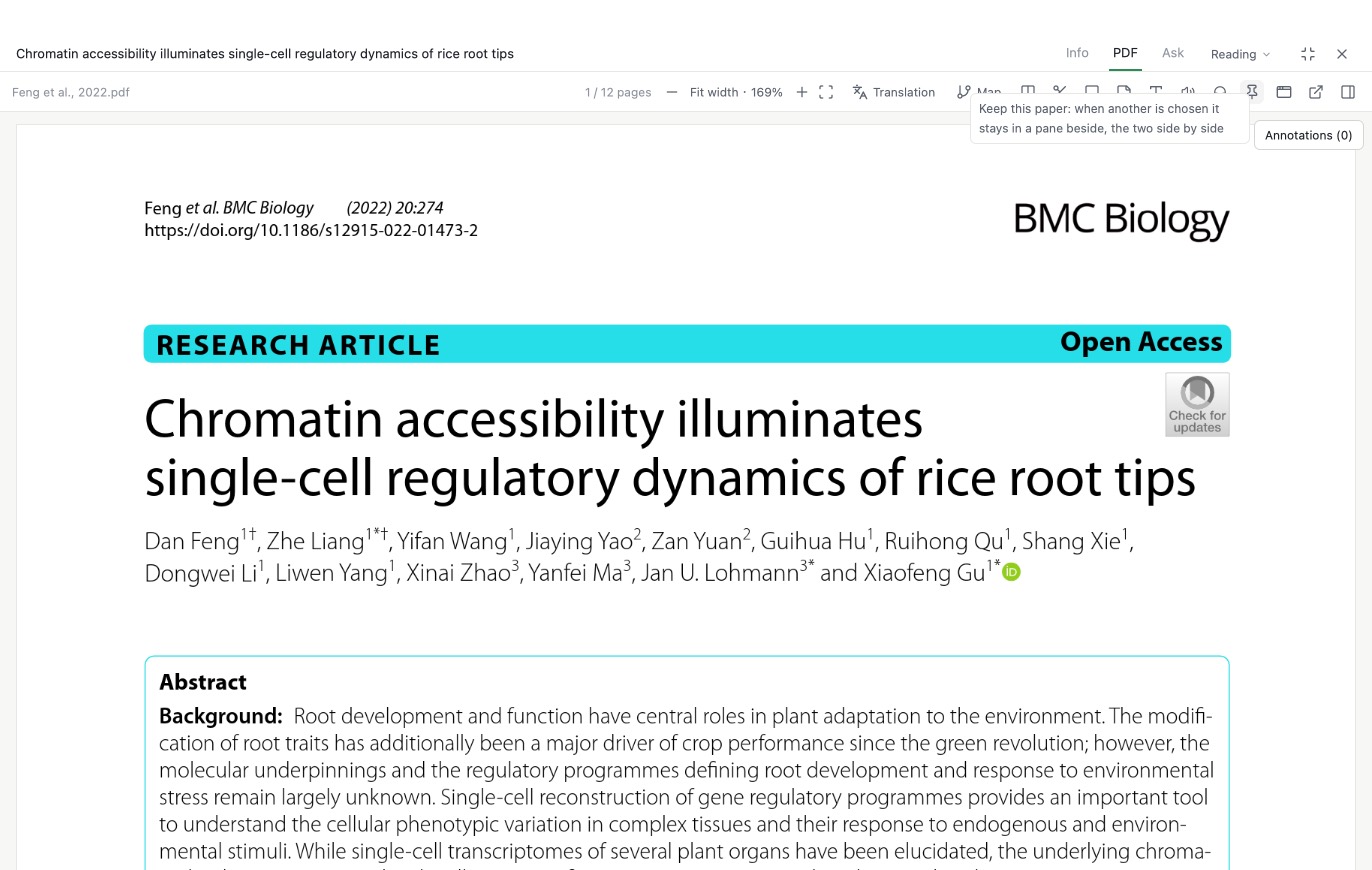
Click “Keep beside”. The window returns to the paper list, the pushpin lights up, and a hint at the top says “This paper is kept. Choose another in the list and the two stand side by side.” Now click the wheat paper in the list and the two fill the window side by side: the rice pane on the left, the wheat pane on the right. Another way is to right-click a paper in the list and choose “Open in a pane beside” from the menu. According to the feature description, up to 3 papers can be kept beside; this example puts only two side by side.
What is kept is the paper that is open, so once you have kept it, pick the next paper directly in the list. If you press Esc to close it first, the mark is gone and you have to keep it again.
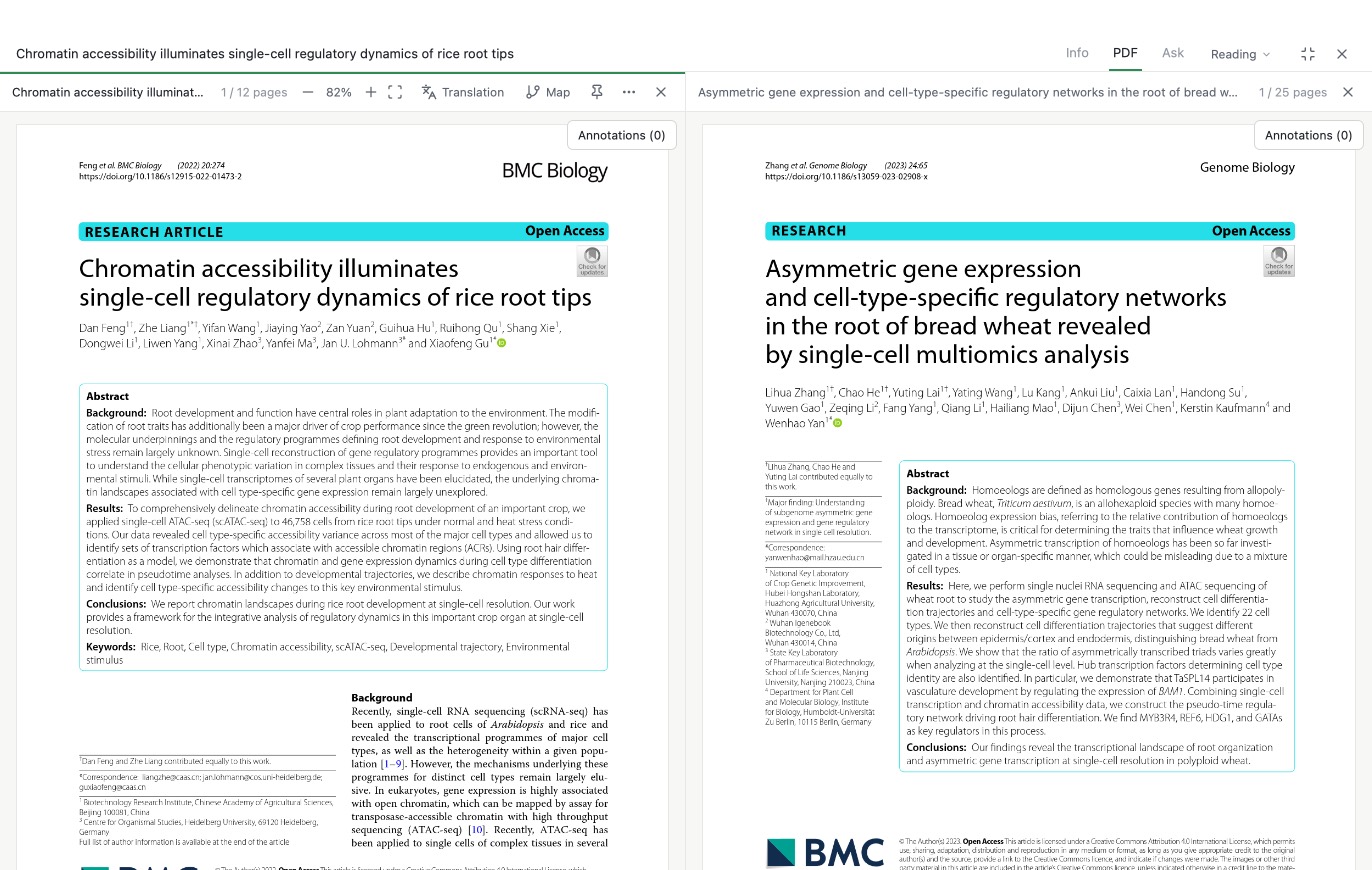
Each pane beside has only one line on top: which paper, which page, and a × at the right end to close the pane. This line is the same height in every pane, so the pages start from the same line. The toolbar of the current pane is also trimmed down: page number, zoom, “Translation”, “Map”, the pushpin, and the other buttons are under ⋯. While the papers are side by side, the top right corner of the window shows the restore icon. Click it or press Esc to leave.
3The current pane: it changes only when you click
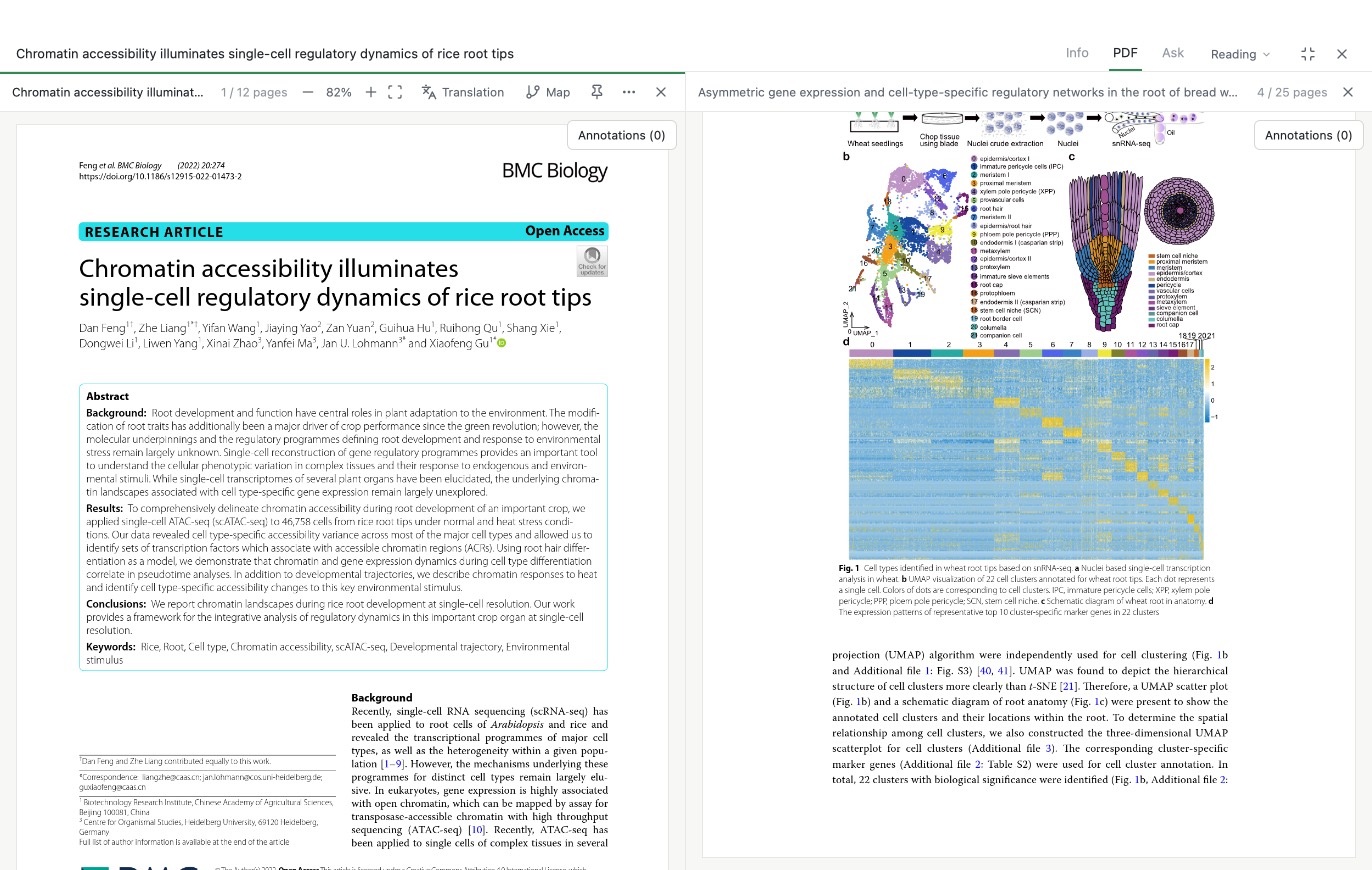
One of the panes is always the “current pane”: it has a green line on top, and the PDF toolbar, the shortcuts, the title at the top of the window and “Info” all follow it. Click once in the rice pane on the left, and the green line and the toolbar move to the left, and the title at the top changes to the rice paper. The wheat pane shrinks to one line, and the page numbers and zoom of every pane stay as they were.
Scrolling another pane to take a look does not change the current pane. In Figure 3, the current pane is the rice paper on the left, and the wheat paper on the right has been scrolled to its Figure 1. The page number at the top of that pane changes to “4 / 25 pages”, while the green line and the toolbar stay on the left.
4Layout: choose how to read in one step
The drop-down button to the right of “Info”, “PDF” and “Ask” at the top of the window is “Layout”. While papers are side by side, the button shows the one in use. Opening it gives four: “Reading” shows only the original; “With translation” gives each paper its own translation; “Ask” puts the conversation on one side and the original on the other; “Close reading” fills the window, with the original and the translation one above the other and the conversation on the right. When several papers are side by side, each gets an equal share, and the menu does not state a column ratio.
With translation
Choose “With translation”. Each pane is split into two halves, the original on top and the translation of the same page below; in a window this wide there is no room for four panes in a row. Only one paper is translated at a time: the current pane starts first, and its toolbar shows the progress and “Stop”. In the line of the pane beside it, “Continue translating” appears; click it and its progress is shown in that line too. The rice paper has 122 paragraphs and the wheat paper 219. The translation here is made by the stand-in model “Claude” (claude-opus-5-5), and the translation instruction names Spanish as the target language, so the lower halves read Spanish. Translated paragraphs are saved in the library and shown directly the next time you open the paper.
Close reading
After both papers are translated, switch to “Close reading”: the two panes on the left each show the original on top and the translation below, and the conversation is on the right. While the conversation is still empty, it says “Ask about these papers” at the top, with a note that the answers rest on the records and full texts of these papers and three comparison questions listed below: “How do the research questions and methods of these papers differ?”, “Do their conclusions agree? Where do they support each other, and where do they differ?”, “Compare these papers in a table: subject, methods, data and main findings.” Click one to send it.
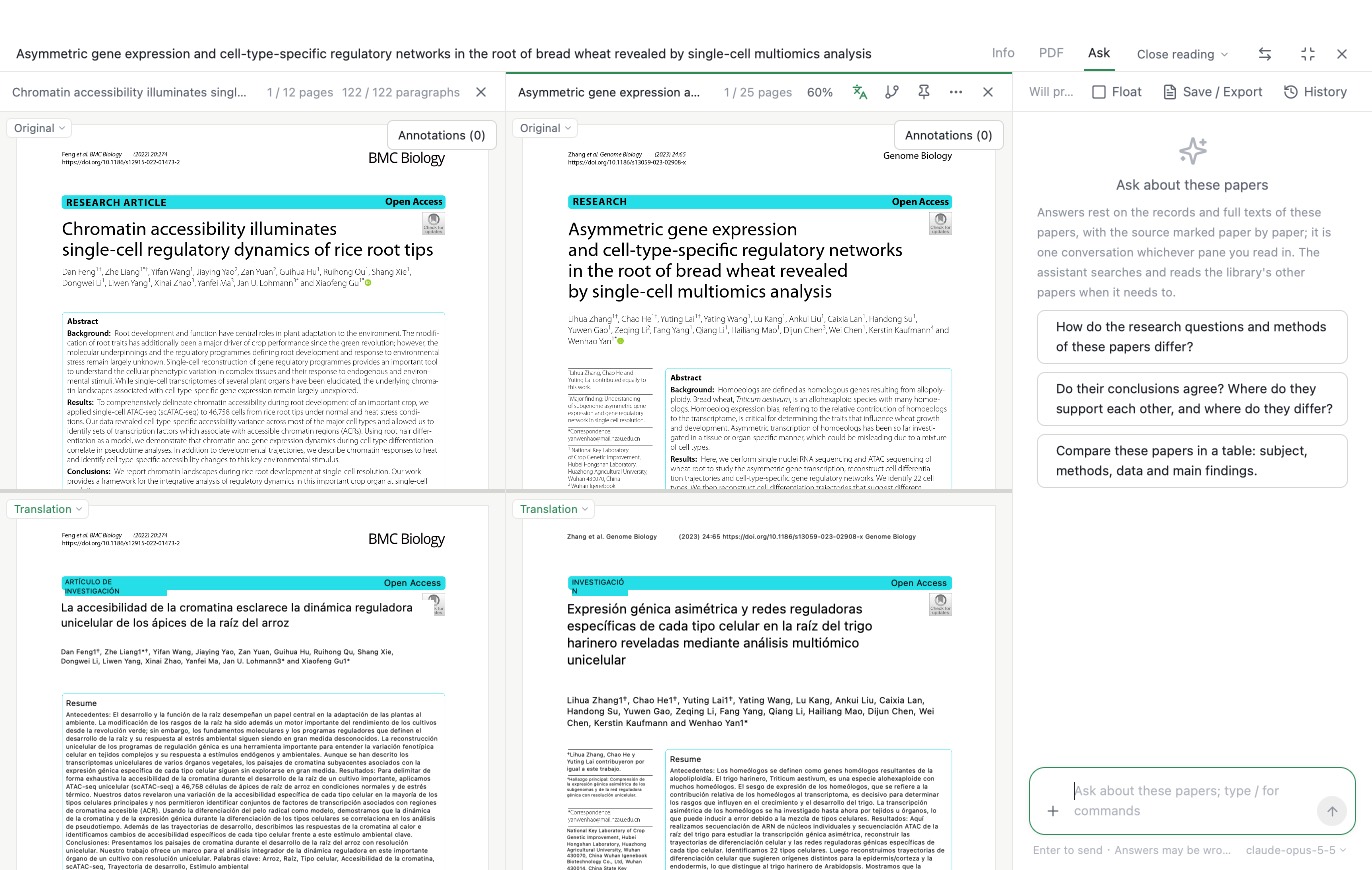
Both papers are on page 1 here because that is where each was last read (see section 7).
5Ask about several papers together
Switch to the “Ask” layout. The conversation is on the left, the two originals are on the right, and there is no paper list. Type in the box:
AskWhat material and sequencing method did each paper use and what do their conclusions share
Above the conversation it says that the records and full texts of the two papers go with the question, so they are sent to the model provider you set up (here the stand-in “Claude”, claude-opus-5-5). In the answer the two papers are numbered P26 (rice) and P30 (wheat). It first sets the two side by side in a table with the rows Material, Assay and Main result: P26 uses root tips of the cultivar Nipponbare with scATAC-seq on 46,758 cells under normal and heat stress conditions; P30 uses root tips of the variety Aikang 58 with snRNA-seq and snATAC-seq of nuclei, and finds 22 cell types and asymmetric expression of homoeologs. Below the table, each paper has a line with a quoted sentence about its material.
The part on what the papers share and where they differ is the most useful. What they share is the aim: a cell-type atlas of the root that is then used to follow differentiation along a trajectory, and each paper has a conclusion quoted from its own text. Where they differ, the answer says that the rice paper adds a heat stress comparison and the wheat paper adds the comparison between its subgenomes. Put the two quoted conclusions next to each other in their panes and you can judge for yourself how far they can be stated together.
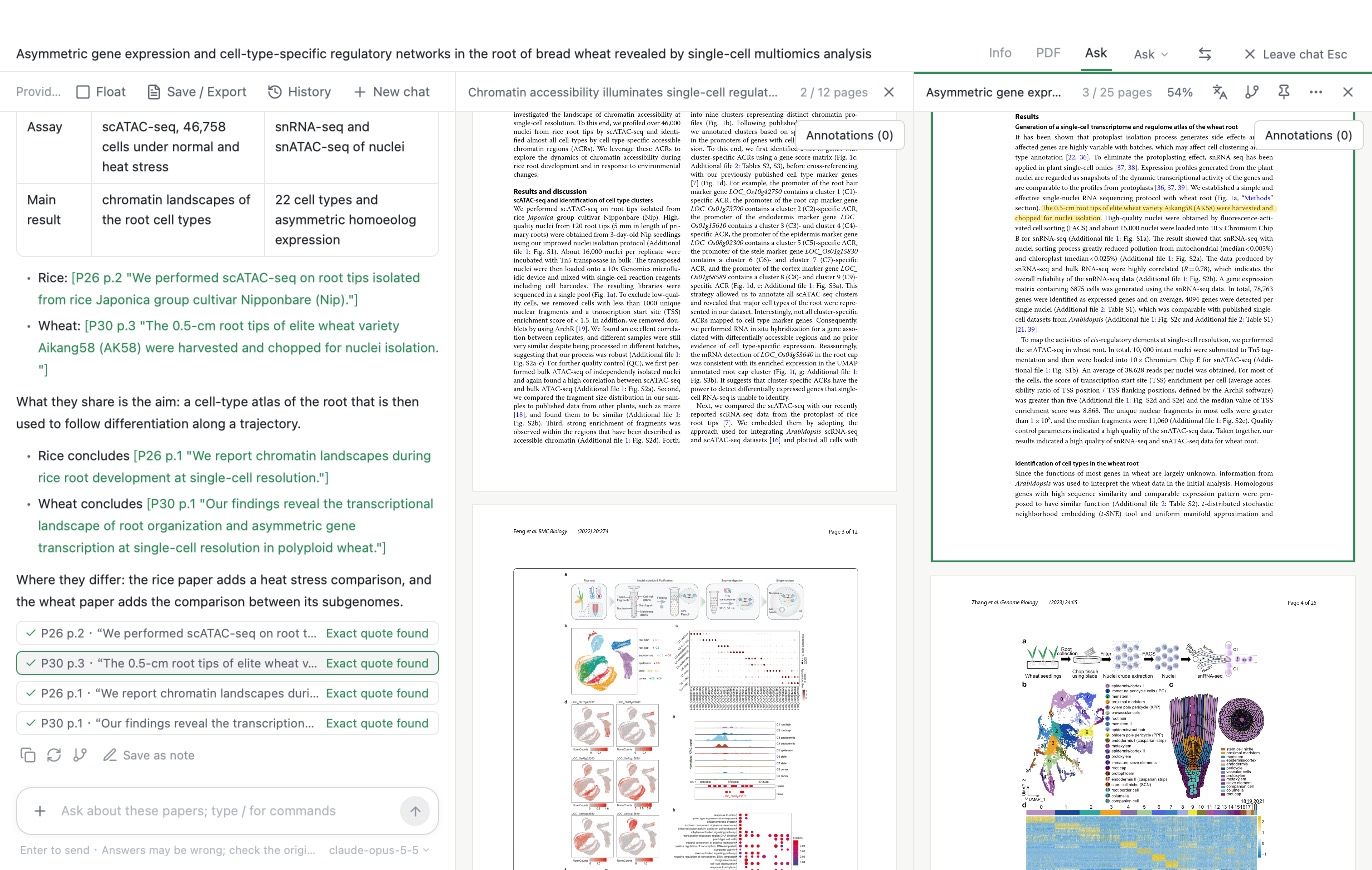
Below the answer are the source cards. Each shows which paper, which page and one sentence of the original, and a checked one has “Exact quote found” at its right end. Click the “P26 p.2” card: the rice pane becomes the current pane and jumps to page 2, where the sentence “We performed scATAC-seq on root tips isolated from rice Japonica group cultivar Nipponbare (Nip).” is cited. Then click the “P30 p.3” card: the wheat pane jumps to page 3 and marks the sentence about the 0.5-cm root tips in yellow, while the rice pane stays on page 2. Each paper is checked in its own pane, with no flipping back and forth.
Whichever pane you read in, it is the same conversation, and in History it is stored under these two papers together. Adding or removing a pane starts a new conversation.
6Open a separate window
If you want to read the full text of the rice paper while looking at other papers in the library, click “New window” on the PDF toolbar. The paper moves into a separate window, and the library window returns to the list. Click the wheat paper in the list and its “Info” opens on the right as usual. The two do not disturb each other.
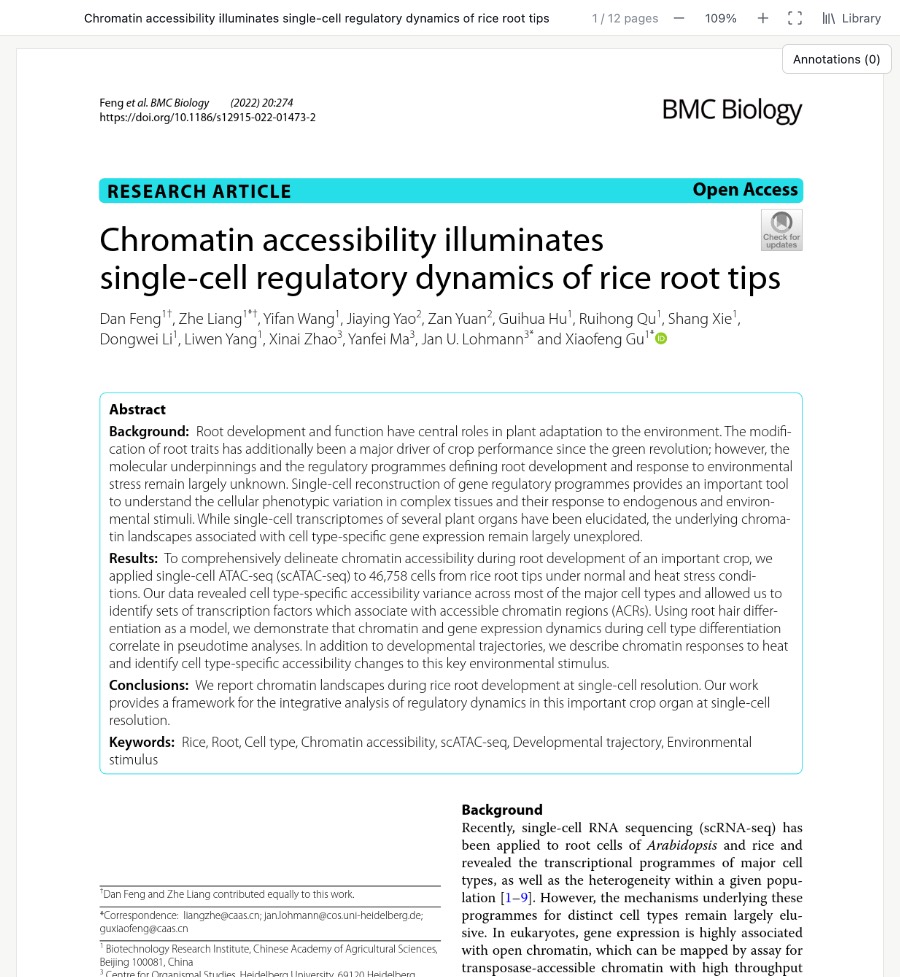
The top of the reading window shows the title, page number and zoom, and “Library” opens this paper in the library window. The toolbar here has no “Translation”: translation cannot be turned on in the reading window for now. To see a translation, go back to the library window.
7Back, forward, and staying where you were
You can also go back and forth when the papers are not side by side. Read the rice paper in the detail panel and turn to page 3, then switch to the wheat paper in the list. Press ⌘ + [ (Ctrl + [ on Windows) to go back: you return to the rice paper and the PDF still stands at “3 / 12 pages”. Press ⌘ + ] to go forward and you are back on page 1 of the wheat paper.
It is not only back and forward: every paper opens again where you last left it. Clicking a source card in section 5 jumped to page 2 of the rice paper, and after that, whether you open it alone or side by side again, it starts from page 2.
8Find the conversation again in History
The next time you put the two papers side by side and switch to “Ask”, the conversation is empty. Click “History” above the conversation. The title is “Past conversations about these papers”, the switch above reads “These papers”, and below it the conversations are grouped by day. In this run two questions were asked of the two papers together, in two conversations. Both are under “Today”, each with the time and “1 questions”. Click a line and the answer and the source cards come back as they were, and you can keep asking. To ask the second question in a new conversation, click “New chat” above the first one; it is then saved to History.
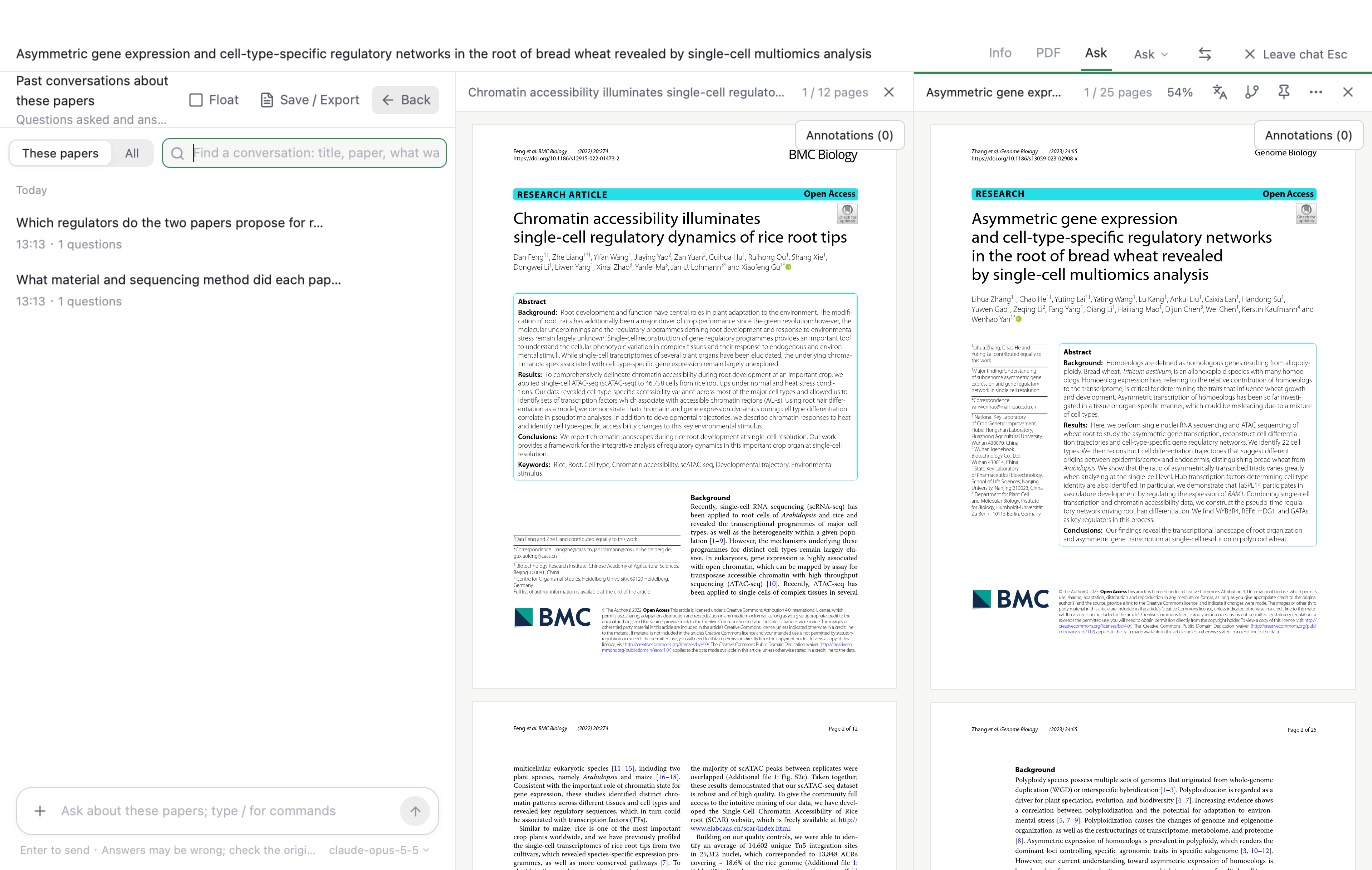
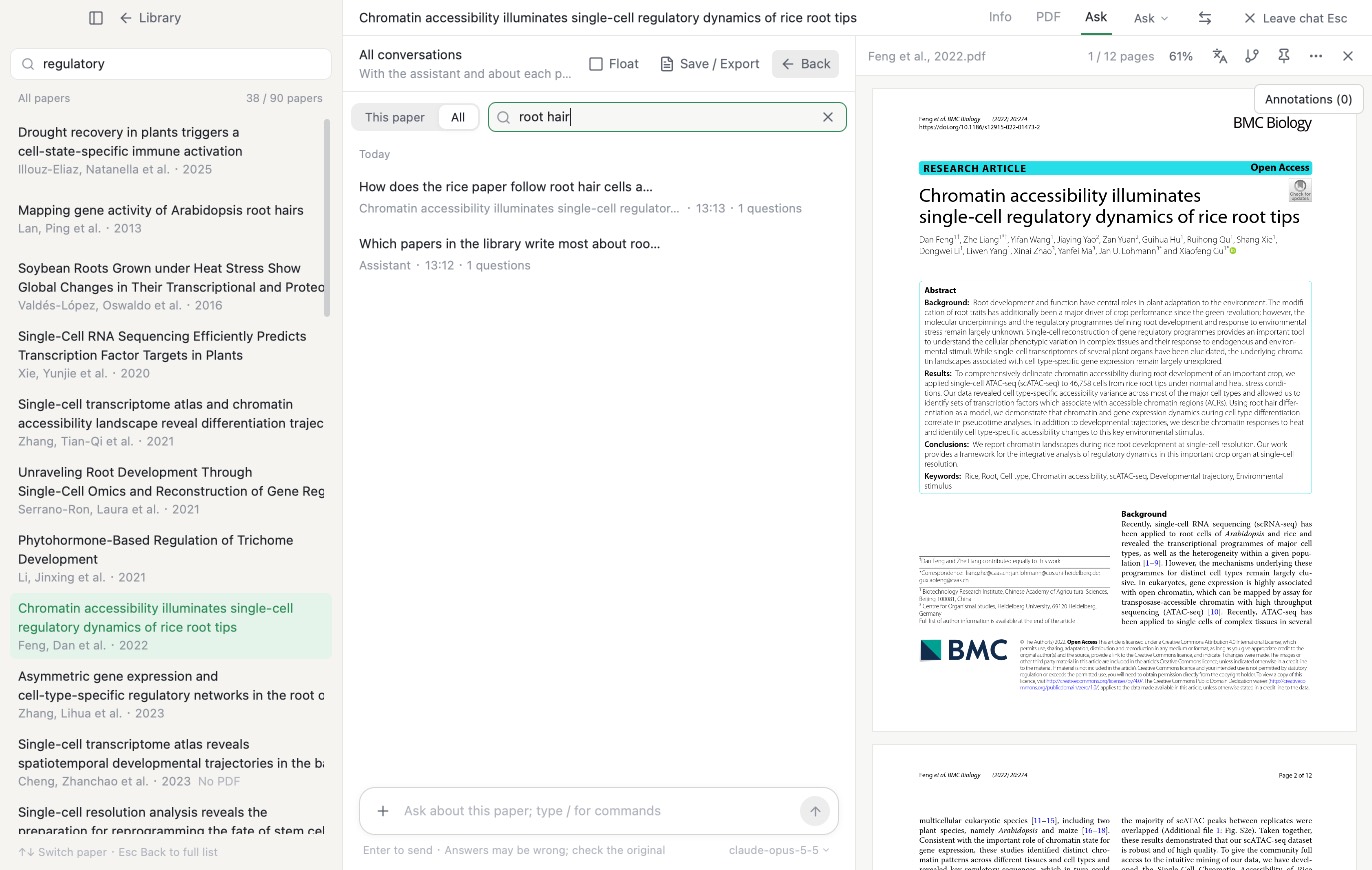
With only one paper open, the switch reads “This paper”, with “All” beside it. “All” lists the library's conversations with the assistant and with each paper, and under each line it says which paper it belongs to (or “Assistant”). Conversations held with several papers side by side are not among them; to find those, open “History” while the papers are side by side. The search box searches title, paper and what was said: type “root hair” and only one question about the rice paper and one to the assistant remain. The conversation about regulators asked of the two papers together is not among them.
A conversation uses its first question as its title by default. When that is too long to find, use “Rename…” on the line. The “Rename conversation” dialog opens with the old title in the box; change it and click “Rename”. Under the box it says “Leave it empty to use the first question as the title.”
Recap
- Put several papers side by side with “Keep beside” or with right-click “Open in a pane beside”. A pane beside has a single line; click × to close it.
- The current pane changes only when you click; scrolling another pane does not change it. The green line, the toolbar and “Info” follow the current pane.
- “Layout” chooses how to read in one step: “With translation” gives each paper its translation, and “Ask” and “Close reading” put the conversation beside the papers.
- A question asked while papers are side by side is asked about those papers together, source cards jump to that paper's own pane, and each pane stays where it was.
- “New window” opens one paper alone, and “Back” and “Forward” move between the papers you have read. This conversation is under “These papers” in “History”; conversations about a single paper and with the assistant are under “All”.