
1Set up the voice first
The paper to listen to is Transcriptional landscape of highly lignified poplar stems at single-cell resolution, Genome biology, 2021, 22 pages, with its PDF stored in the library “Plant single-cell transcriptomics”. Type poplar stems in the search box above the list, click this paper and switch to “PDF”.
The voice for reading aloud and podcasts does not come from the model you assign to the assistant under “Tasks”, but from DeepSeek's speech service. If it is not set up yet, clicking “Read aloud” or “Podcast” brings up a notice instead of a voice:
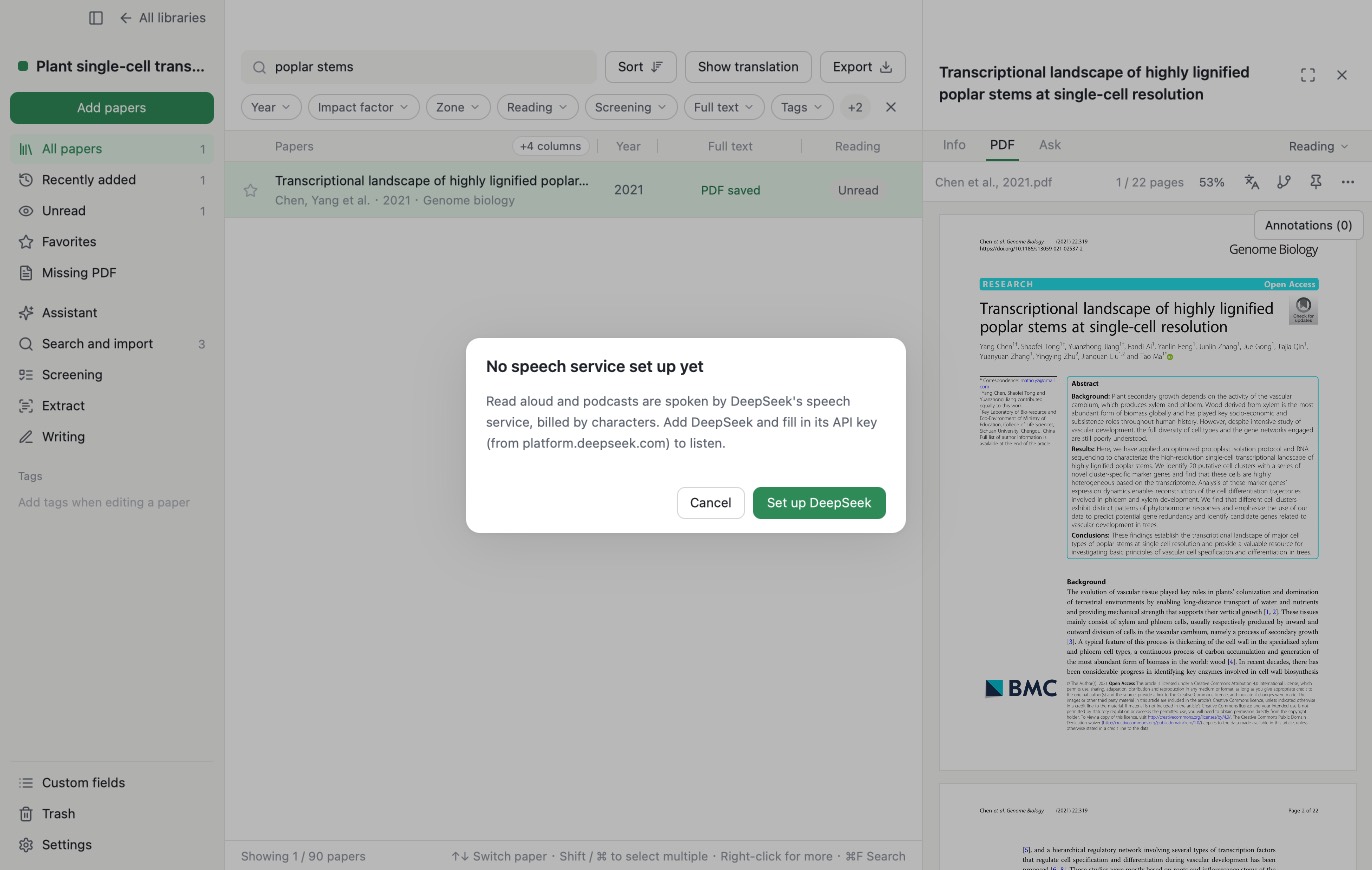
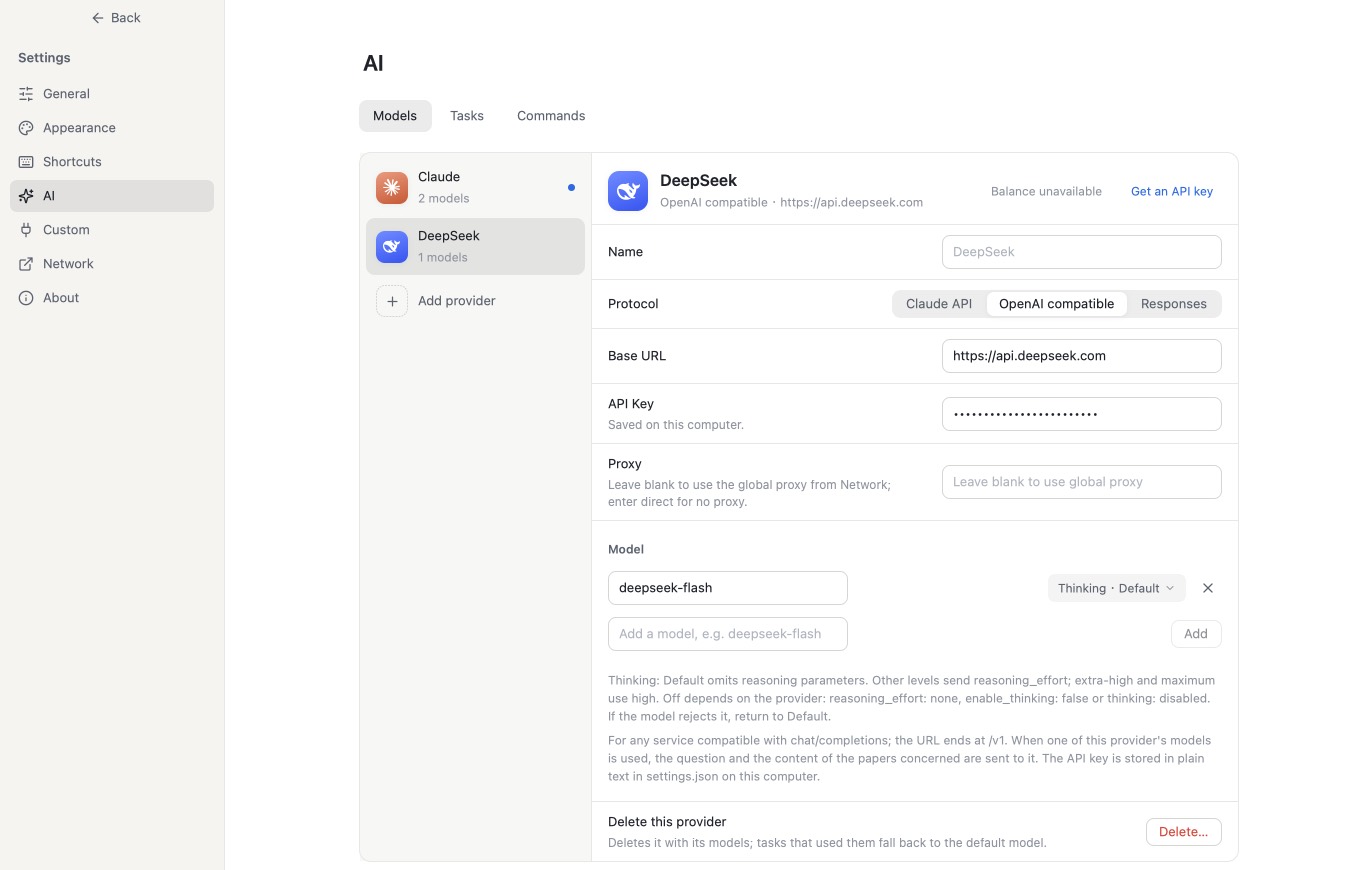
Click “Set up DeepSeek”. The window goes to “Settings › AI › Model”, where DeepSeek has already been added to the provider list on the left, with the URL https://api.deepseek.com and “No API key” below it. Get a key at platform.deepseek.com (“Get an API key” at the top right leads there) and fill it into the “API Key” field. “No API key” in the list becomes “2 models”, and under the field it says “Saved on this computer.” If DeepSeek is already added and only the key is missing, the button in the notice is “Fill in the API key”, and it lands in the same place.
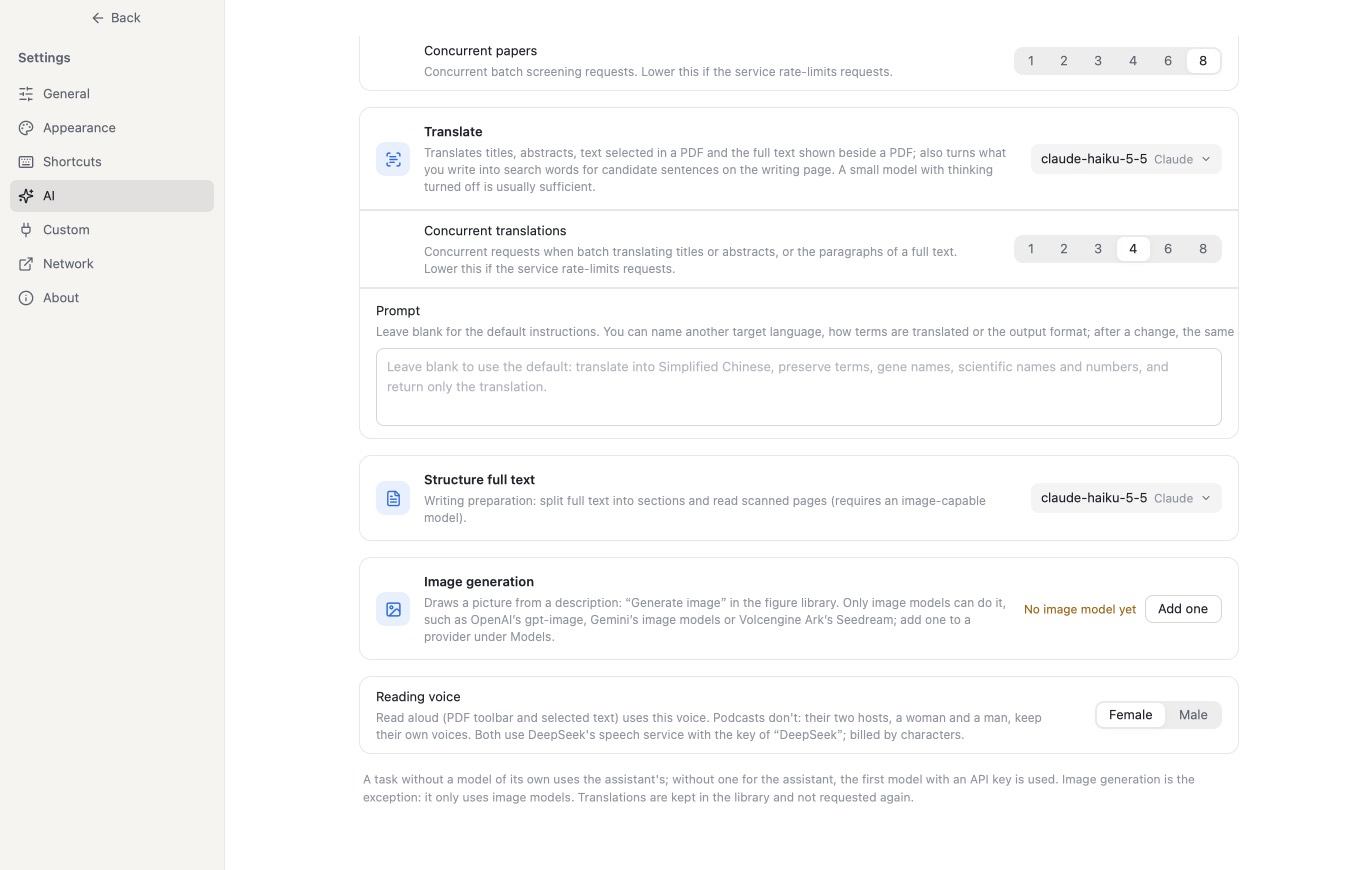
Choose the voice at the very bottom of the “Tasks” page next to it. “Reading voice” has two options, “Female” and “Male”, and the description says which provider's key is used and that it is billed by characters. This setting governs “Read aloud”. The two podcast hosts each use their own voice and are not affected by it.
2Read aloud: from this page to the references
When the detail panel is narrow, the PDF toolbar has room for only a few icons, and “Read aloud” and “Podcast” are tucked into the ⋯ menu. Press ⌘ + Shift + F (Ctrl + Shift + F on Windows, or click the expand icon to the right of the title at the top of the detail) to enter reading mode. The toolbar then has “Read aloud” with a speaker and “Podcast” with headphones.
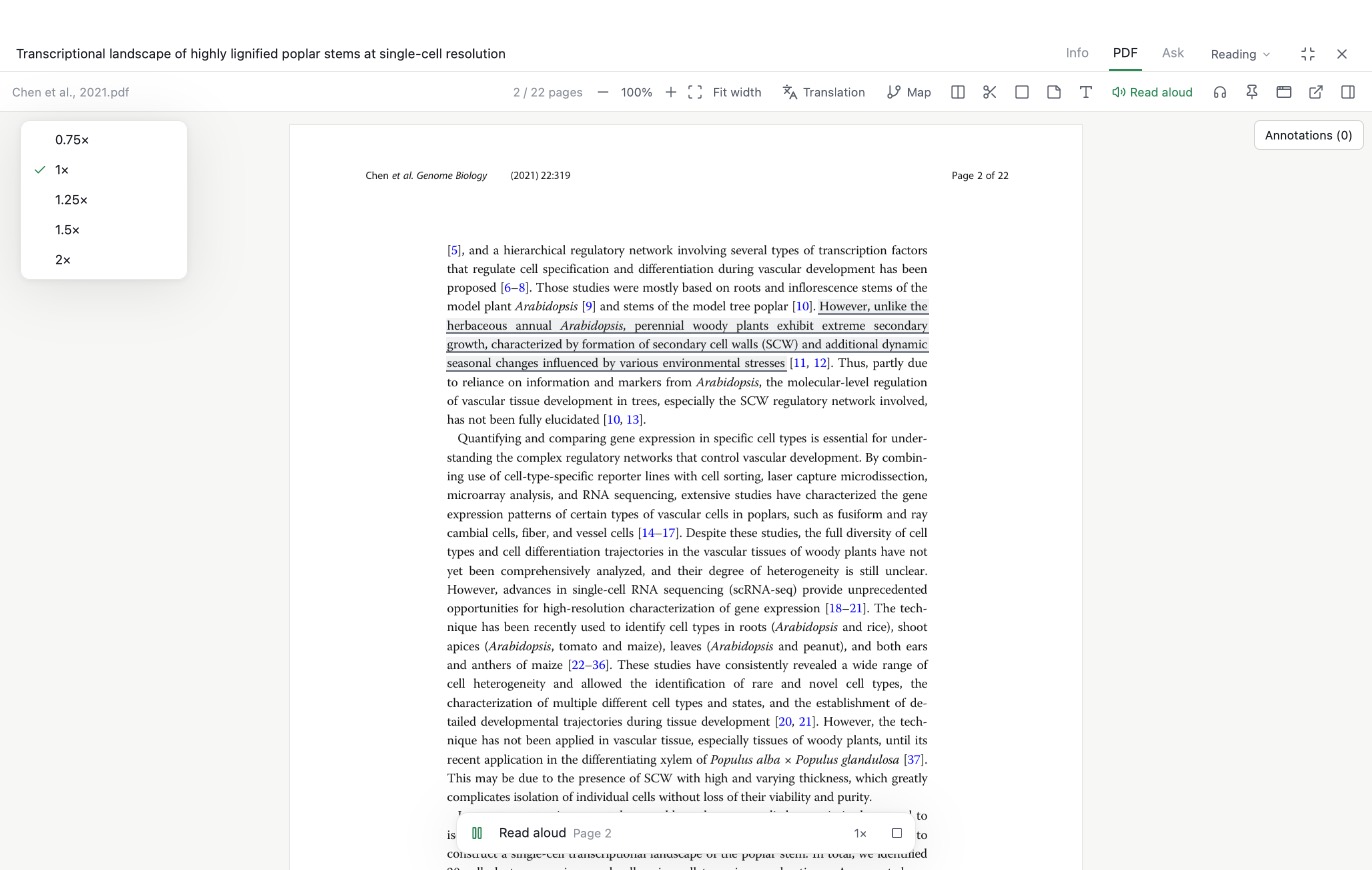
Reading aloud starts from the page you are looking at. In this example, scroll to page 2 first and then click “Read aloud”: “Read aloud” on the toolbar turns green and a player appears at the bottom of the PDF (Figure 4). The sentence being read has a thin dark gray line under each of its lines (over a very light gray underlay). When a sentence is finished, the line moves to the next one. It differs from the background of selected text, so you can tell them apart even if you select while listening. When the reading reaches the bottom of the screen, the page scrolls on its own and the sentence being read stays in view. After a page it goes on to the next, until it reaches the references.
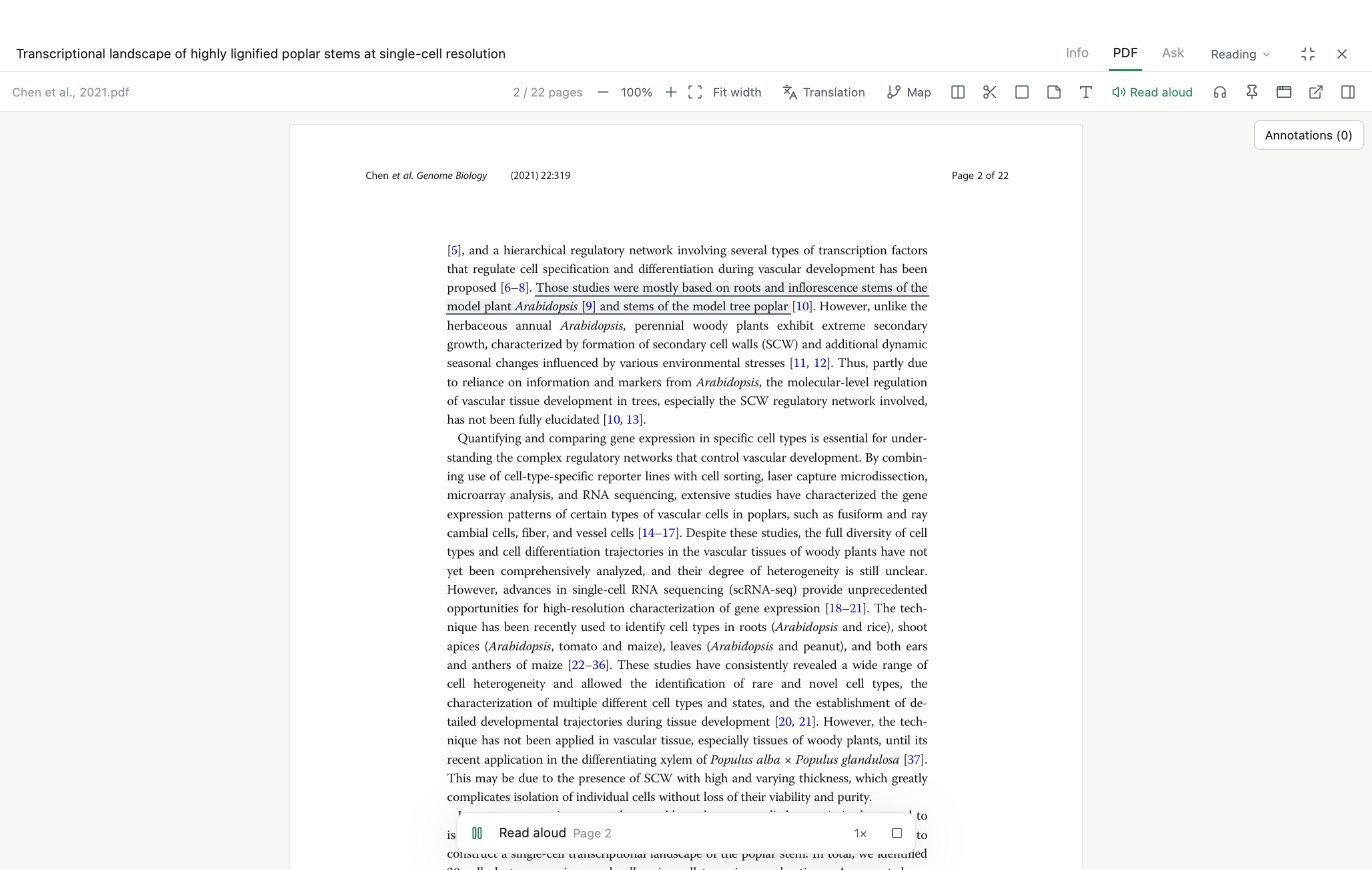
The player floats at the bottom of the PDF. On the left is pause, which becomes resume once paused; in the middle are “Read aloud” and “Page 2”; on the right are the playback speed and the stop square. The speed is 1× by default, and clicking it lets you choose 0.75×, 1.25×, 1.5× or 2×. Click the square to stop: the player folds away and “Read aloud” on the toolbar goes gray again. Figure 5 shows the speed menu opened while the next sentence is being read.
Read only a selected passage
To hear just one passage, drag to select it on the page. In the row of buttons beside the selection, the last one is “Read aloud”, after “Copy”, “Underline”, “Highlight”, “Add to chat”, “Translate” and “Add to map”. This example selects the sentence on page 2 that begins “In total, we identified 20 cell clusters”.
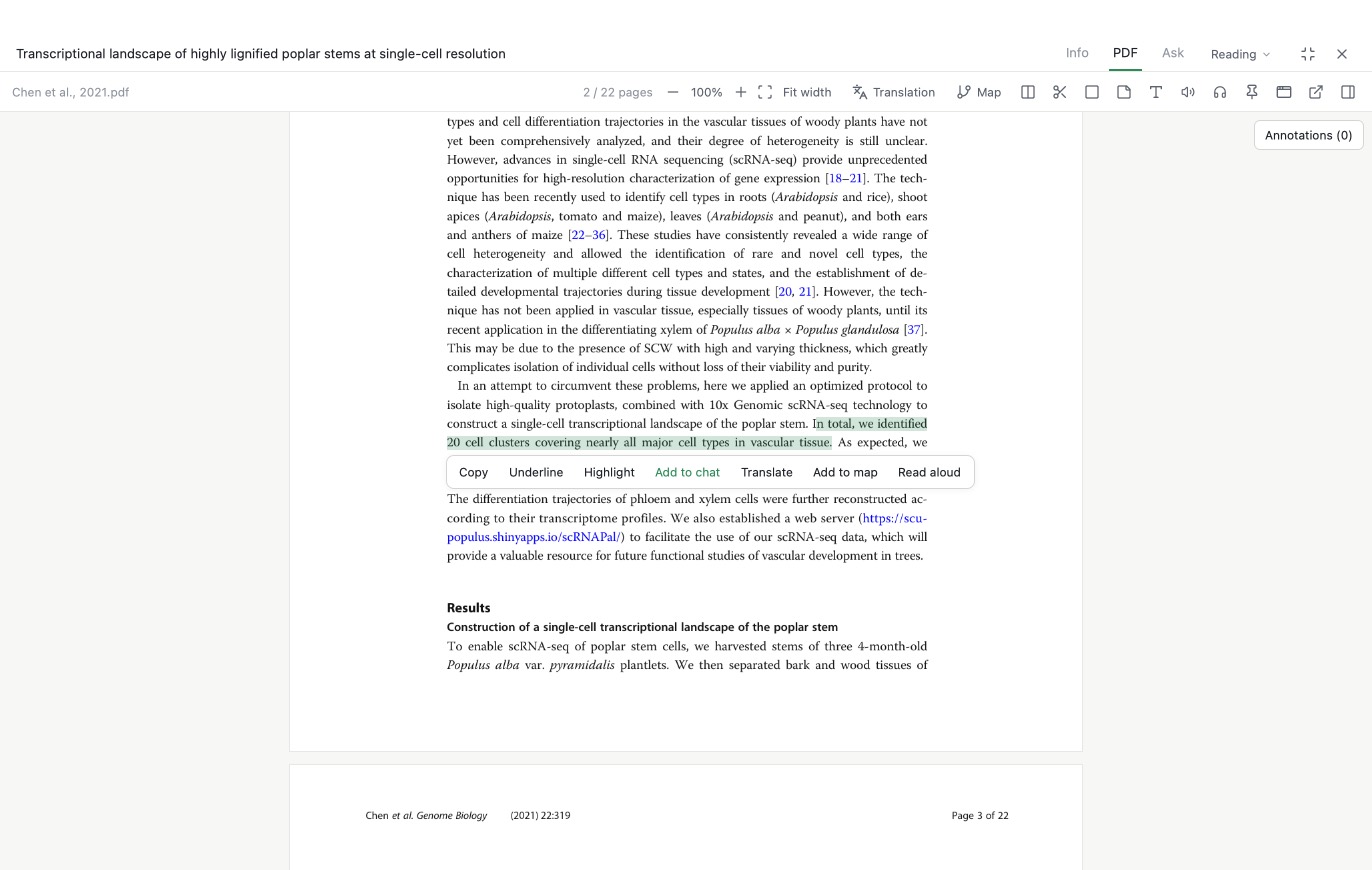
Click it and it starts reading this passage. The player says “Read aloud” and “Selection”. When the passage is done it stops and does not go on reading.
3Podcast: two hosts talk about the paper
Reading aloud recites the original sentence by sentence, which suits the times you want the author's own words. If you only want to know first what the paper says, click “Podcast”: the assistant's model writes a conversation script from the title, abstract and full text (up to the references). The female host, Xiaoxing (小星), and the male host, Achao (阿潮), talk about the background, methods, main findings, limits and significance, and then DeepSeek's two voices read it out, one for each.
You do not wait for the script to be finished. After you click, the model starts writing. As soon as it has written the first turn, playback begins and a player appears at the bottom of the PDF: pause or resume, “Podcast” with the turn being played (“Turn 2” in Figure 7), the speed, a “⋯” menu, a list icon, a stop square, and a progress bar with the elapsed and total time. The model keeps writing and each turn is read as soon as it is written.
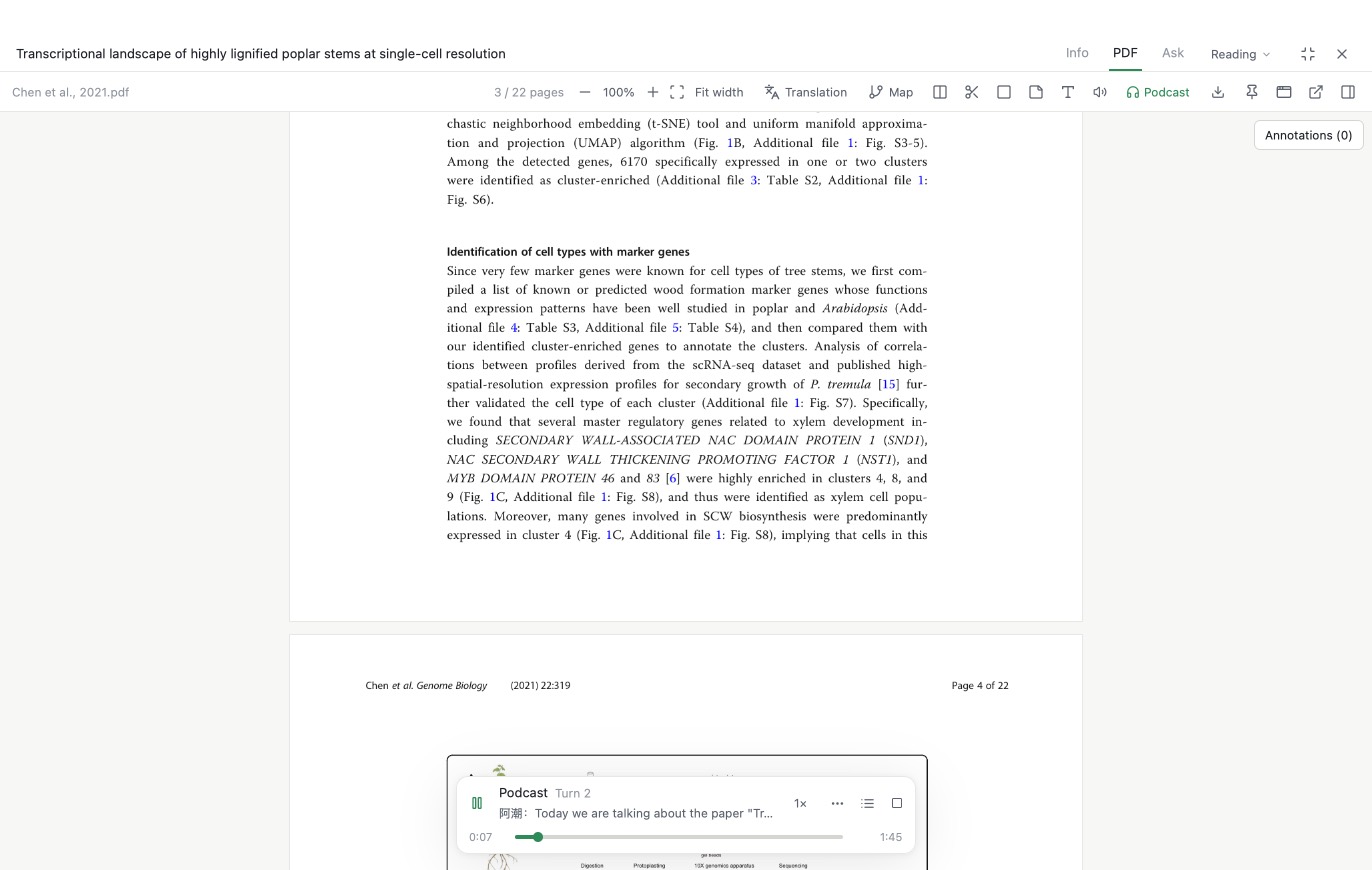
This time the model behind the assistant was a stand-in script, not a real model, and its script came to 20 turns. The app asks a real model for 30 to 50 turns; the stand-in builds a short one from the paper's abstract. It begins like this:
Podcast scriptXiaoxing: Hello everyone, welcome to this episode. I am Xiaoxing.
Achao: And I am Achao. Today we are talking about the paper "Transcriptional landscape of highly lignified poplar stems at single-cell resolution".
After the greeting, each of Achao's turns is one sentence of the abstract, in order, and Xiaoxing's turns are short questions, so this script says only what the abstract says. A real model writes a freer conversation, and its own remarks are its reading of the paper, so check them in the original. A podcast is for getting the gist first; check any number you want to cite against the original.
4Leave the paper and keep listening
After the podcast starts you can do something else. In this example, press Esc to leave reading mode and once more to close the detail, and the podcast does not stop. A bar floats up at the bottom of the window: on the left a pause button, then the title, the turn being played, and the sentence being spoken (with who is speaking). On the right are the speed, a “⋯” menu, a list icon and a stop square, and under them a progress bar with the elapsed and total time.
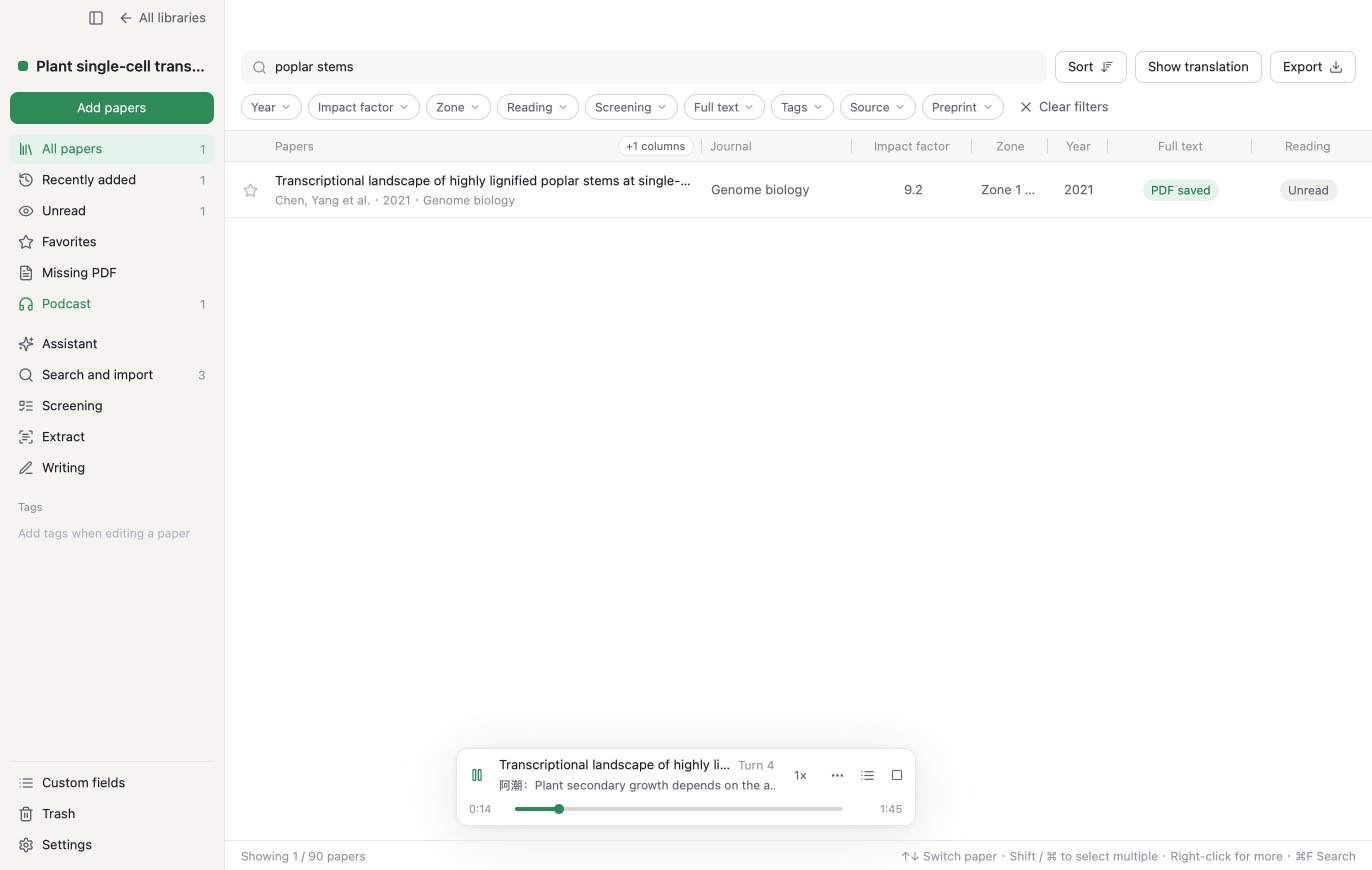
Click the text part of the bar to return to this paper's PDF. The square on the right stops the podcast, and the list icon is the playlist (section 6). As long as it is playing, the bar stays at the bottom and shows the round it has reached.
5The kept audio and script
Once all the voice is generated, the podcast is kept as two attachments of the paper: the audio as WAV and the conversation script as Markdown. The audio is generated ahead of the sentence being played, so the podcast is usually already kept before it has played to the end, and it goes on playing afterwards as before. If you stop midway or an error occurs, nothing is kept.
After it is kept, a download icon appears next to “Podcast” on the reading mode toolbar (it is in Figure 7). Clicking it opens a small menu: “Save podcast audio (WAV)…” and “Save podcast script (Markdown)…”. Choose one and save a copy anywhere in the save dialog that opens, for example to copy it to your phone and listen there.
Go back to the “Info” page and scroll down. Under “Attachments / supplementary material” you can see the two files, named “播客 - ” (“Podcast - ”) plus the title, among this paper's other attachments. In this run the audio is 4.8 MB and the script 2 KB.
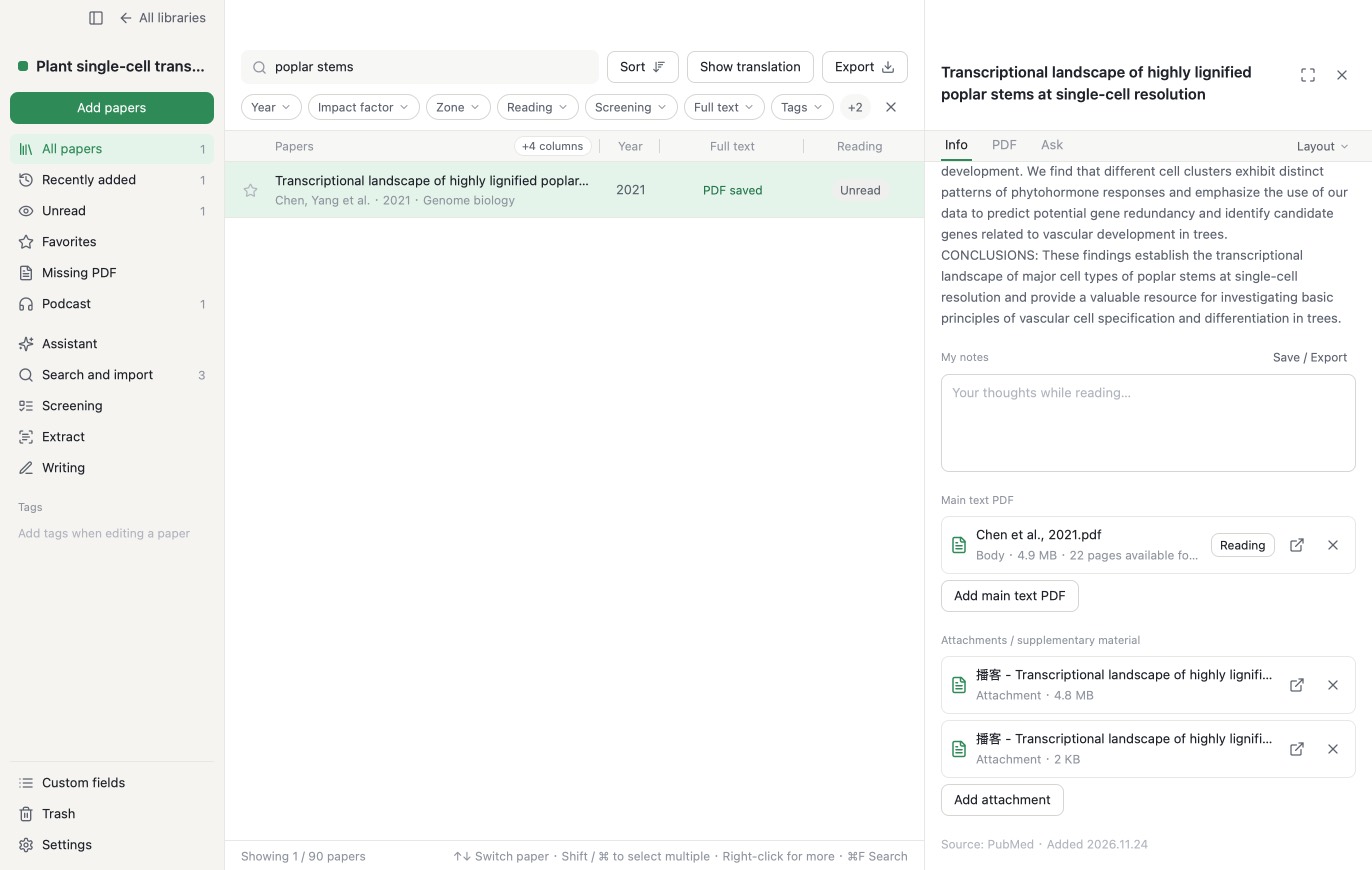
The script is the conversation as it was read out, a heading and then one paragraph per turn. The English interface still writes the heading and the host names in Chinese. Any text editor can open, copy and edit it:
# 播客:Transcriptional landscape of highly lignified poplar stems at single-cell resolution

**小星**:Hello everyone, welcome to this episode. I am Xiaoxing.

**阿潮**:And I am Achao. Today we are talking about the paper "Transcriptional landscape of highly lignified poplar stems at single-cell resolution".6“Podcast” in the sidebar: listen again
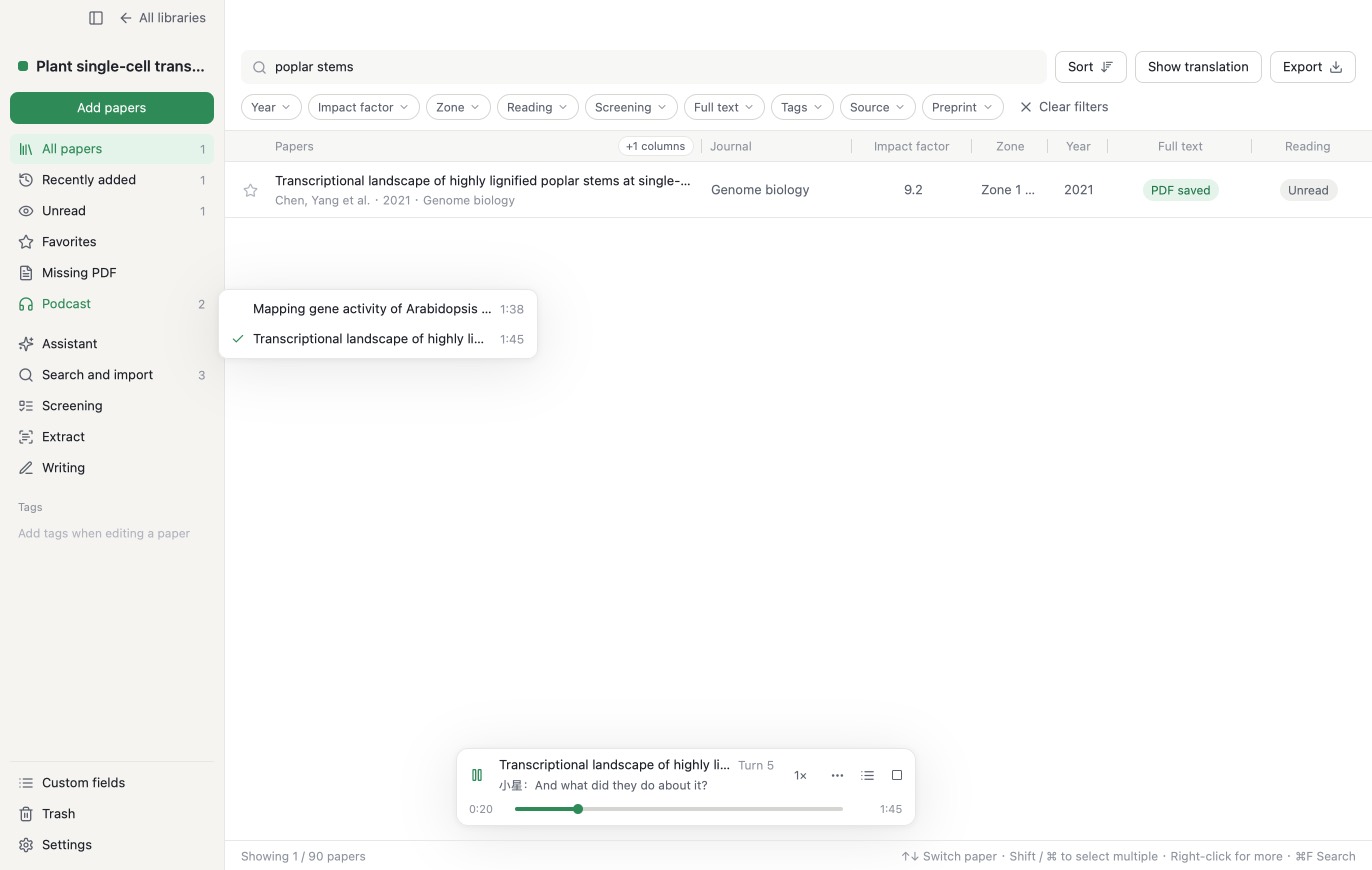
Once there is a first podcast, a “Podcast” item appears in the sidebar under “Missing PDF”, with the number of kept podcasts. When there are none, it does not appear. This example made one more for Mapping gene activity of Arabidopsis root hairs, and the number became 2.
Click “Podcast” and a playlist opens: one row per podcast, with the title and the length. Choose a row to play the kept audio. It requests no service and costs nothing. The floating bar appears as before, with the turn and the sentence being spoken, and clicking it likewise returns to that paper's PDF. Click the row that is playing to stop, or use the square on the right of the floating bar.
In this example the poplar stems podcast is the one playing. Opening the list shows a check mark before the row that is playing, and the length of each podcast after its title:
Recap
- Add DeepSeek under “Settings › AI › Model” and fill in the API key, and choose the reading voice at the bottom of the “Tasks” page. If it is not set up, clicking “Read aloud” leads you straight there.
- “Read aloud” reads from the current page to the references. It skips headers, footers, page numbers and the copyright and affiliations on the first page. The sentence being read has a line under it and the page follows along. Select a passage to read only that passage. The player at the bottom of the PDF handles pause, speed and stop.
- “Podcast” has the assistant's model write the script and two hosts talk it through, read as it is written. When you leave the paper, the floating bar at the bottom keeps playing.
- When everything is generated, the audio and the script are kept as attachments of the paper and can be saved elsewhere. “Podcast” in the sidebar plays them again any time, with no further charge.
- Next: when a paper has caught your interest, come back and read it closely; see Read one paper closely.