
1Define the fields to fill
A field is a column this library adds to every paper, and it belongs to the current library only. First decide the columns of the table.
Click “Custom fields” at the bottom left of the sidebar. When the library has no fields yet, the dialog has a button that adds a single-cell paper preset, four fields at once (species, tissue, sequencing type and sequencing platform), and you can change them from there. Each field has one of three types:
- Text: one line of text.
- Multiple values: a paper can have several values, for example species or tissue; you can filter by value.
- Single choice: it can only be one of a fixed set of options.
In this example the five fields were entered by hand instead of from the preset. “Material” is a single-choice field with the options “Protoplast, Nucleus, Both”. Click the pen icon at the right of a field to change it, and click “Save changes” when you are done.
It is worth filling in the last box, “Description”: the assistant reads this sentence when it extracts. In this example, “Species” got “The species studied, give the Latin name”, “Tissue” got “The organ or tissue the cells were taken from, for example root tip, leaf, inflorescence, seed” and “Material” got “Whether the cells were sequenced as protoplasts or as isolated nuclei, or both were compared”.
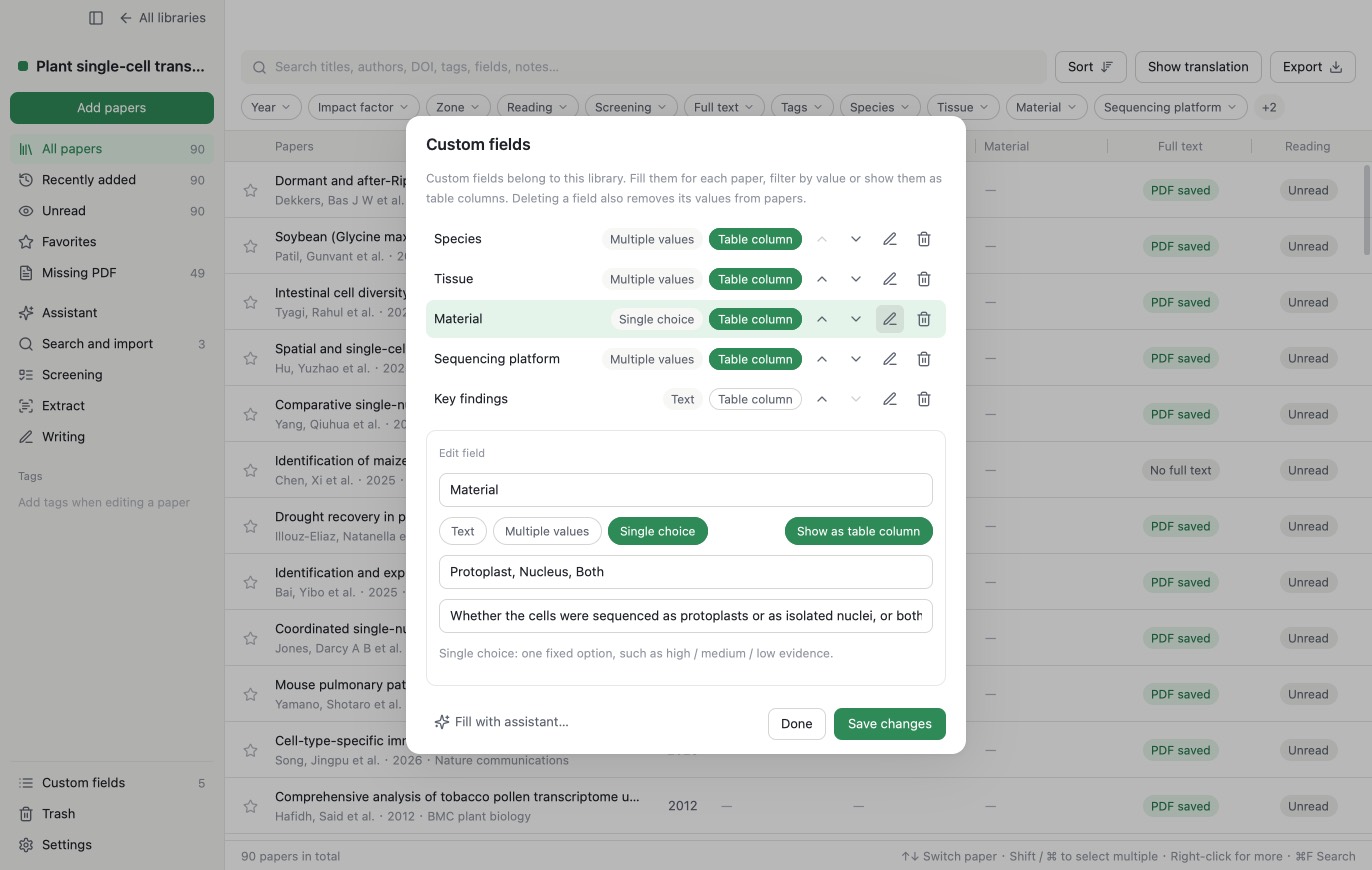
The fifth field, “Key findings”, is ready-made: a sentence or two on what the paper found. You do not have to define it yourself; one click in the dialog of the next step adds it when the library has no such field yet. Here it is already in the list, as a text field.
2Have the assistant read paper by paper
There are three places to start, with different scopes:
- Select several papers in the list (Shift or ⌘ click, Ctrl on Windows) and right-click “Fill fields with assistant…”: only the selected ones are read.
- Click “Fill with assistant…” at the bottom left of the “Custom fields” dialog, or the button of the same name at the top right of the “Extract” page in the sidebar: all the papers in the current list are read.
- Click ✦ beside a field in the details of one paper: only that one item of that one paper is asked.
In this example, “Fill with assistant…” was clicked under “All papers” after searching for “Arabidopsis”, so the list is those 33 papers. The dialog lists all the fields, all ticked by default; when there is no “Key findings” yet, there is a row “Add this field” here.
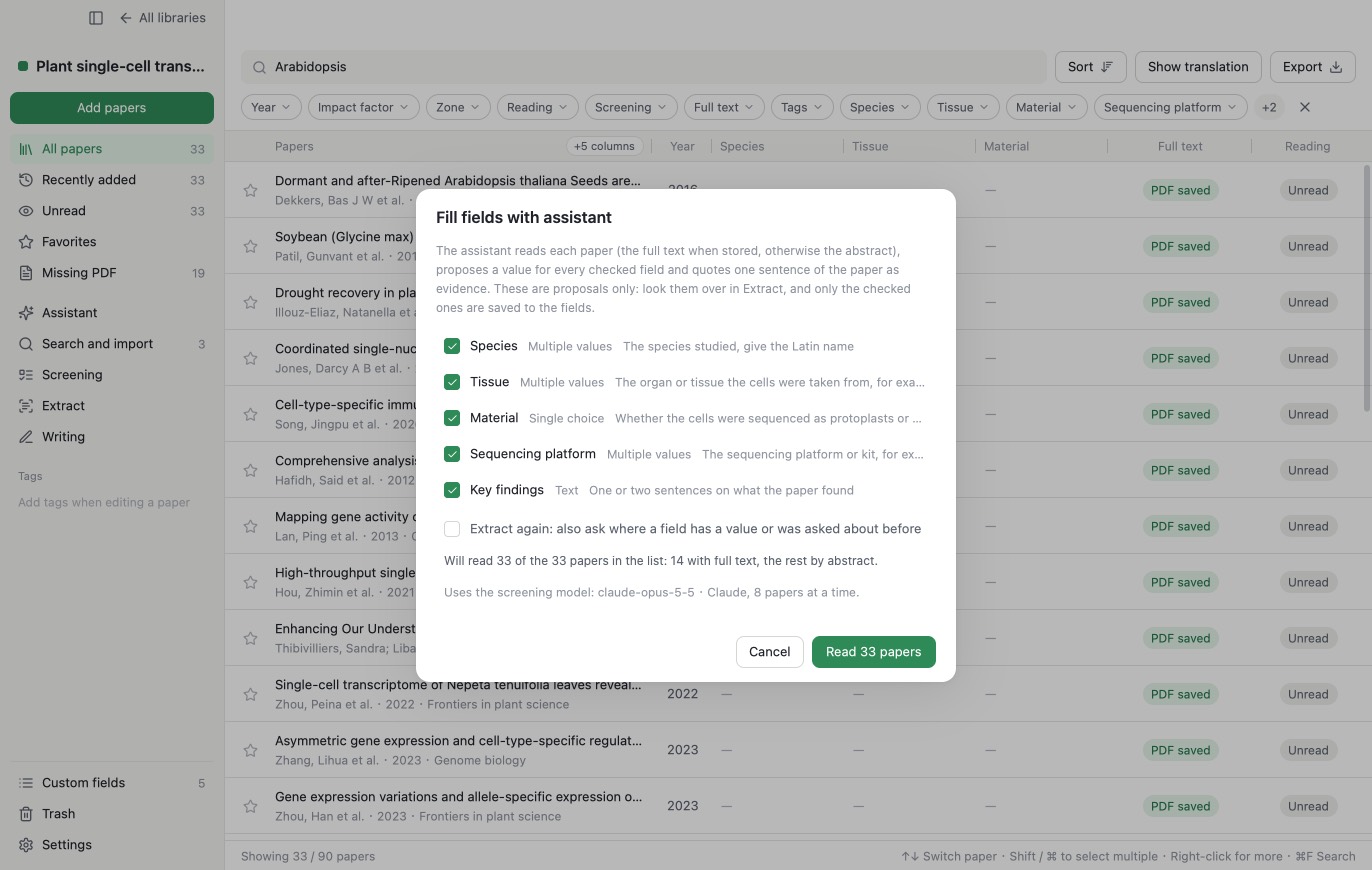
This time it says “Will read 33 of the 33 papers in the list: 14 with full text, the rest by abstract.” Fields already filled in or already asked about are not asked again; to ask once more, tick “Extract again”. Click “Read 33 papers”.
While the assistant reads, the sidebar shows an “Extracting fields” progress bar below, the top of the “Extract” page lists the papers being read, and the values it proposes appear below as they come. You can switch to other pages and work, or click “Stop”.
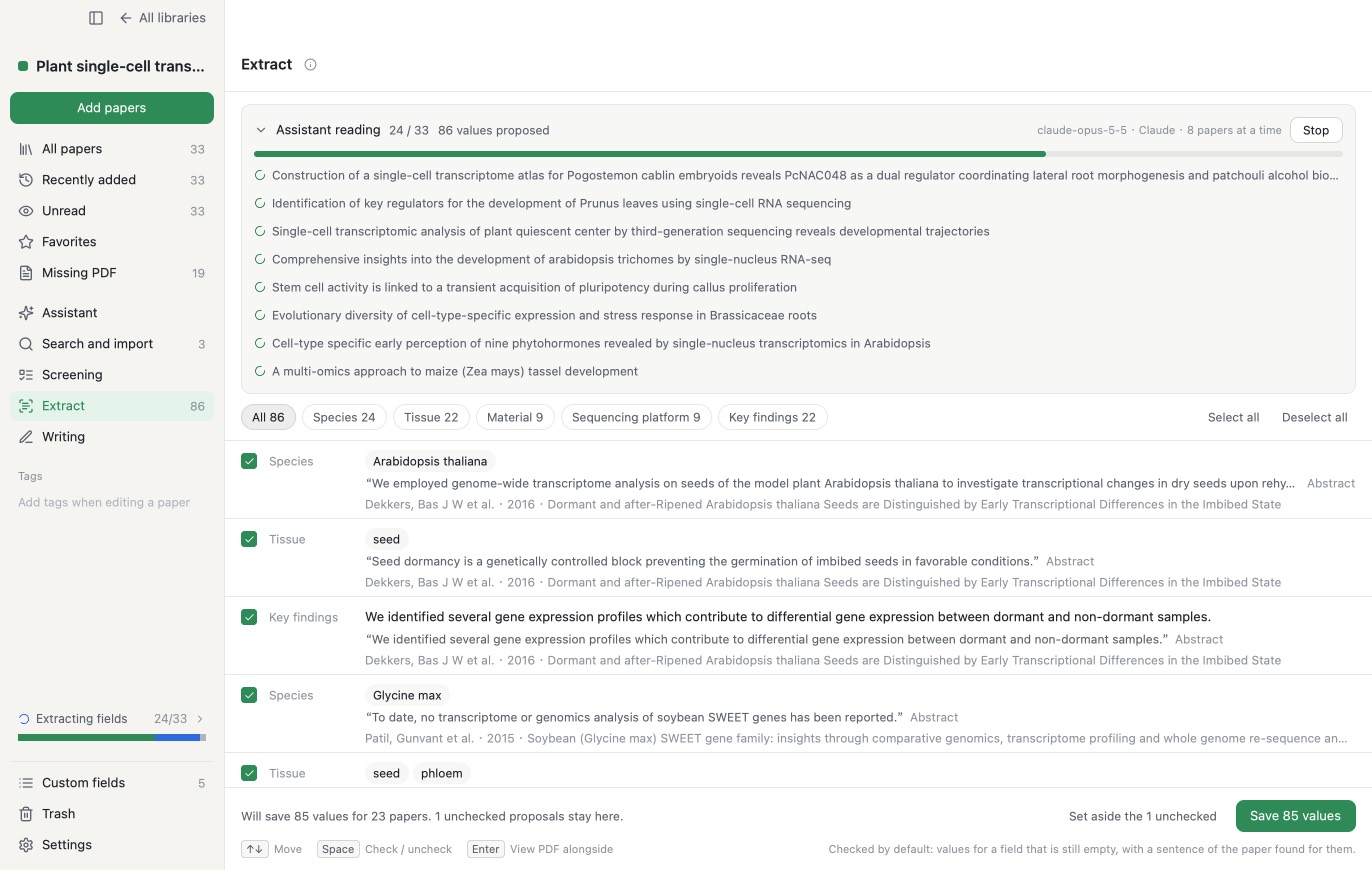
A paper that could not be read does not interrupt the run. When a run has stopped and some papers were not read or not reached, “Retry N with…” appears on the progress bar; it lets you choose another model to read only what is left, and the choice is used just this once. In this example all 33 papers were read, so it was not needed.
3Look over: does the quoted sentence fit
When it has finished, a row of the “Extract” page is one field of one paper: the value, the sentence in the original, and the paper it comes from. If the sentence is in the full text, the page number is on the right; click it and the PDF turns to that page with the sentence highlighted. If it is only in the abstract, the right side says “Abstract”. The tabs above let you see just one field.
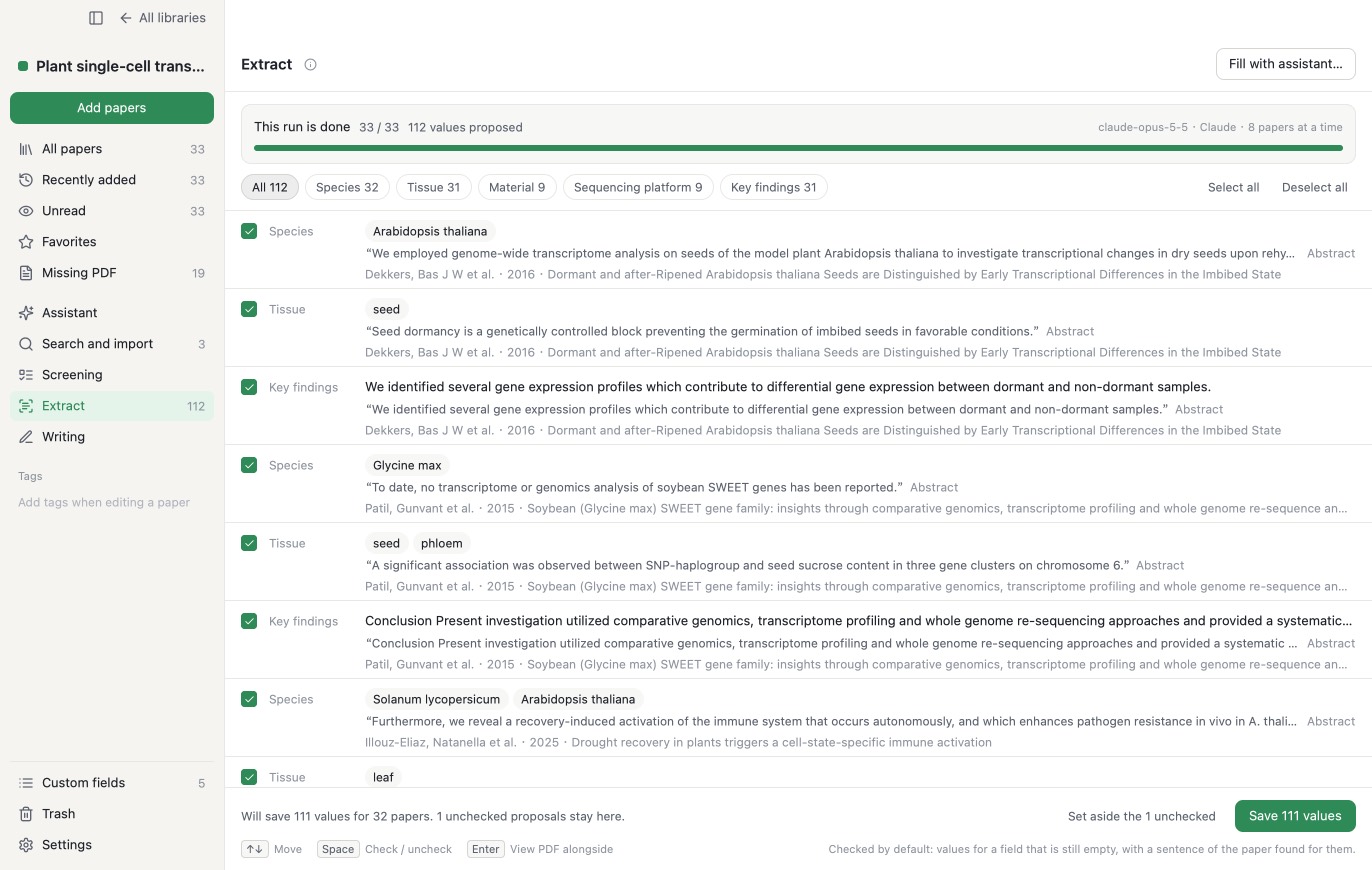
This run asked 33 × 5 = 165 items; the assistant proposed 112 values, and for the other 53 items its answer was none: it does not guess what the text does not say. For example, the two papers at the top of the list, on Arabidopsis seeds and on soybean SWEET genes, got a species, a tissue and a sentence on what they found, but nothing for “Material” or “Sequencing platform”. These empty ones do not show up on the Extract page; they are left for you to fill in.
What is ticked by default is a value for a field that is still empty and for which a basis in the original was found. Two cases are left unticked for you to judge:
- The field already has another value. The row says “Holds: … (will be replaced)”; for a multiple-values field it is “Has: … (added after)”, and saving keeps the existing values.
- There is no basis in the original. The sentence the assistant quotes must appear word for word in the abstract or the full text; if it cannot be found it does not count as a basis, and the row says “No sentence of the paper found for it”. In this example there is only one: the species of “RNA interference shapes stress responses in Arabidopsis thaliana”.
When the answer of a single-choice field matches none of the options, the row says “The assistant said “…”, not one of the options: pick one, or leave it”; you can pick one of the options or leave it unwritten. All 9 “Material” values in this example fall within the options, and the row shows the three options with the chosen one marked.
Even with a quoted sentence, look at where it was taken from. Open the “Material” tab: for the paper by Hou et al. the value is “Protoplast” and the basis is on “Page 13”. Click it, and the PDF turns to that page with the sentence highlighted: the paragraph of the methods that describes the protoplast digestion.
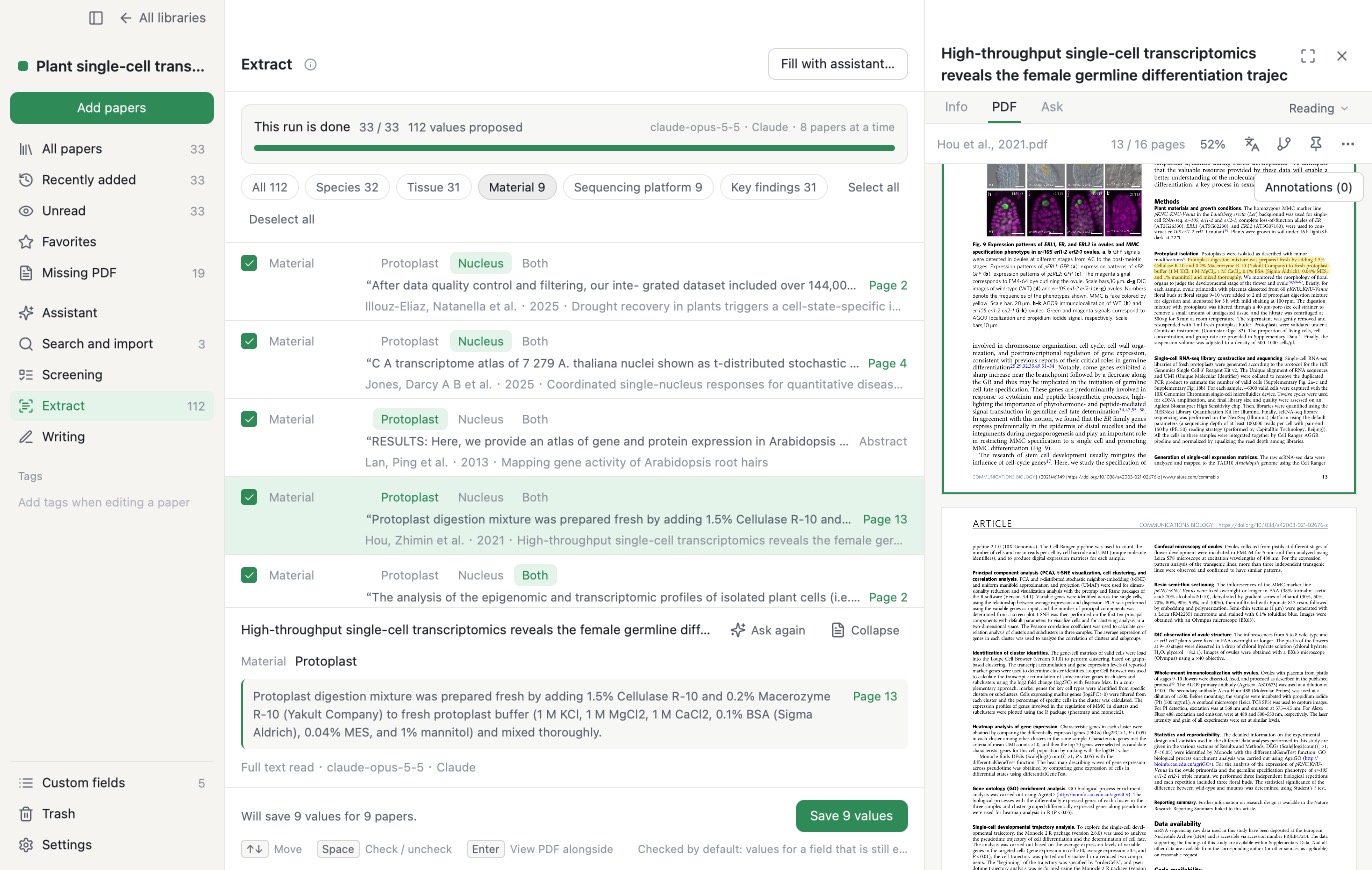
Other rows are worth opening too. A value can be right and its sentence still not say all of it. Nothing was unticked by hand in this run; two things to watch for:
- The sentence for “Nucleus” in the paper by Jones et al. (Page 4) is the label of a figure panel, not a statement in the text.
- The drought recovery paper has two species, but its sentence names only one of them.
Click the checkbox at the start of a row, or move with ↑ ↓, tick with Space, and press Enter to compare with the PDF on the right.
4Save, and undo
Until you click save, nothing has been written into the fields; what the Extract page shows are only suggestions. The bottom says “Will save 111 values for 32 papers. 1 unchecked proposals stay here.” Click “Save 111 values”. Saving is done in one step: either all of it is saved or none.
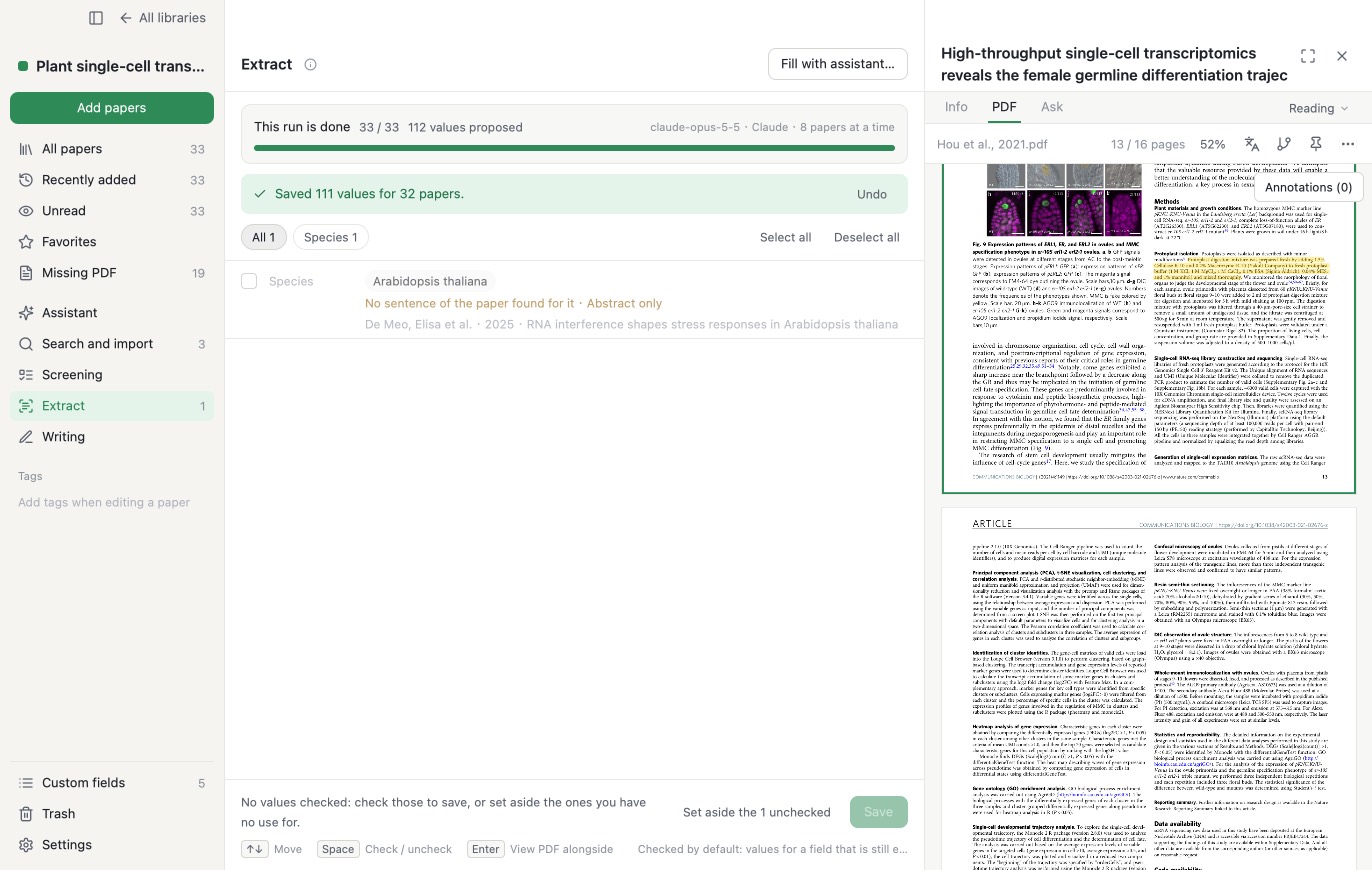
If something was saved wrongly, click “Undo” and the 111 values go back to how they were before saving. Suggestions you have no use for can be cleared with “Clear”; those cleared are no longer listed and will not be asked again.
5The fields become table columns
After saving, open the “Info” tab of a paper: under “Custom fields” each value comes with the sentence of the original it rests on and the page number, so when you see a value later you can click back to its source. Suggestions not yet saved are here too, with “Accept” and “Dismiss” beside them (such as the species of the RNA interference paper, which stayed unticked); where the assistant's answer was none, it says “Empty · the assistant found nothing in the paper”. To change a value yourself, click “Edit information and fields”.
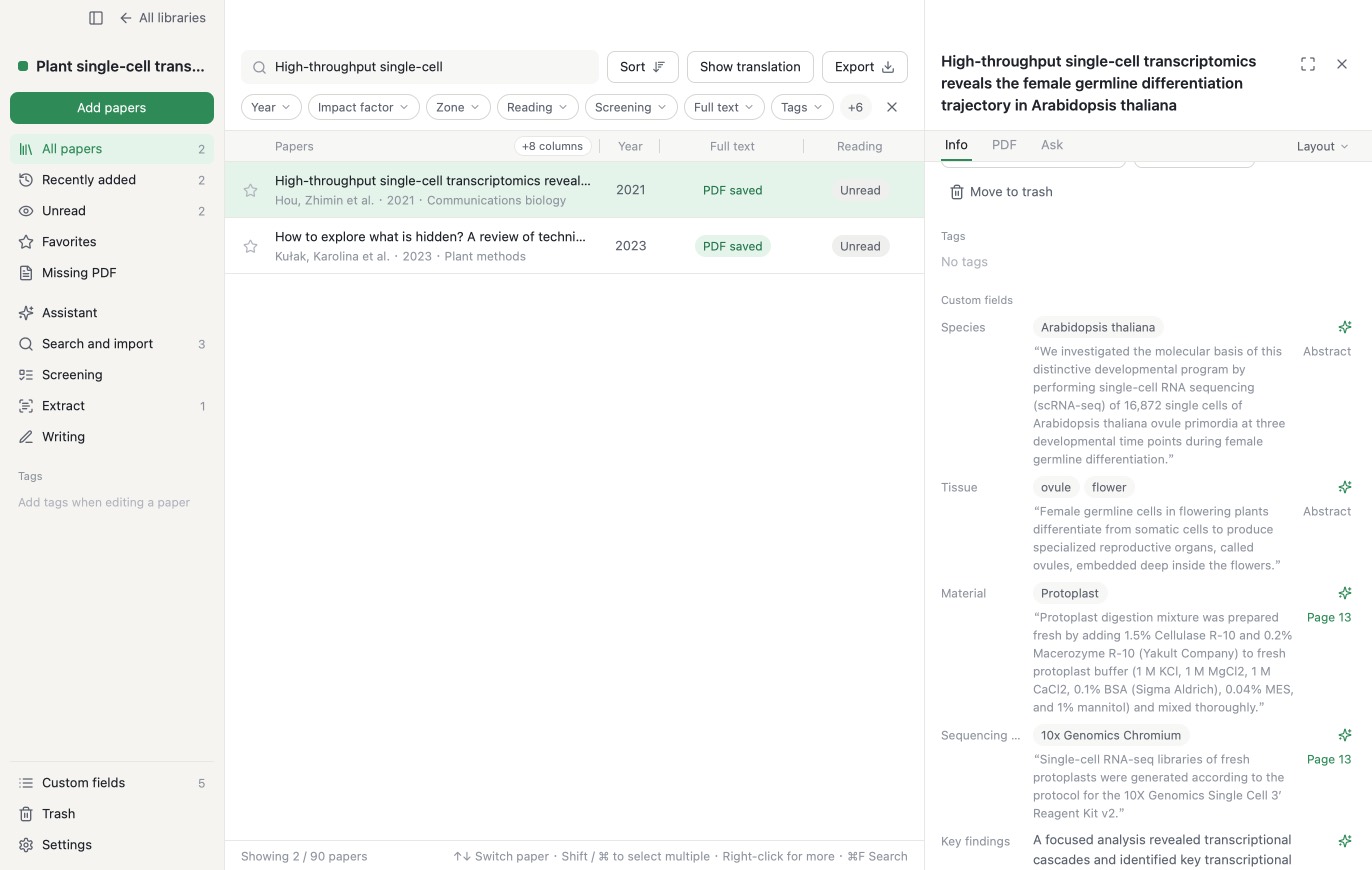
To make fields columns of the paper list, right-click the table header and tick the fields you want; you can untick the Journal and Reading columns you do not need. In this example all four fields except “Key findings” are set as table columns in the Custom fields dialog. Drag the divider between two columns to change a column's width, which is remembered; double-click the divider to return that column to its default width. When there are too many columns for the window, those at the back are not shown: in this example “Sequencing platform” did not fit, so look at it in the details.
Multiple-values and single-choice fields also appear on the filter bar. Click “Material” and it lists how many papers each option has:
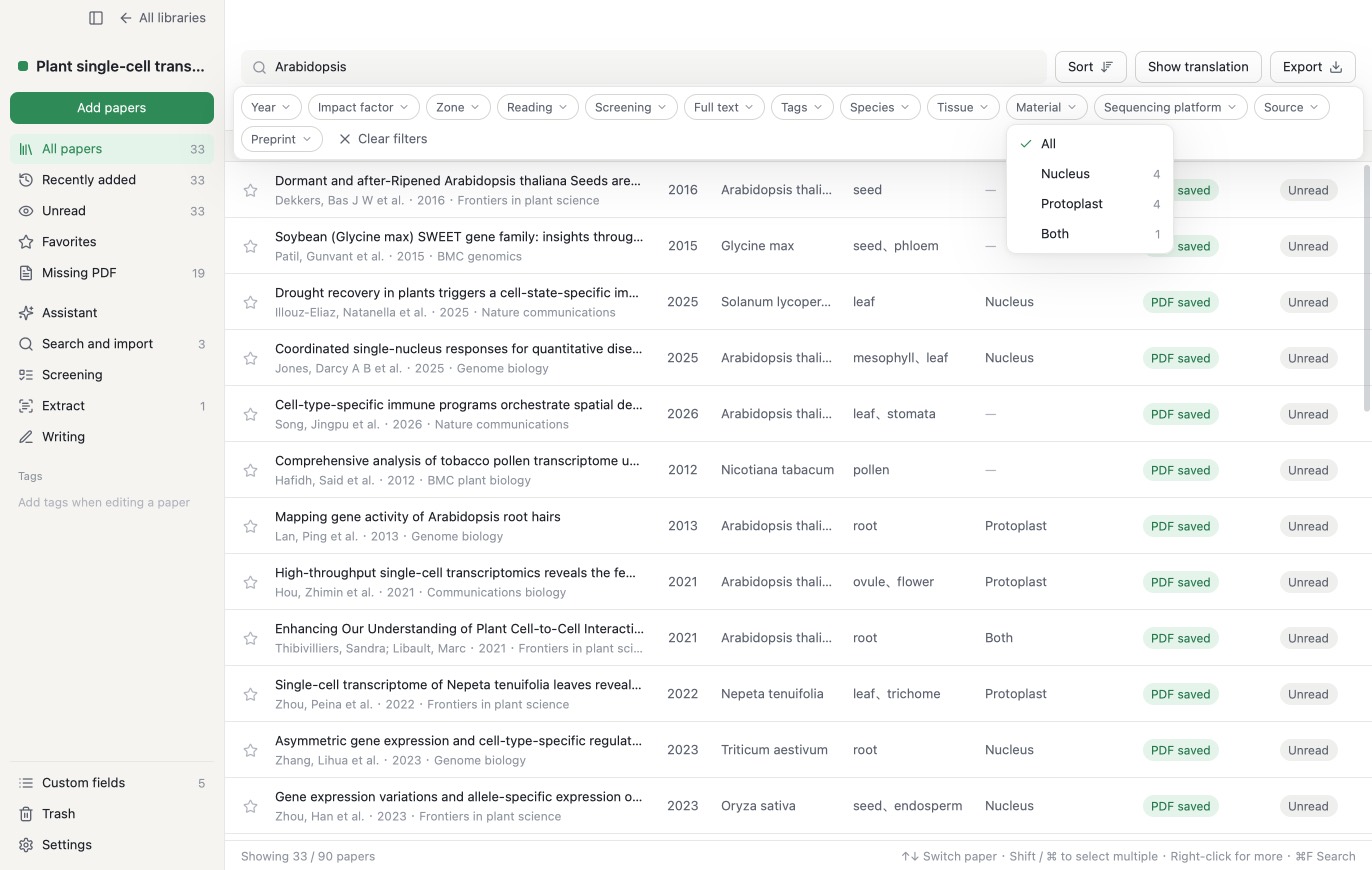
Choose “Nucleus” and the list keeps only those 4. You can also search for the value of a field in the search box at the top.
6Export to a spreadsheet file
Click “Export” at the top right of the list, choose “Spreadsheet (.csv)”, then choose where to save. What is exported is the papers in the current list: choose with the filter bar first, and the export is that part. The same menu also has “BibTeX (.bib)”, for reference managers.
A row of the CSV is one paper. First come the bibliographic record and the status, with English column names: title, authors, journal, year, doi, pmid, screening, reading, fulltext, tags and so on, and the statuses are written as English values too, such as included, unread. Then comes one column for each custom field, named after the field, with the values of a multiple-values field separated by semicolons; last are notes, abstract, source and added_at. The file is UTF-8 encoded with a BOM at the start, so spreadsheet software opens it directly and Chinese does not turn into garbage; content that begins with =, +, - or @ gets a single quote in front, so it is not taken for a formula.
Recap
- Five fields were defined: species and tissue (multiple values), material (single choice), sequencing platform (multiple values) and key findings (text), and a description was written for each.
- The assistant read 33 papers and proposed 112 values, 111 of them with a sentence of the original; for 53 items it answered none and did not guess.
- A page number next to a quote opens the PDF at that page with the sentence highlighted; the one value without a sentence was left unticked and 111 were saved.
- The fields became table columns and filters, and were exported as a CSV from the current list.
- With this table you can go on to Write a review in stages; to press on a conclusion in the table, go back to Ask the whole library, and check the answers.