
1Start with /review and settle the requirements
The worst way to start a review is to start writing: if scope, readers and length are unclear, you find out halfway that the direction is wrong. /review splits the job into four steps, and the first one is only about requirements.
- Open the library and click “Assistant” on the left. The conversation covers the papers in the current list, 90 in this library.
- In the input box, type
/review, leave a space, and write the topic. You can add the length and the readers too. Then send it.
Ask/review Sample preparation for plant single-cell transcriptomics: what bias protoplasts and nuclei bring. Write a short review section of about 600 words. The readers are first-year graduate students
After you send it, a line of progress appears above the conversation: “1 Writing requirements › 2 Starting framework › 3 Outline › 4 Writing”. From now on this conversation carries a review record.
A moment later the assistant hands back a checklist of requirements: core question, scope, readers, length, language, type of review, time range of the papers, citations, figures and tables, and stages. Each item is marked either as something you already said (“Stated”) or as something it filled in for you (“Suggestion”). For the language it suggests English, and for figures and tables it suggests one short table that sets protoplast and nucleus preparations side by side.
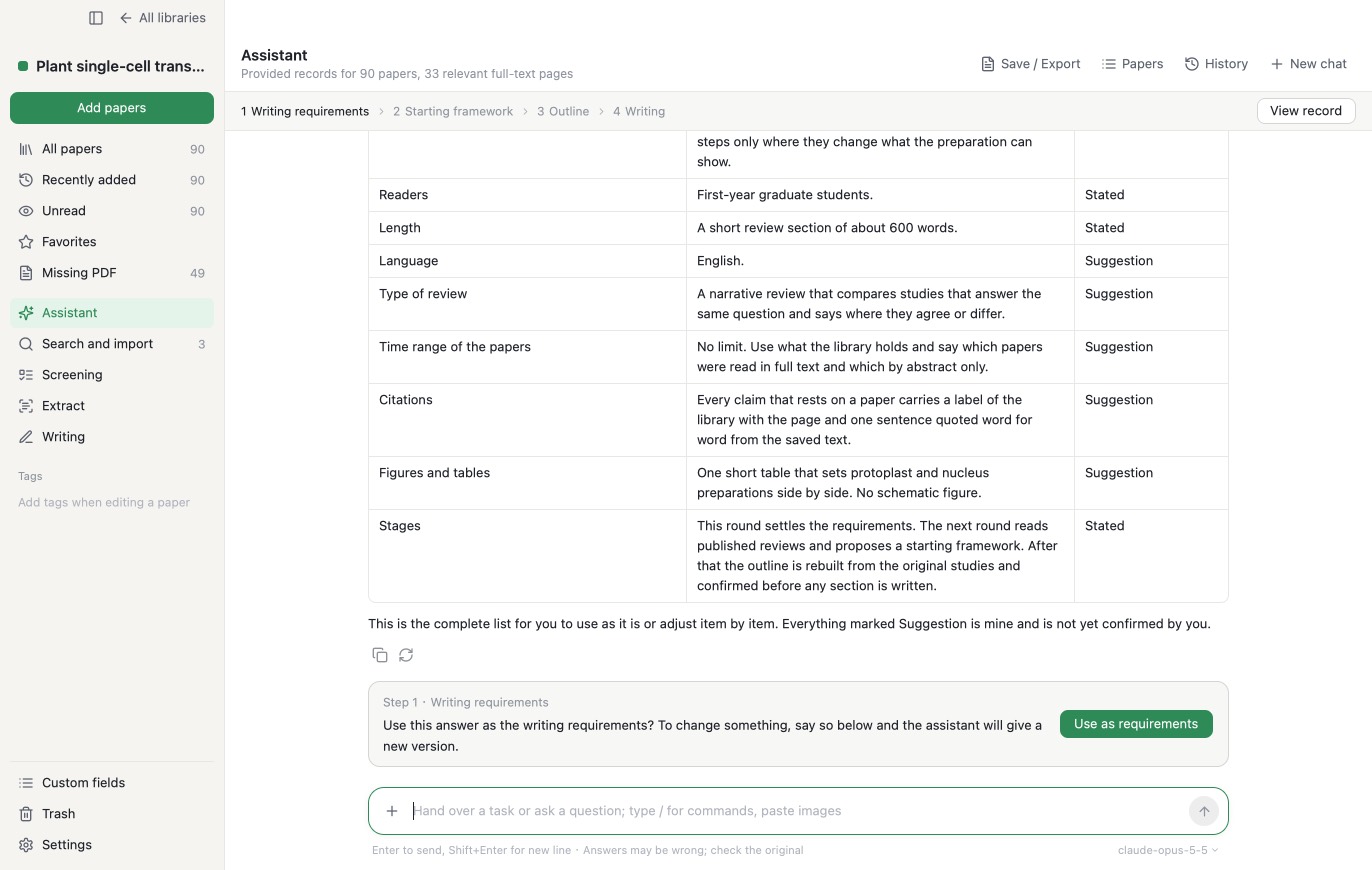
If an item does not fit, keep talking in the conversation. Each time, the assistant gives a complete new checklist.
2Only a button confirms
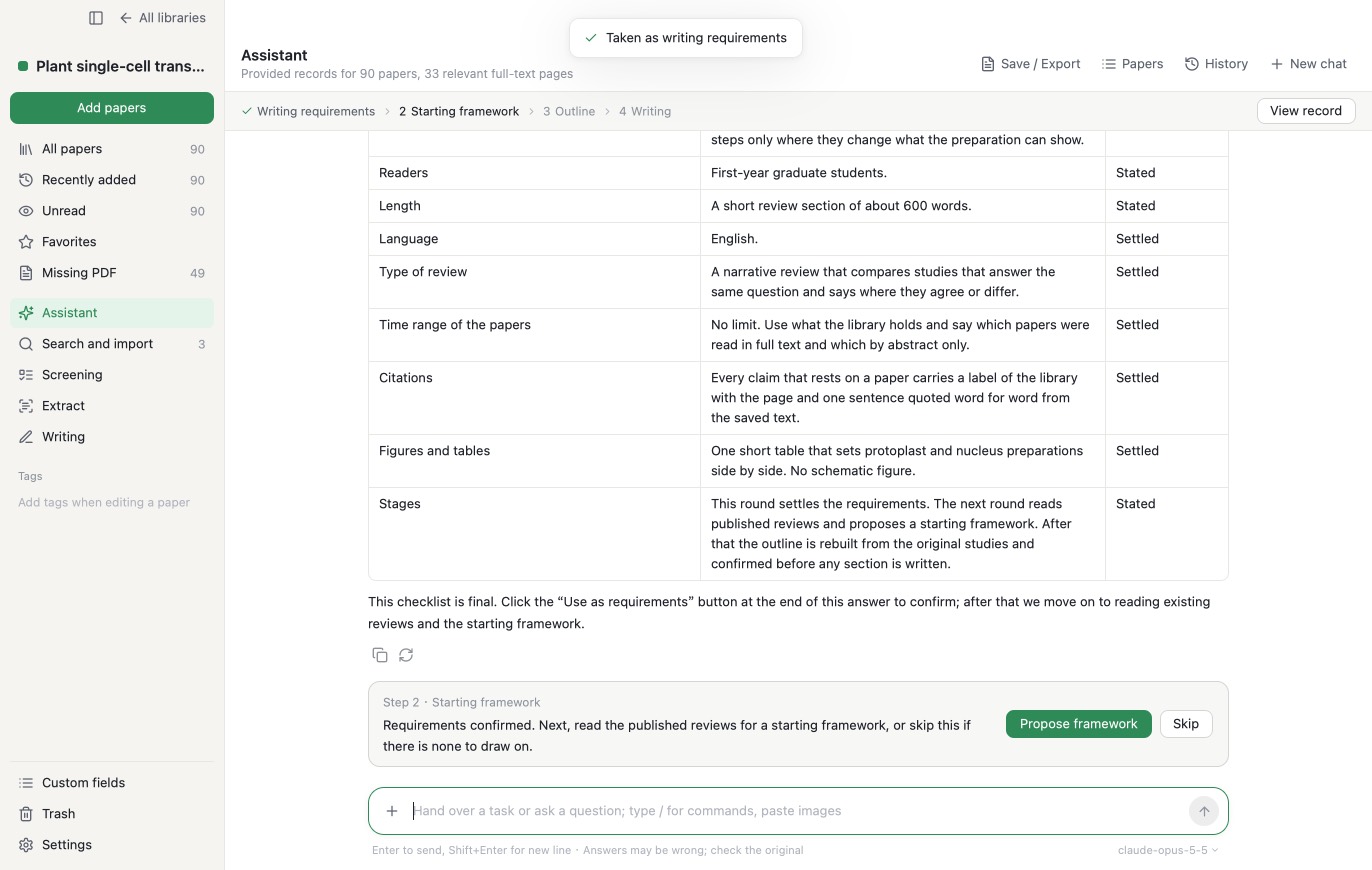
This time we did not click the button but answered “Fine” in the conversation. The assistant settled the items marked “Suggestion” and handed back a complete checklist again, now with “Settled” in their place. Its last line was:
AssistantThis checklist is final. Click the “Use as requirements” button at the end of this answer to confirm; after that we move on to reading existing reviews and the starting framework.
The progress still stood at step 1, and the requirements in the record were still empty. This is by design: what the model says may differ from what you meant, so a “Fine” in the conversation is not written to the record. Only your click is written and counts as confirmation. Clicking “Use as requirements” records the full text of that last answer and confirms it at the same time.
3Starting framework: read existing reviews first
Before you build a structure, look at how others have already reviewed this topic. Click “Propose framework” on the card. It sends a request for you: “Find the published reviews on this topic, compare them one by one, then propose a starting framework.”
In this step the assistant searches the library, and it may also try searches for reviews outside it on PubMed and Europe PMC, in which case the search terms are sent to those two databases. In this run it searched only the library and said so. The answer came back within seconds, and a real model may take a few minutes. What came back was:
- A comparison table with one row for each of 6 reviews in the library: the core question it asks, its strength for this topic, its limit, and what was actually read. Two were read in full text: “Enhancing Our Understanding of Plant Cell-to-Cell Interactions Using Single-Cell Omics” (pp. 3 to 4) and “How to explore what is hidden? A review of techniques for vascular tissue expression profile analysis” (pp. 4 to 5). The other four were read by abstract only, and the last column says “chapter structure not read” for them.
- A starting framework built from them, four themes, each stating the question it must answer and a provisional answer. For the last one, “Reading datasets across preparations”, the provisional answer says plainly “no conclusion yet”.
- A note that it did not search outside the library, so no outside review is compared in this round.
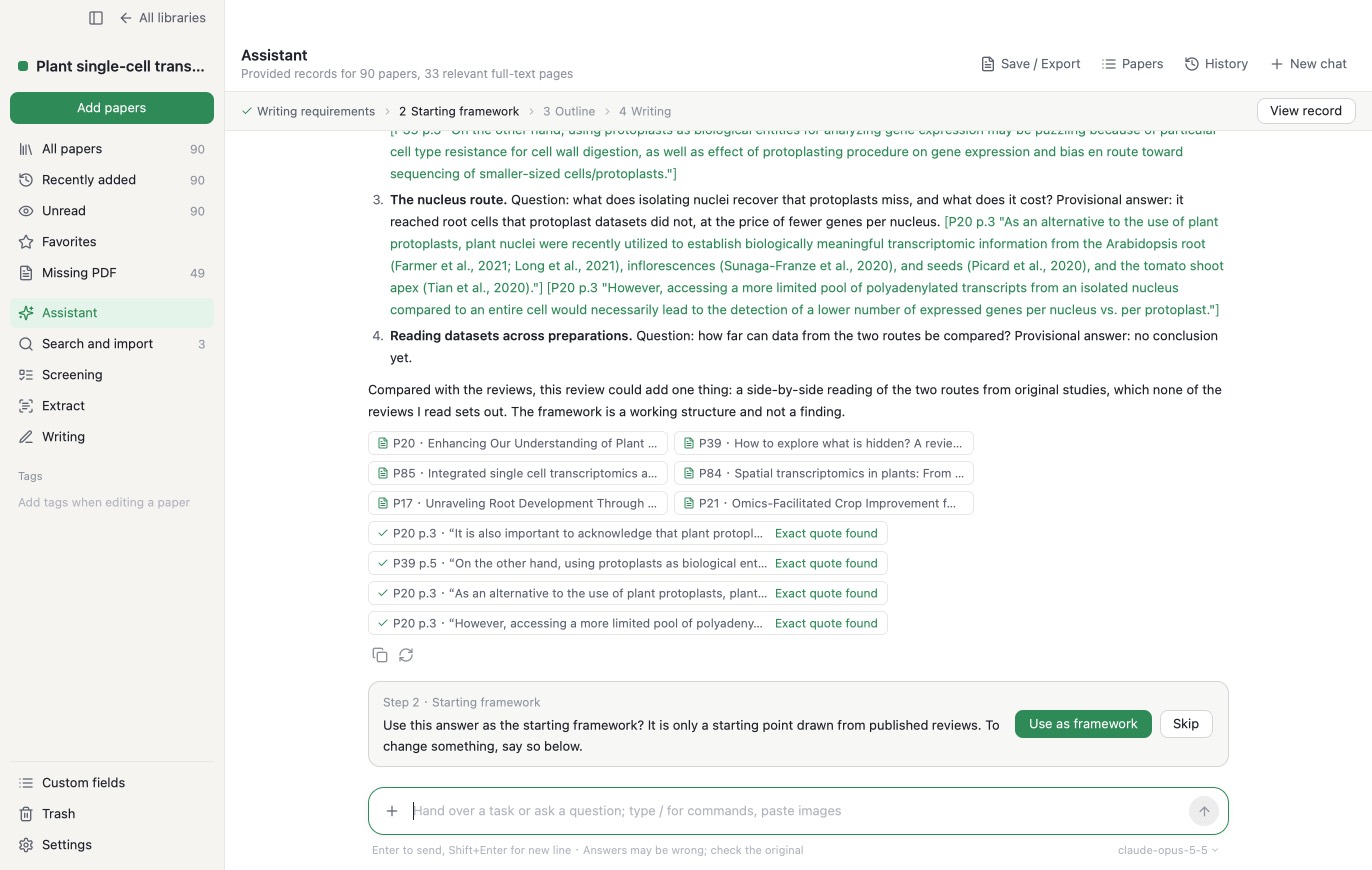
The starting framework is only a starting point drawn from existing reviews, and the original studies have not tested it yet. If you are satisfied, click “Use as framework”. If the topic has no review to draw on, click “Skip” and draft the outline directly from the library.
4Rebuild the outline from the library's studies
Click “Rebuild outline” on the card. For each chapter of the starting framework, the assistant reads the original studies in the library. For each chapter it says whether it keeps, rewrites, merges, splits or drops it, and which paper made it change it.
In this run it again took seconds. It first lists the range it actually read: pp. 9 to 10 of the study on Nepeta tenuifolia leaves, p. 3 of the bread wheat root study, p. 2 of the comparative single-nucleus study, pp. 9 to 10 of the cotton root protoplast protocol and pp. 3 to 4 of the review it already knew. Nothing else was read beyond its abstract. A table then gives its decision for each chapter: the first is kept and shortened to serve as the introduction, the second is rewritten around what protoplasting cannot recover, the third is kept, and the fourth is kept as the closing section, now framed as a gap. Then it gives an outline of four sections, each with a planned length, representative papers and evidence gaps.
The most useful part is a separate paragraph, “What the library's evidence cannot yet support”. It says, for example, that the studies it read give examples of cells missed by protoplasts, not a general result, so “nuclei give a more complete picture of all cell types” cannot be a conclusion, and that they describe the effect of protoplasting but not how large it is.
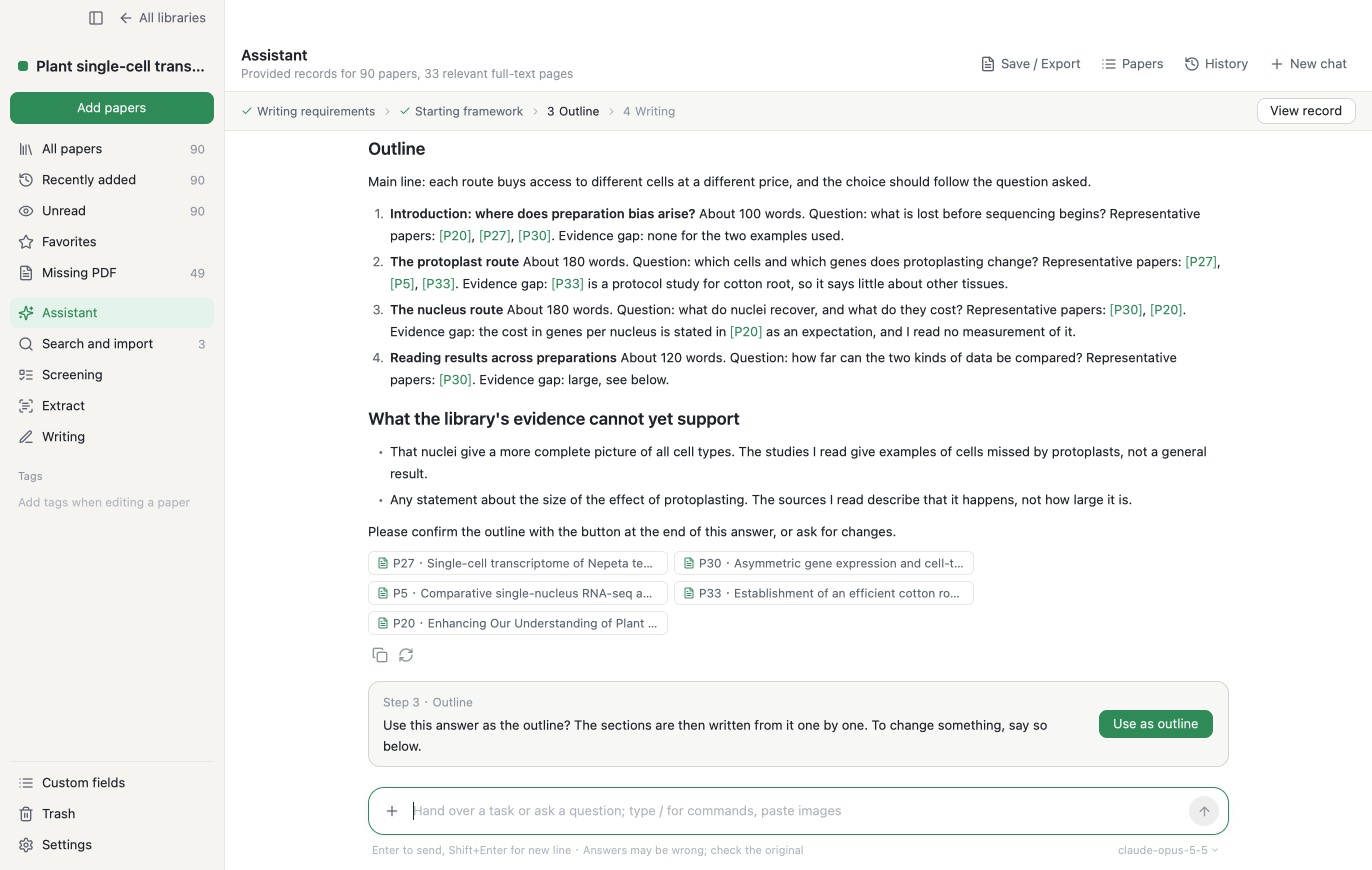
When you have looked at the chapters, representative papers and gaps, click “Use as outline”.
5Write one section, save one section
Once the outline is confirmed, the card shows “Write first section”. Click it and the assistant writes only that section, starting with “## section name”. This time the introduction came back at about 100 words, as the outline planned. Four of its sentences carry citations in the form [P30 p.3 "To eliminate the protoplasting effect, snRNA-seq has been applied in plant single-cell omics [37, 38]."]: a tag, a page number and a quoted sentence.
If it reads well, click “Save section” on the card. The section name is taken from the heading at the start of the answer. Saving again creates another section and does not overwrite.
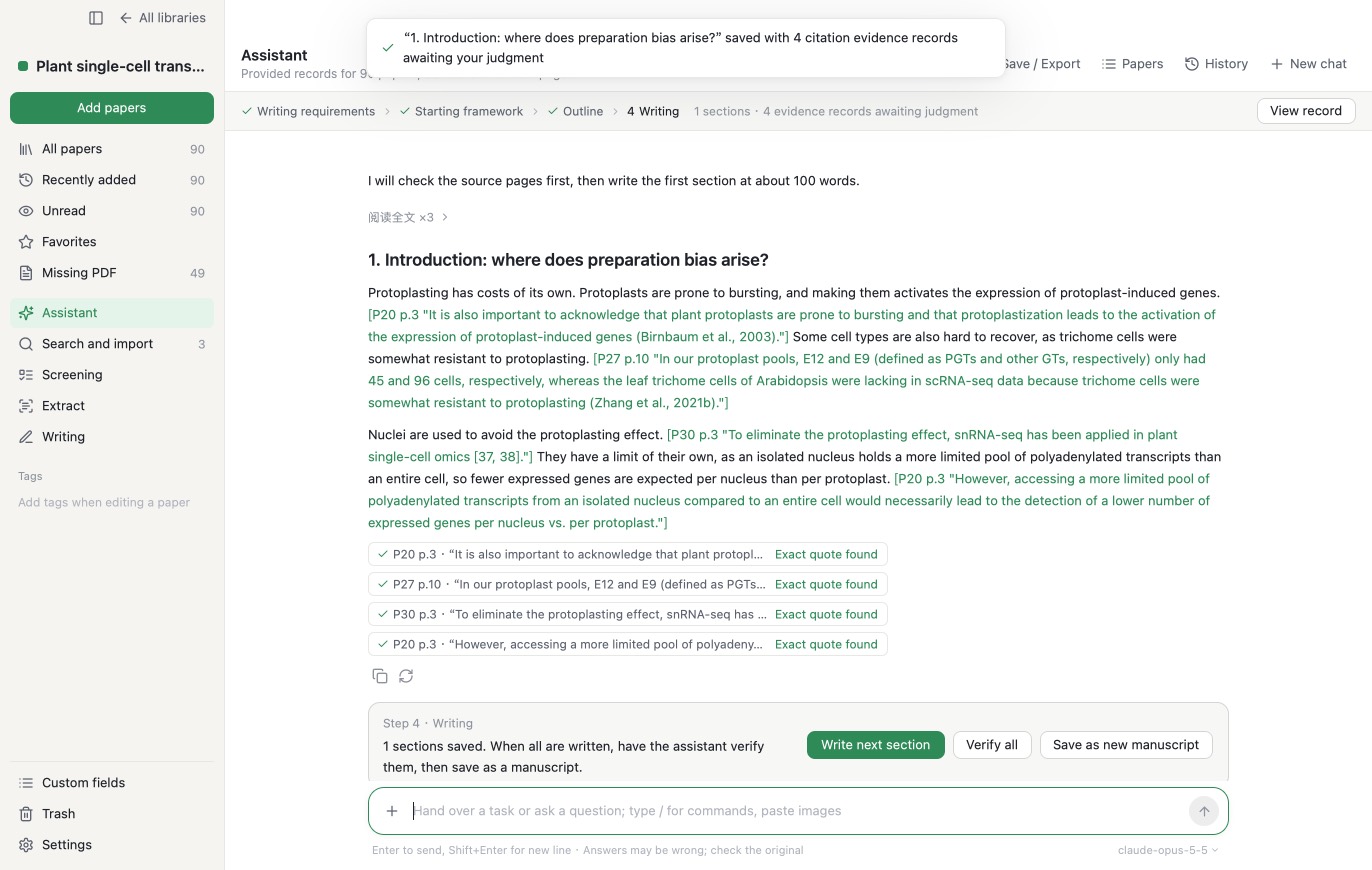
Each further click on “Write next section” continues after the saved sections. To walk the whole path, this tutorial writes only the introduction. The other four sections work the same way.
6Evidence: is the sentence there, does it support the claim
Click “View record” at the right of the progress line and the conversation changes to this review record: writing requirements, starting framework, outline, the text of each section, evidence notes and verification record, from top to bottom. Each item has an “Edit” beside it.
Under the text of each section is the evidence it brought, one item per citation:
- Claim: the sentence the citation sits in, for example “Protoplasts are prone to bursting, and making them activates the expression of protoplast-induced genes.”
- Source: the paper and page the citation points to, here p. 3 of the cell-to-cell interactions review.
- Quote: the original sentence the citation carries, with the comparison result below it.
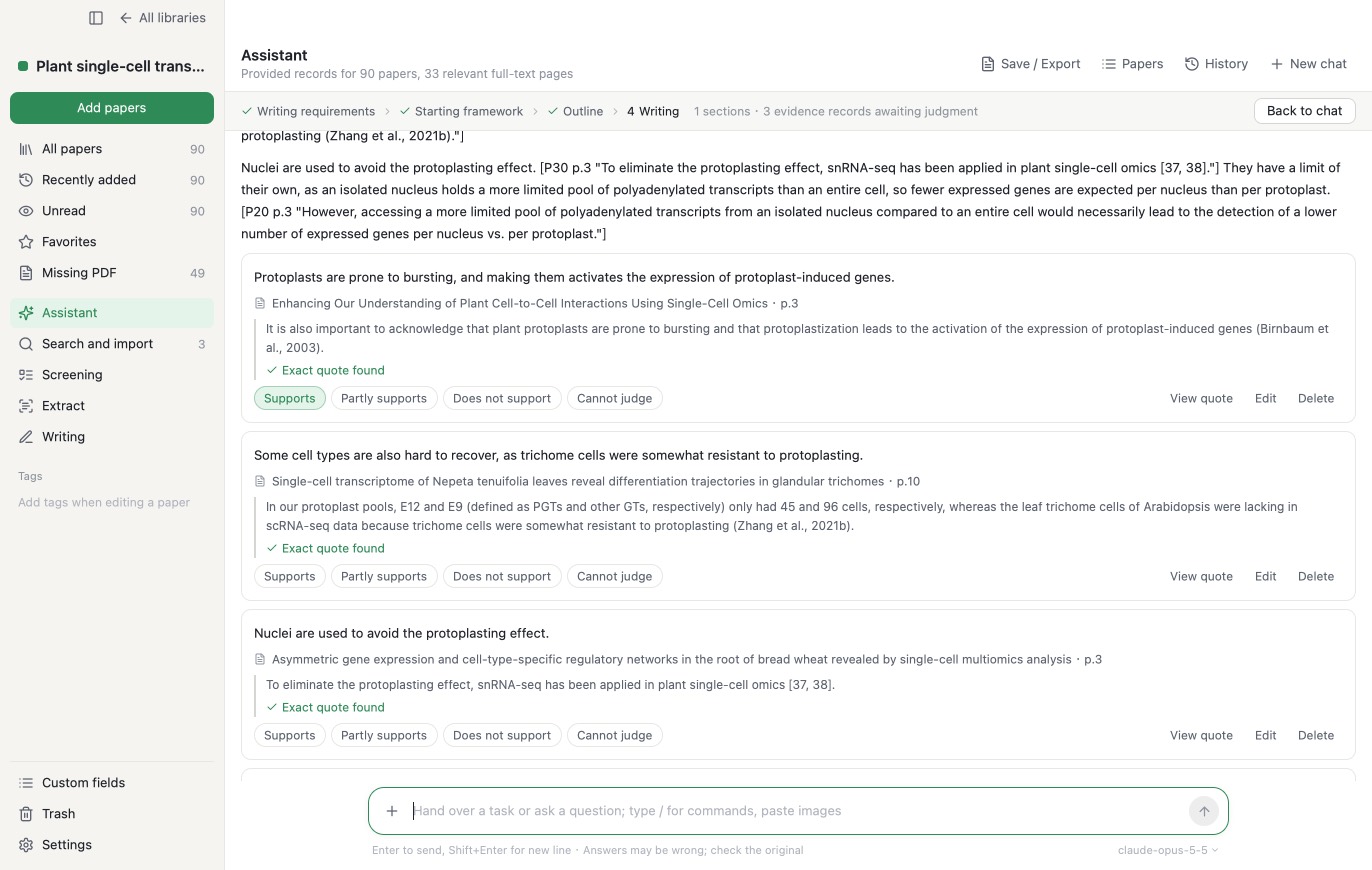
The comparison has five outcomes: “Exact quote found”; “Quote found on p.N”, where the sentence was found but on another page; “Only the first N% matches”; “Quote absent from source”; and “No full text to verify”, where the paper has no readable full text. This time all four were “Exact quote found”.
The comparison answers only one question: is this sentence in the original? It does not answer whether that sentence can carry the claim. The quote of the fourth item says that a more limited pool of polyadenylated transcripts would lead to a lower number of expressed genes detected per nucleus, while the claim says fewer genes are expected. Whether to judge it “Supports” or “Partly supports” is for you to decide after you click “View quote”, which opens the PDF (the quote is highlighted), and read the context. Click “Supports”, “Partly supports”, “Does not support” or “Cannot judge” to record a judgment, and click the selected one again to take it back.
What you change must be confirmed again
The writing requirements, the starting framework and the outline in the record can all be edited directly, but an edit has to be confirmed again. If you edit the writing requirements, the framework and the outline after them go back to awaiting confirmation. If you edit the starting framework, the outline follows. A “Confirm” appears beside the heading, and the card at the end of the conversation switches to confirming it. Sections and evidence already saved are kept. If you edit the text, evidence whose sentence is still there keeps its judgment; where the sentence changed, the earlier judgment is taken back.
7Verify, mark complete, save as a manuscript
Back in the conversation, click “Verify all” on the card. It sends /verify the saved sections. The assistant breaks the introduction into 4 claims and attaches an original quote and a result to each. The results are not all “Supports”. For the fourth claim, that an isolated nucleus holds a more limited pool of polyadenylated transcripts, so fewer expressed genes are expected per nucleus than per protoplast, it judged “Partly supports”, because the source states this as what would necessarily follow and not as a measurement. For the trichome sentence it judged “Supports”, and added that this is an observation in particular material.
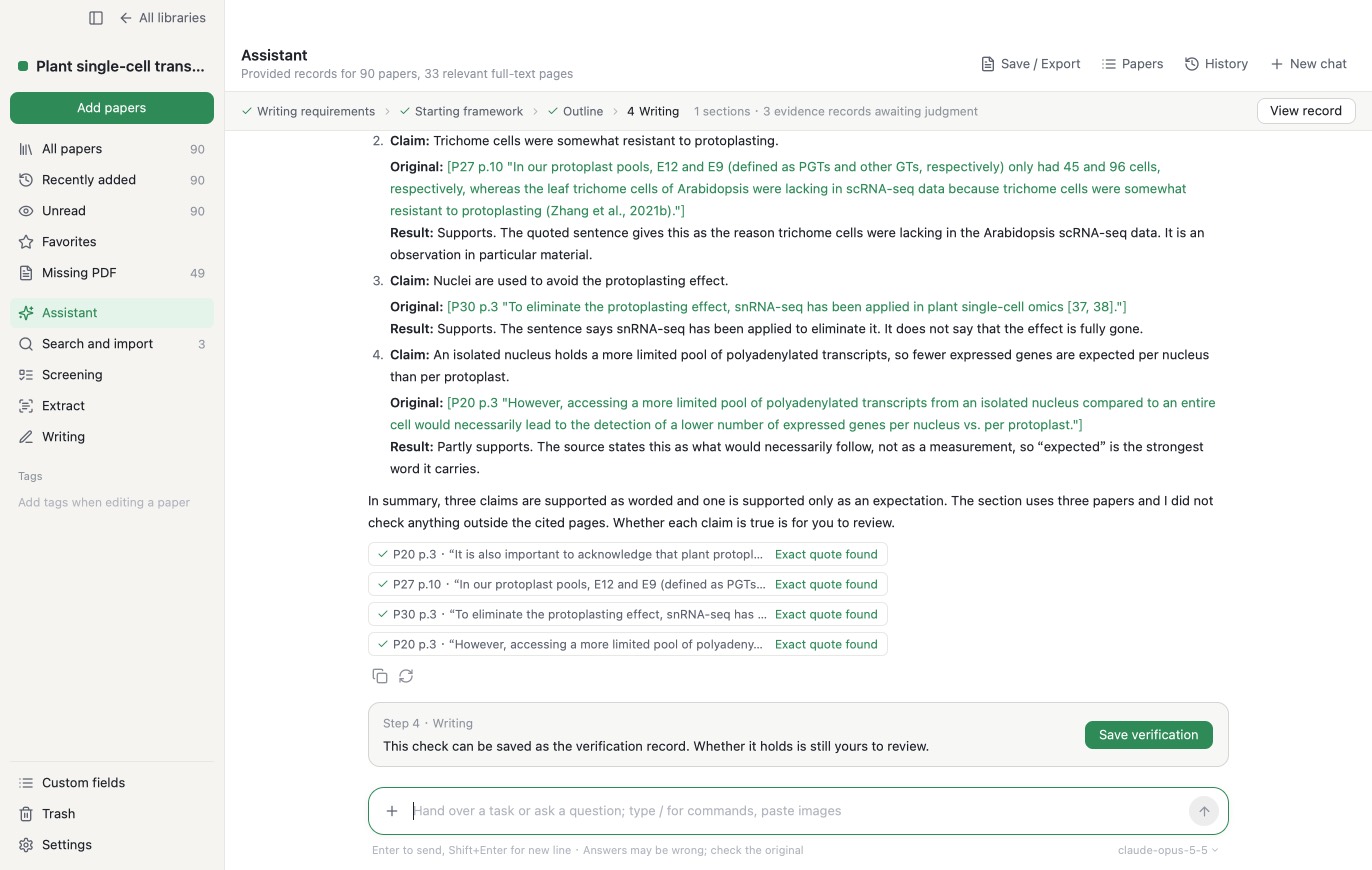
Click “Save verification” and this check is stored in the “Verification record” of the record. After that, “Mark complete” appears on the card. Whether the wording of this section should change is yours to decide after reading the verification. This time we did not change it and clicked “Mark complete” directly.
Finally click “Save as new manuscript”. The saved sections go in order into a new manuscript in “Writing”, and no existing manuscript is overwritten. The citations in the conversation become citations of the Writing page: [P20 p.3 "It is also important …"] becomes (Thibivilliers & Libault, 2021) in the text. The original sentence does not go into the text; it stays in the review record. Tags that match no paper are kept as they are and listed at the end of the manuscript under “Source labels (please verify)”. This time all of them matched.
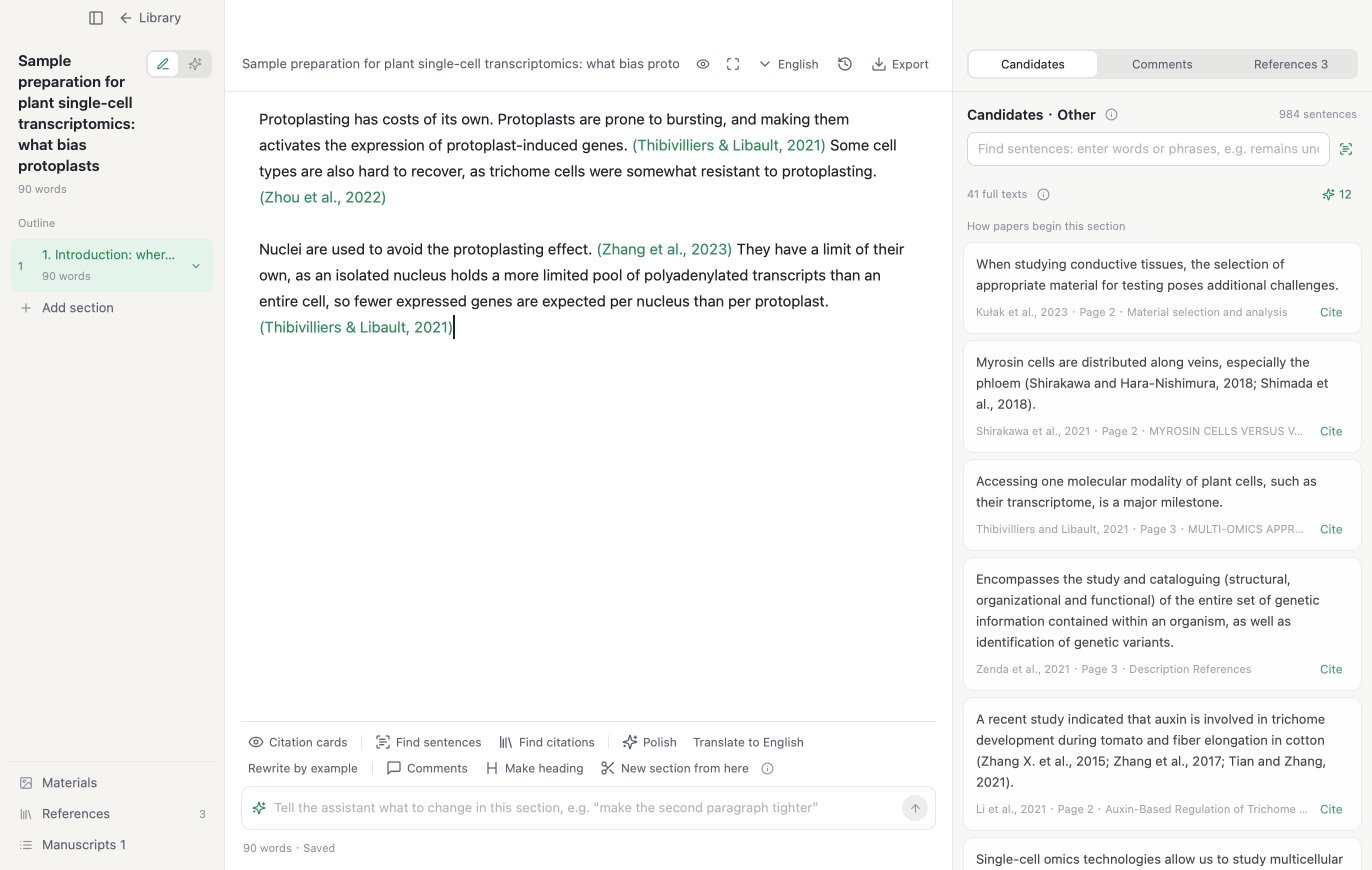
/review. The citations in the text are already citations of the Writing page, such as (Zhou et al., 2022), with 3 papers in the references.Edits you make on the Writing page after saving do not go back into the review record. The record and this conversation stay in the library. Open them from the assistant's “History” and you can carry on with the next section.
Recap
- Start with
/review topicand confirm four steps in turn: writing requirements, starting framework, outline, and section-by-section writing. - Each step counts only the button on the card at the end of the conversation; saying “Fine” in the conversation is not written to the record.
- When a section is saved, each citation becomes an item of evidence. “Exact quote found” says only that the sentence is in the original; whether it supports the claim is for you to judge.
- “Verify all”, “Save verification” and “Mark complete” leave a trace of the checking, but they are not fact verification.
- “Save as new manuscript” sends the sections to the Writing page and turns citations into
[@Key, p. N]. For how to edit and add citations there, see Write a paper: candidate sentences, citations and sources.