
1Ways to add papers
This example starts from an empty library, “Plant single-cell transcriptomics”. Every way in is under “Add papers” at the top left:
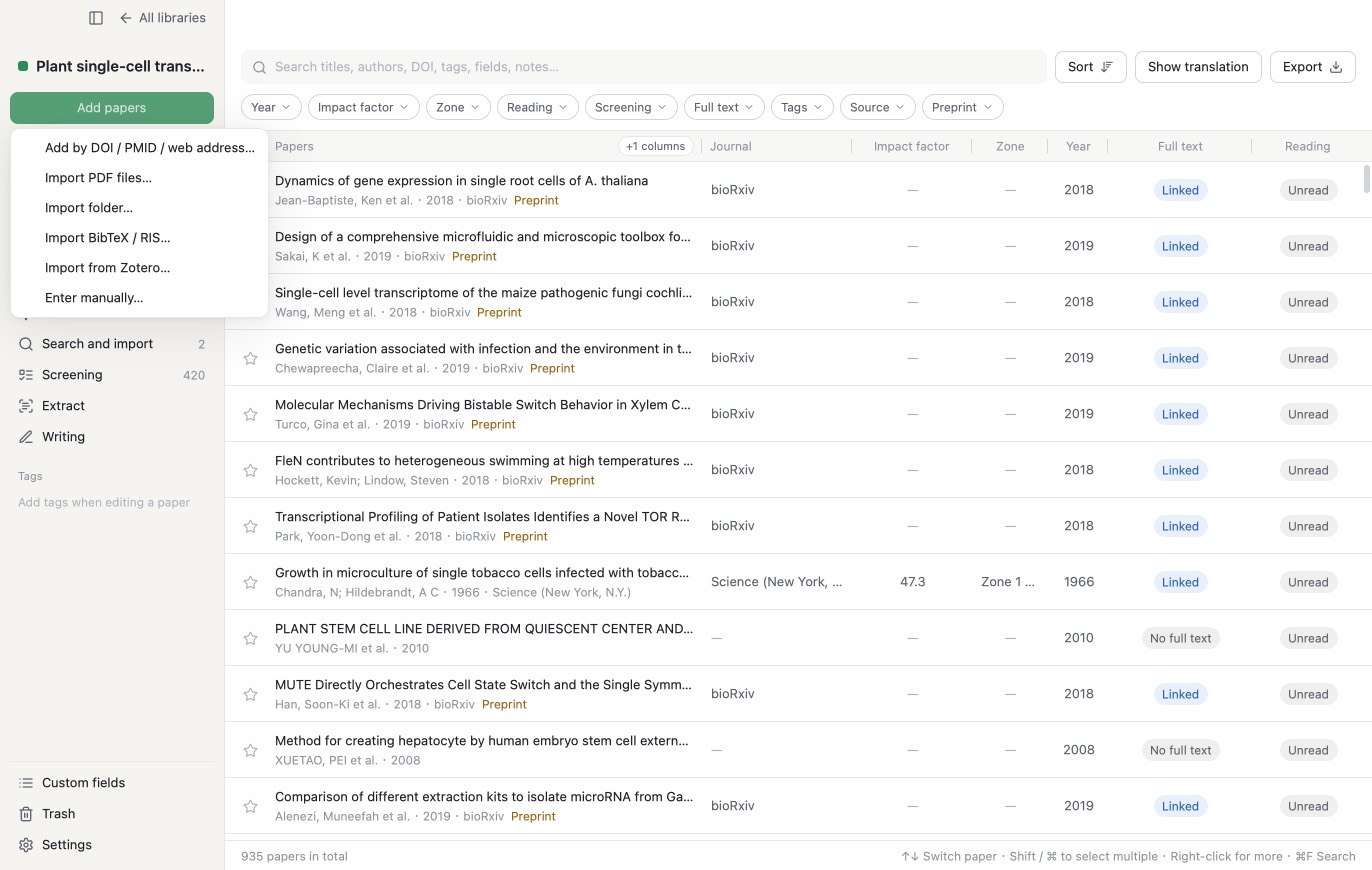
- “Add by DOI / PMID…”: one paper at a time, with the shortcut ⌘ + N (Ctrl + N on Windows).
- “Import PDF files…” and “Import folder…”: the text is read, a DOI is looked for on the first two pages and the record is looked up. The names of subfolders become tags.
- “Import BibTeX / RIS…”: records only, without PDFs.
- “Import from Zotero…”: reads the Zotero database on this computer and brings records, tags, notes and PDFs together.
However many times you move things, no paper appears twice. Each incoming paper is matched by DOI first, then by PMID, and last by title. A paper already in the library keeps its record untouched. Papers in the trash count as already there: one you deleted does not come back because you imported it again.
2Move over from Zotero
Start with Zotero, because its records are the most complete and the tags and notes are there too.
- In Zotero, wait for the sync to finish. Open each PDF you want to take along once, to make sure it has been downloaded to this computer, then quit Zotero. If you only close the window, it may still hold the database in the background.
- In Wisp Study, click “Add papers › Import from Zotero…”, read the note, click “Choose zotero.sqlite…” and pick
zotero.sqlitein the Zotero data folder. You can open that folder from Zotero's Settings › Advanced › Files and Folders.
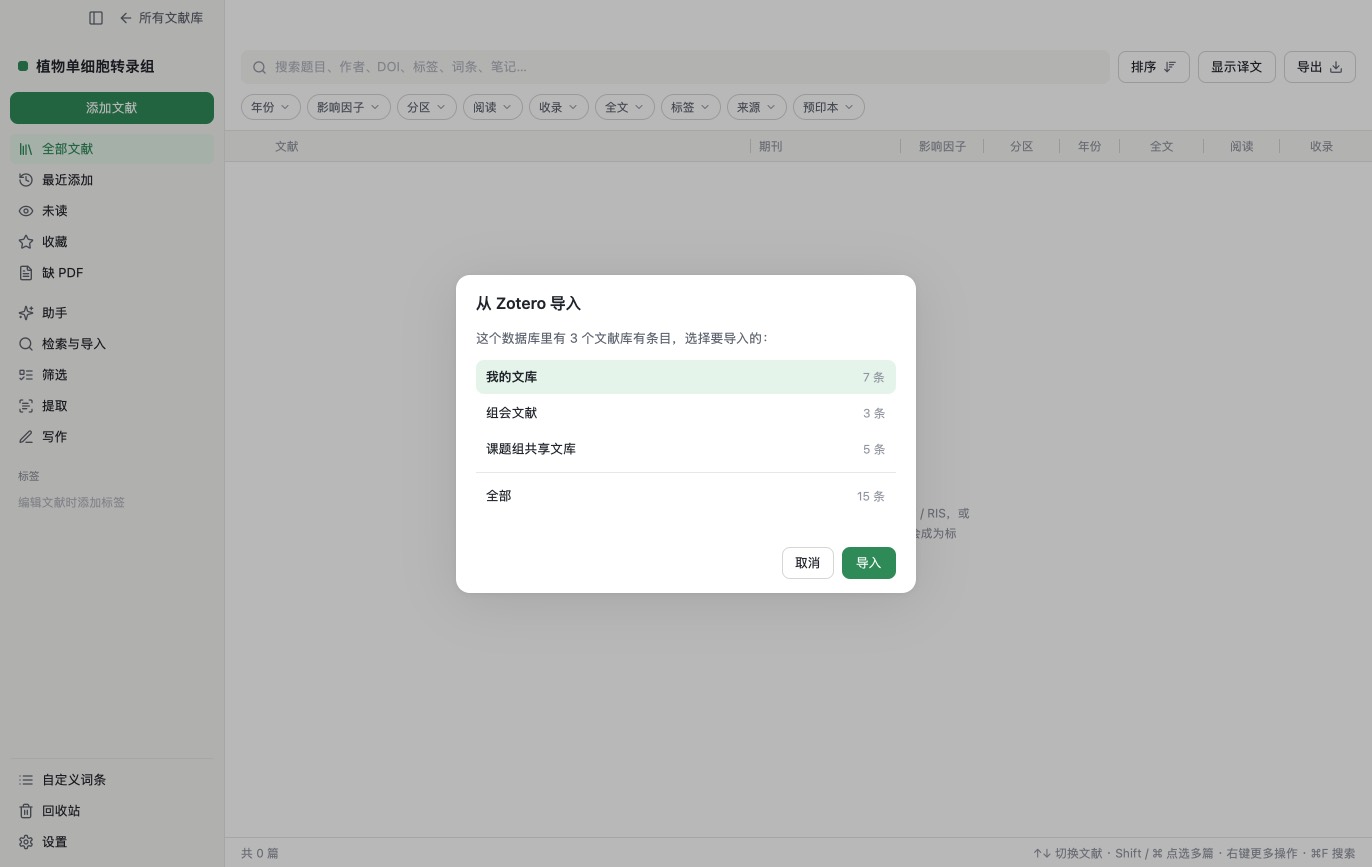
If you have joined groups in Zotero besides “My Library”, the database holds more than one library. Since v0.17.0, once you have picked zotero.sqlite you are first asked which one to import. Each row is a library with its number of items (not counting notes, attachments and what is in Zotero's trash). The last row, “All”, combines them. “My Library” is selected by default. Pick one and click “Import”. When only one library has items, this step is skipped and the import starts at once.
The import opens the Zotero database read-only. PDFs are copied, the original files are not touched, and this step does not go online. The Zotero library in this example is small, 6 papers, and the import finished in a few seconds:
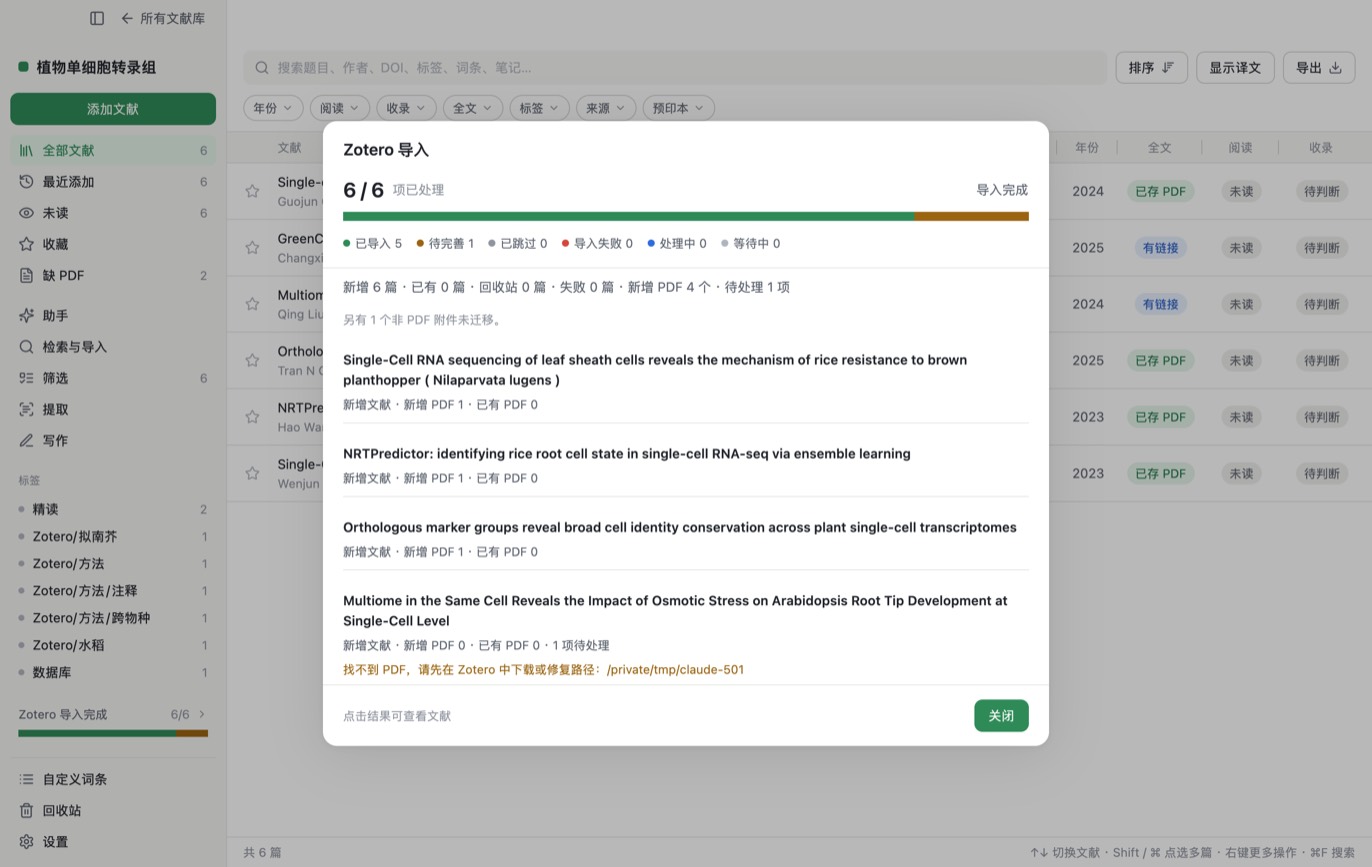
Zotero/… tags has appeared on the left.This time the result was “6 added · 0 existing · 0 in trash · 0 failed · 4 PDFs added · 1 pending”, and one web snapshot was not moved. Look at the tags on the left. Zotero's tags came over as they were (“精读” (close reading) and “数据库” (database)). Collections became tags with a path, such as Zotero/方法/注释 (Zotero/Methods/Annotation), and one click filters that collection. Notes attached to a paper were merged into the paper's note, and the PMID in Extra was recognized too.
The pending item is the Multiome paper: Zotero has an attachment record for it, but the file was never downloaded. The record came in anyway, and its full text is left for step 6.
Not everything in Zotero has to move. Since v0.18.0, when your Zotero has collections, the dialog shown once you have picked zotero.sqlite lists its “Collections”, in the order of Zotero's left pane, with subcollections indented under their parent and the number of items beside each. Only the ticked collections are imported, and ticking one takes its subcollections along. With none ticked, the whole library is imported. The button says how many items the ticks add up to.
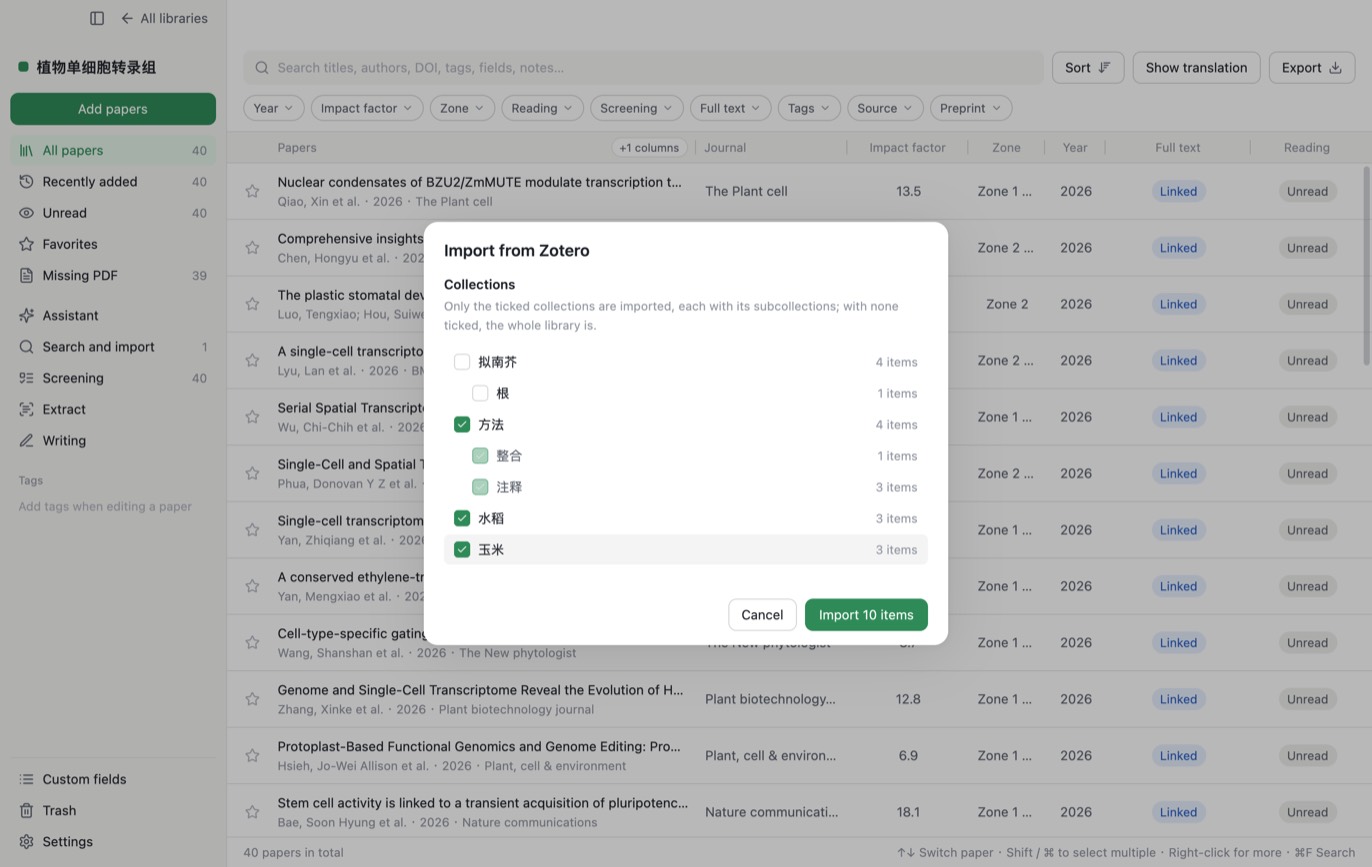
The Zotero library of this demo holds 14 items, sorted into collections by species and by method. Here only rice, maize and methods are wanted, so “拟南芥” (Arabidopsis) stays unticked along with the “根” (root) under it. Click “Import 10 items”, and a few seconds later:
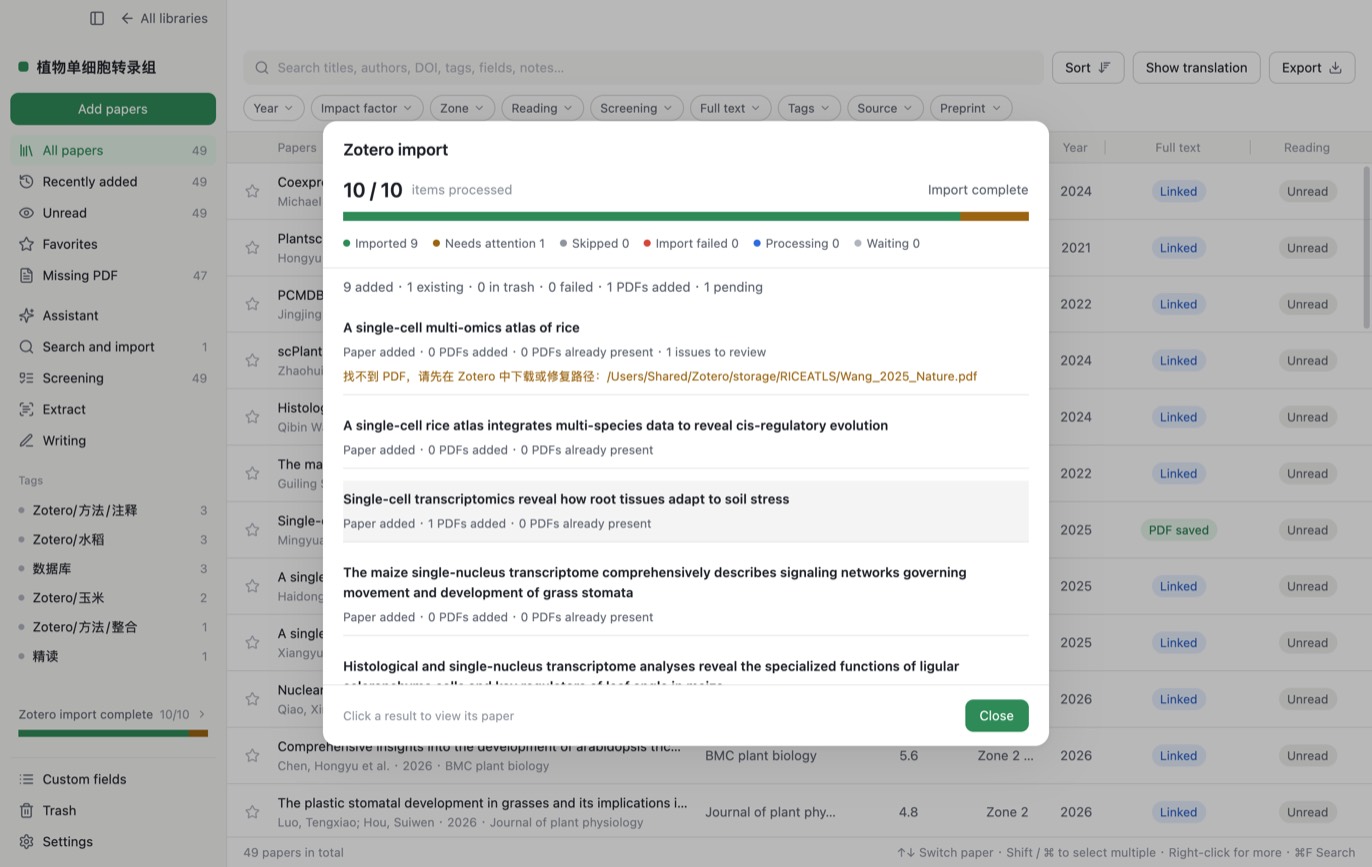
Zotero/… tags and none for Arabidopsis.The result was “9 added · 1 existing · 0 in trash · 0 failed · 1 PDFs added · 1 pending”. The library went from 40 papers to 49, and the 4 papers in the unticked Arabidopsis collection did not come in. The existing one is the maize ligular region paper (Nature Communications, 2026): the library already had it, so its record was left as it was and its PDF was not stored a second time. That is why Zotero/玉米 (maize) shows 2 papers, not 3. The pending one is the rice multi-omics atlas: Zotero only has an attachment record for it, and the file was never downloaded. The one PDF that came along is the Nature paper on rice roots in soil, which step 7 comes back to.
For what is moved and common errors (such as “the database is in use”), see Importing papers from Zotero (in Chinese).
3Import a whole folder of PDFs
The PDFs collected over the years sit in one folder, split into subfolders: “rice”, “arabidopsis” and “methods”. This example has 6 files, 5 of them in subfolders and one, myrosin-cells.pdf, in none. File names can be anything.
Click “Add papers › Import folder…” and choose this folder, or drag it straight into the window. The import runs in the background. A progress block, “Import PDFs”, with a count and a segmented bar under it, appears at the bottom of the sidebar, and it stays when you switch to another page. Each file has its text read, its DOI looked for and its record looked up once more, which can take a while. When it ends, the block turns into “PDF import complete 6/6”. Click it to open the details:
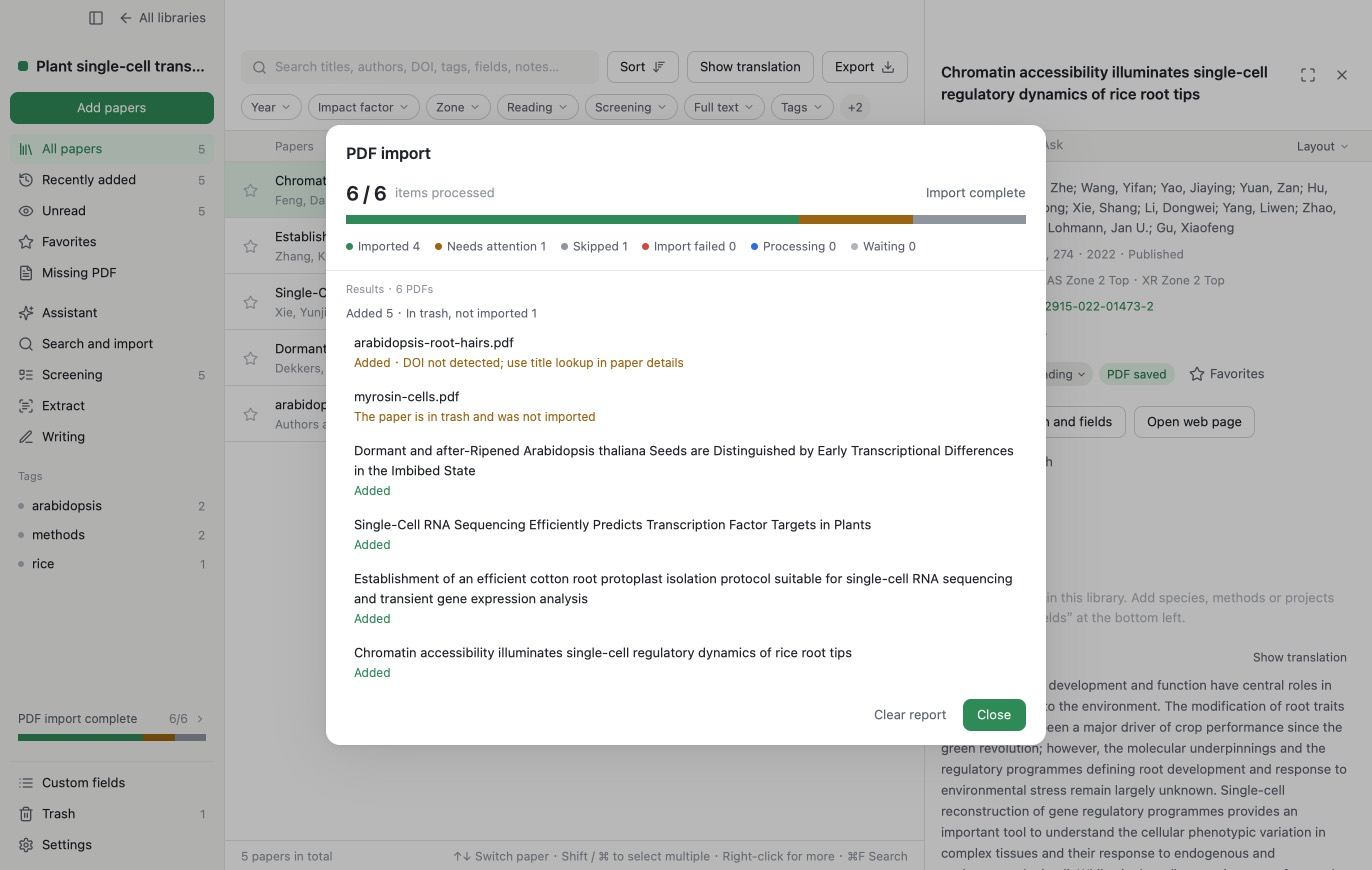
- Added 5: the 4 papers with a recognized DOI came in with complete records.
arabidopsis-root-hairs.pdfhad no DOI on its first pages, so its entry was made from the file name and is marked for a second look. Step 5 completes it. - Attached to existing paper: this run had none. A PDF that is the same file as one already stored, or whose DOI matches a paper that has no file yet, is attached to that paper instead of becoming a second one.
- In trash, not imported 1: myrosin-cells.pdf is a paper that was moved to the trash before this import, and it did not come back.
The Tags column on the left now has “arabidopsis” (2 papers), “methods” (2) and “rice” (1). A PDF that is in none of the subfolders gets no tag.
4The advisor's .bib and the DOIs in a report
The advisor's 导师推荐.bib (advisor's picks) has 6 entries. Click “Add papers › Import BibTeX / RIS…” and choose it, or drag it into the window. The top of the window says “Imported 5 papers, skipped 1 existing.” The skipped one is NRTPredictor, which Zotero already had. Papers from a .bib are records only, and their Full text column says “Linked”.
Two papers were noted down in a report, one with a DOI and one with only a PMID. Click “Add papers › Add by DOI / PMID…” and paste:
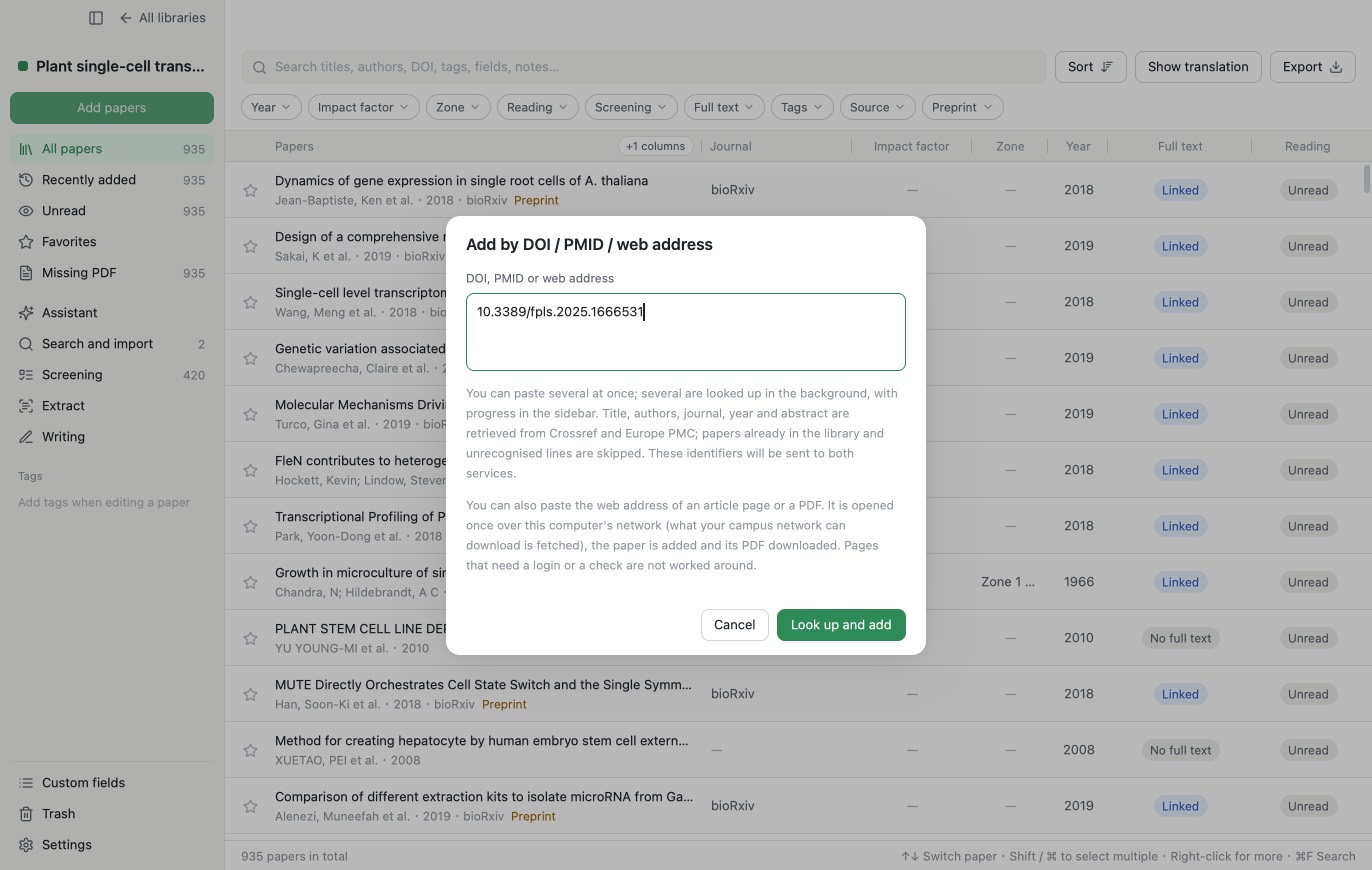
Click “Look up and add”. A few seconds later the maize root paper comes in, with title, authors, journal and abstract filled in. Open the dialog again and enter the PMID 42021342. The paper that arrives is the reed invasion one (Genome Biology, 2026). You can also paste a doi.org link. Papers that came in as records only, like these, are listed in the “Missing PDF” view.
5Complete a PDF that was not recognized, by title
The list's “Full text” column has four states: “No full text”, “Linked” (there is a DOI or a web address but no file), “PDF saved”, and “PDF without text” (a file is saved but no text could be read from it, so for now it cannot be used to ask questions). The “Full text” filter above the table header shows just one of them.
What needs work now is arabidopsis-root-hairs.pdf from step 3. It is “PDF saved”, yet its title is still the file name, and the authors and year are missing, because no DOI was found on its first pages. The same steps complete any record that has little more than a title, such as a paper you entered by hand with “Add papers › Enter manually…”. The figures below use such a paper: it was entered with only the title “Evolutionary diversity of cell-type-specific expression and stress response in Brassicaceae roots”.
- In the details, click “Look up by title”.
- The box holds the title to search for. When the paper's title is only a file name, the title is read from the PDF's first page and a note asks you to check it before searching. For arabidopsis-root-hairs.pdf it reads “Mapping gene activity of Arabidopsis root hairs”. If no title can be read, the box is empty and you type it. Authors and year may stay empty.
- Click “Search”.
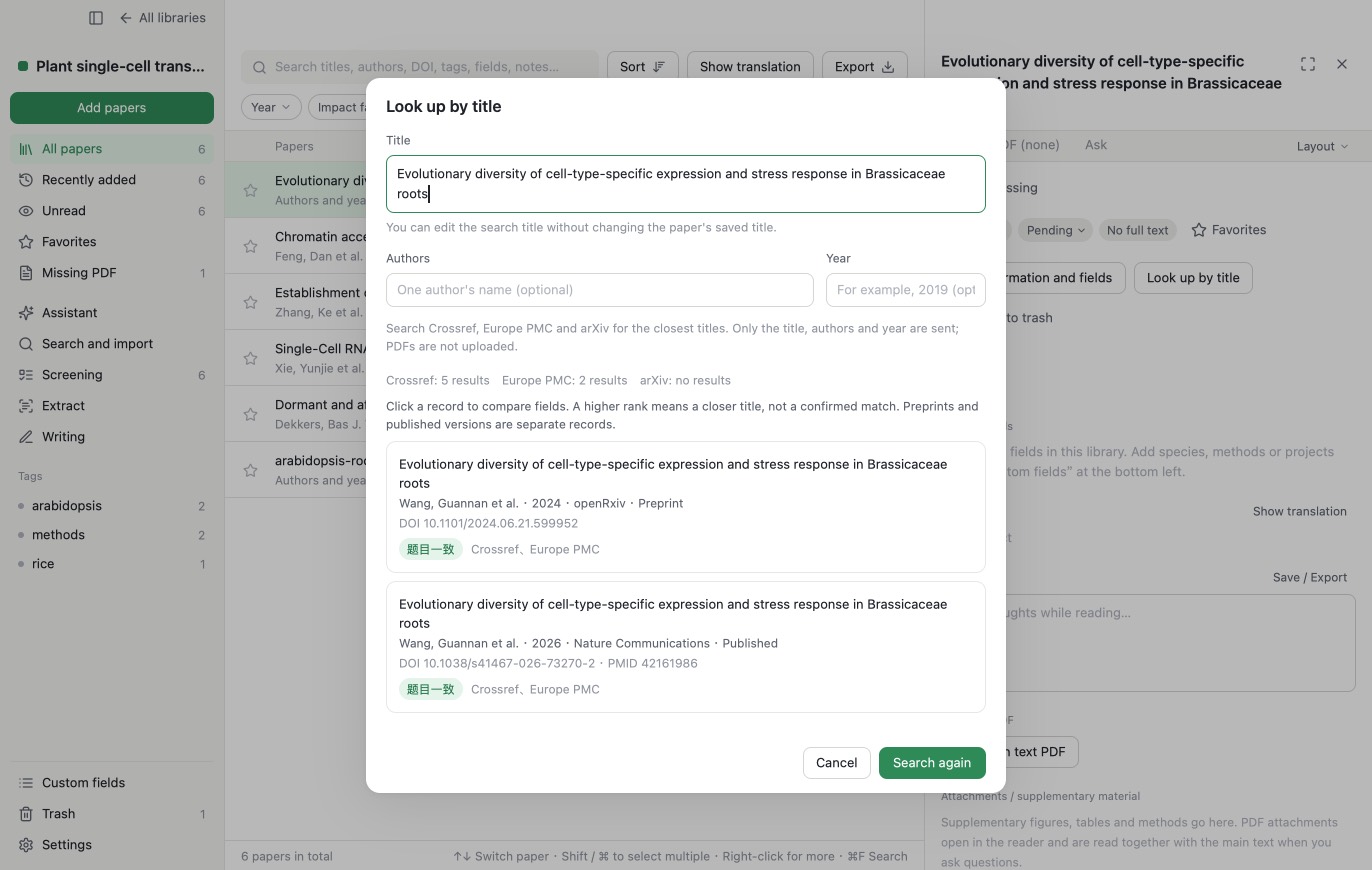
Here Crossref returned 5 results, Europe PMC 2 and arXiv none. They merged into two candidates: the 2024 preprint and the 2026 published version in Nature Communications, both marked as a title match. Being listed first only means the title is closer. For arabidopsis-root-hairs.pdf the same lookup found a single record, the 2013 article in Genome Biology. This example takes the published version. Click it to check it field by field:
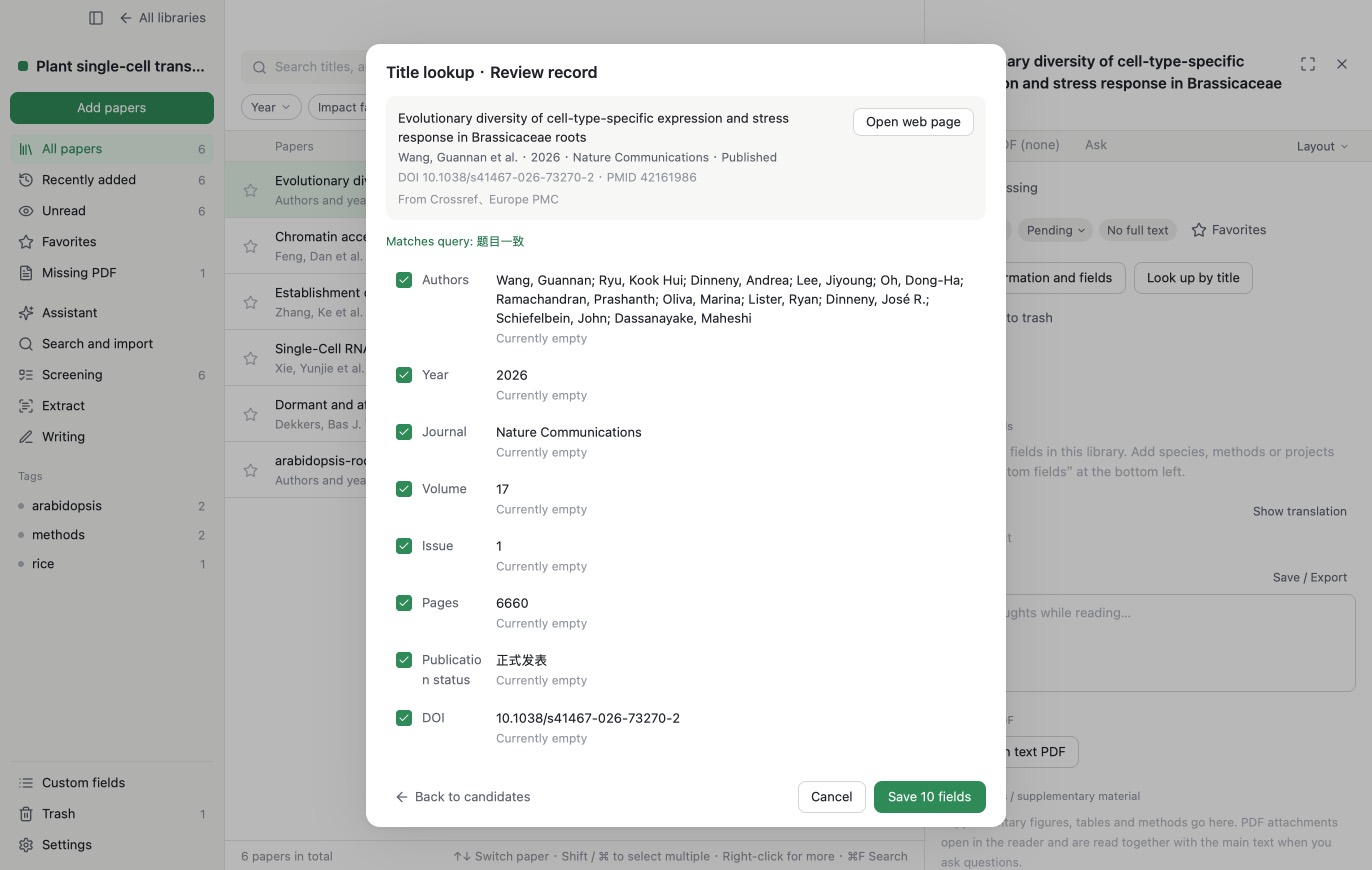
All the fields of this paper are empty, so all are ticked by default. Click “Save 10 fields”. A message says “Completed” with the title, and the row now has authors, a year and the journal.
6Find the missing full texts
Records that came from a .bib, a DOI or Zotero without a file have no PDF. Click “Missing PDF” on the left to list them. The figure shows a library in which 12 papers are in that state:
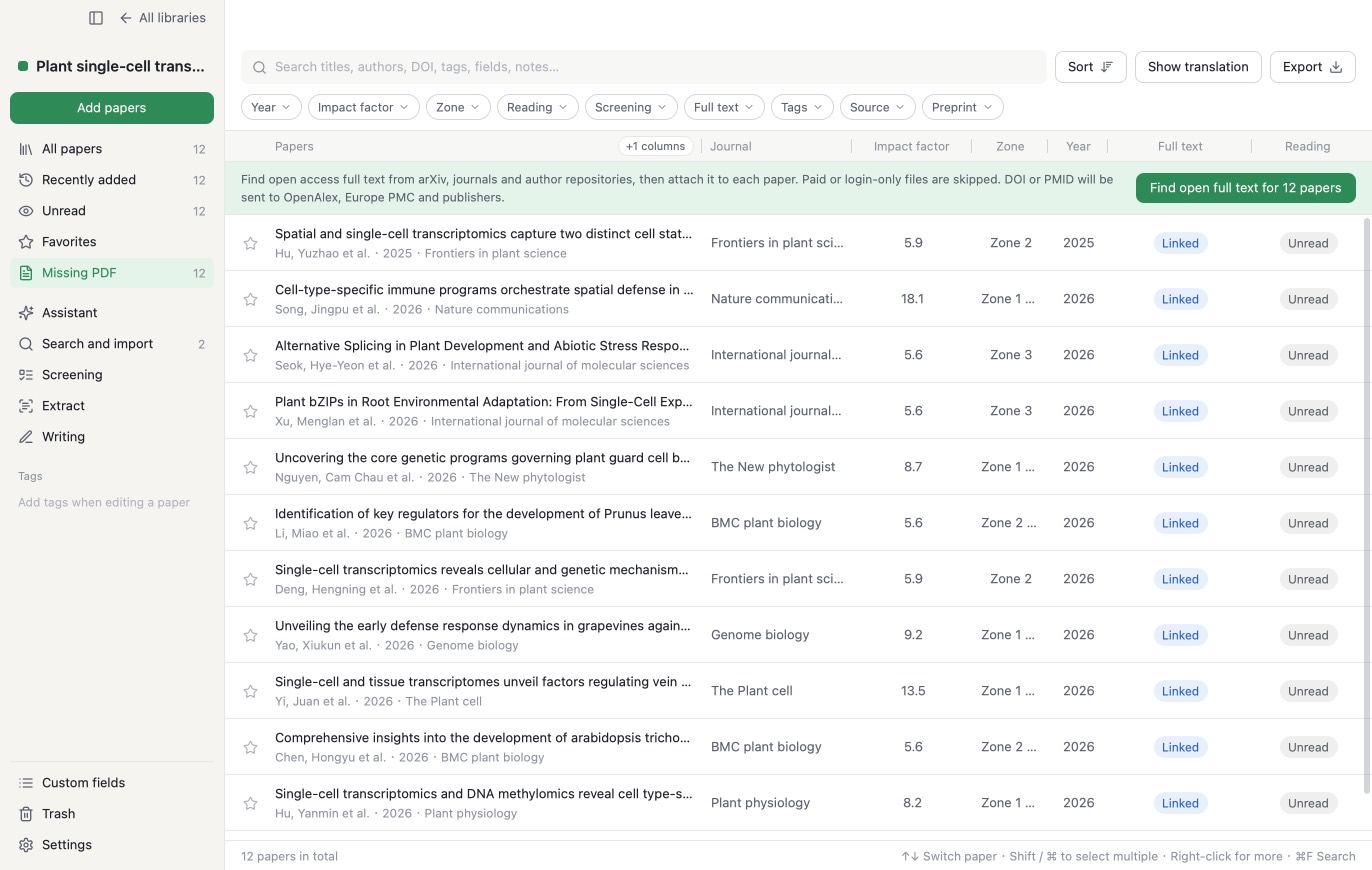
It looks only for versions that can be had free and legally: arXiv, the open access files listed by OpenAlex and Europe PMC, and the PDFs at the publisher for Springer / BMC, Nature and Frontiers articles that they mark as open access. It does not sign in and does not get around paywalls. A paper with no DOI, PMID or arXiv ID cannot be looked up.
Click “Find open full text for 12 papers”. Another progress block, “Find full text”, appears at the bottom of the sidebar. Its bar is segmented by color: green is saved, yellow is no URL found, red is download failed, blue is being searched and gray is waiting. Click it to open “Full text search”, where you see which papers are being looked up and the result and reason for each. While it runs you can “Stop searching”, or “Collapse” it and do something else. When it finishes, the block says “Search complete”:
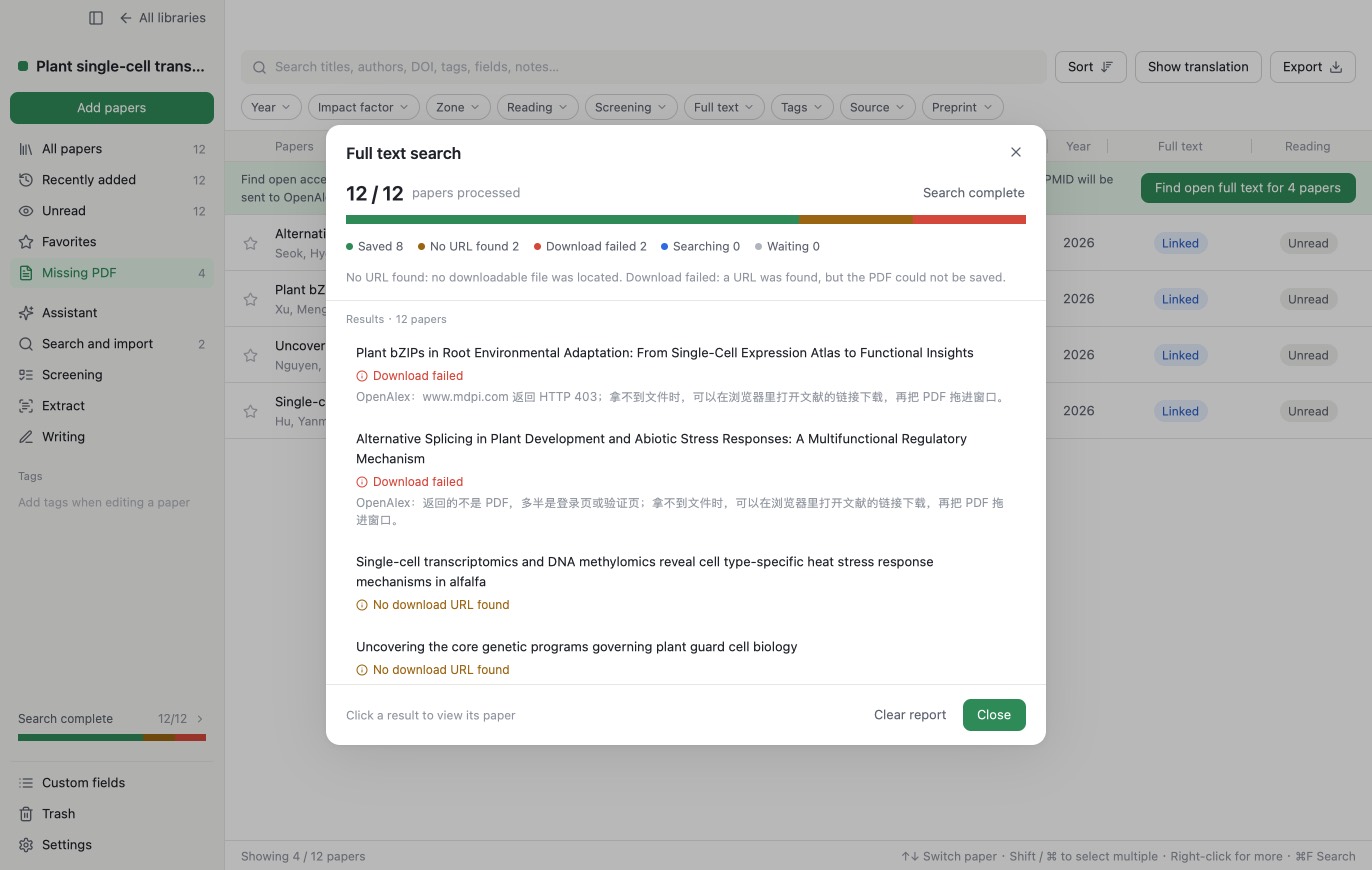
The 8 saved are the three Frontiers in Plant Science papers, the Nature Communications paper, the two BMC Plant Biology papers, the Genome Biology paper and the Plant Cell paper. Their PDFs were attached to the existing entries. Of the other 4, two are open access articles whose addresses were found but not served to a program: one from MDPI returned HTTP 403, and the other returned a sign-in or verification page, which was not stored as a PDF. For the last two, the New Phytologist and Plant Physiology papers, no download address was found. “Missing PDF” still holds 4 papers.
For the rest, click “Open web page” in the details, download the PDF in your browser, then drag the file into the Wisp Study window. It reads the DOI, recognizes that the library already has this paper and attaches the PDF to the existing entry. The details say “Paper already in library; PDF attached to existing record”, and no extra record appears. The “PDF” tab of a single paper also has two buttons, “Find open full text” and “Add PDF”.
7A PDF that is too big: compress it
The Nature paper that came over from Zotero in step 2, when only some collections were ticked (how rice roots adapt to soil, 2025), has a PDF of 90.9 MB, most likely because its figures were stored at their original resolution. It slows down paging, backups and copying the library to another computer. When the main-text PDF is over 10 MB, its row under the paper's details has one more button, “Compress”:
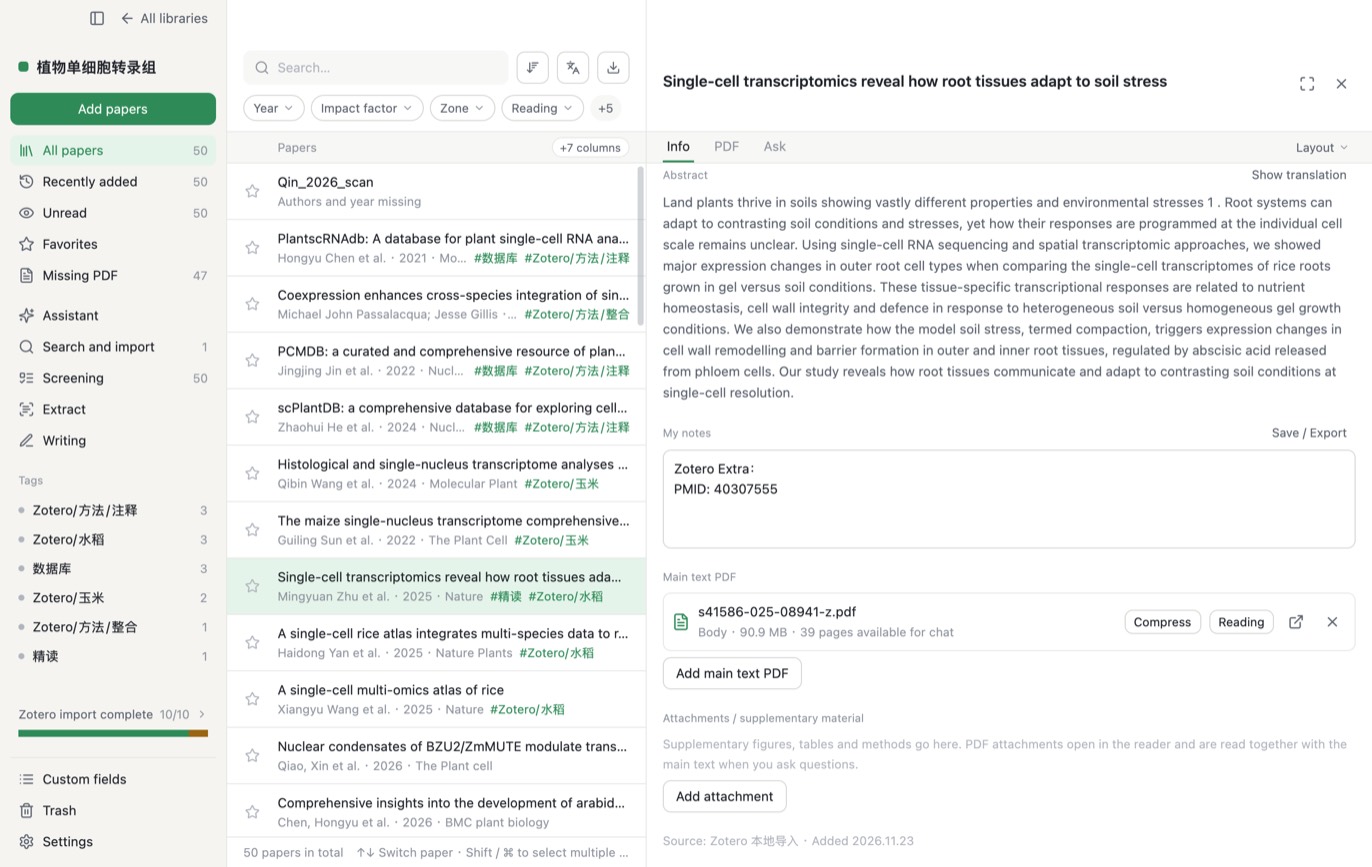
Click “Compress”. It runs on this computer and uploads nothing. This one took two or three seconds, and the top of the window said “Compressed: 90.9 MB → 12.6 MB. The original moved to the removed folder.”
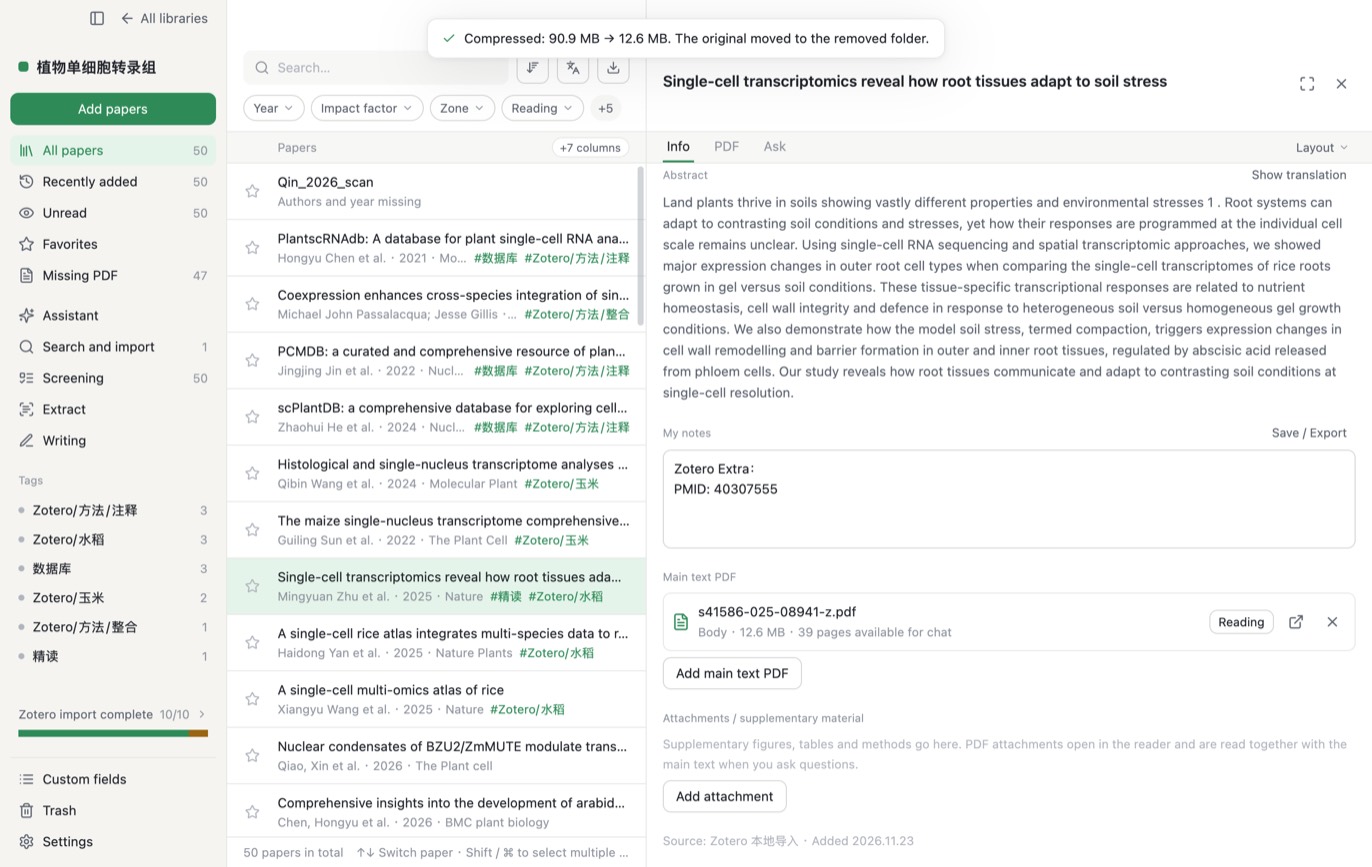
Compressing changes only the pictures: those whose long side is over 2400 pixels (about 200 dpi on an A4 page) are scaled down to 2400 pixels, while text, fonts, pages and links stay the same, and so do your annotations and the text that was read. After compressing, it checks that every page still has the same text as before and does not save the result otherwise. We compared the two files ourselves: the text of all 39 pages is identical. The original was not deleted; it is in the removed/ folder of the library's folder.
8A scan with no text: text recognition
Last comes a preprint you only have as a scan. In this example Qin_2026_scan.pdf is a 35-page bioRxiv preprint drawn page by page into pictures and put back together as a PDF (8.2 MB), just like what a copier produces: the pages hold only images and not a single word can be selected. Drag it into the window and it joins the library, but its Full text is “PDF without text”, its title is the file name and it says “Authors and year missing”. The file's row in the details says why:
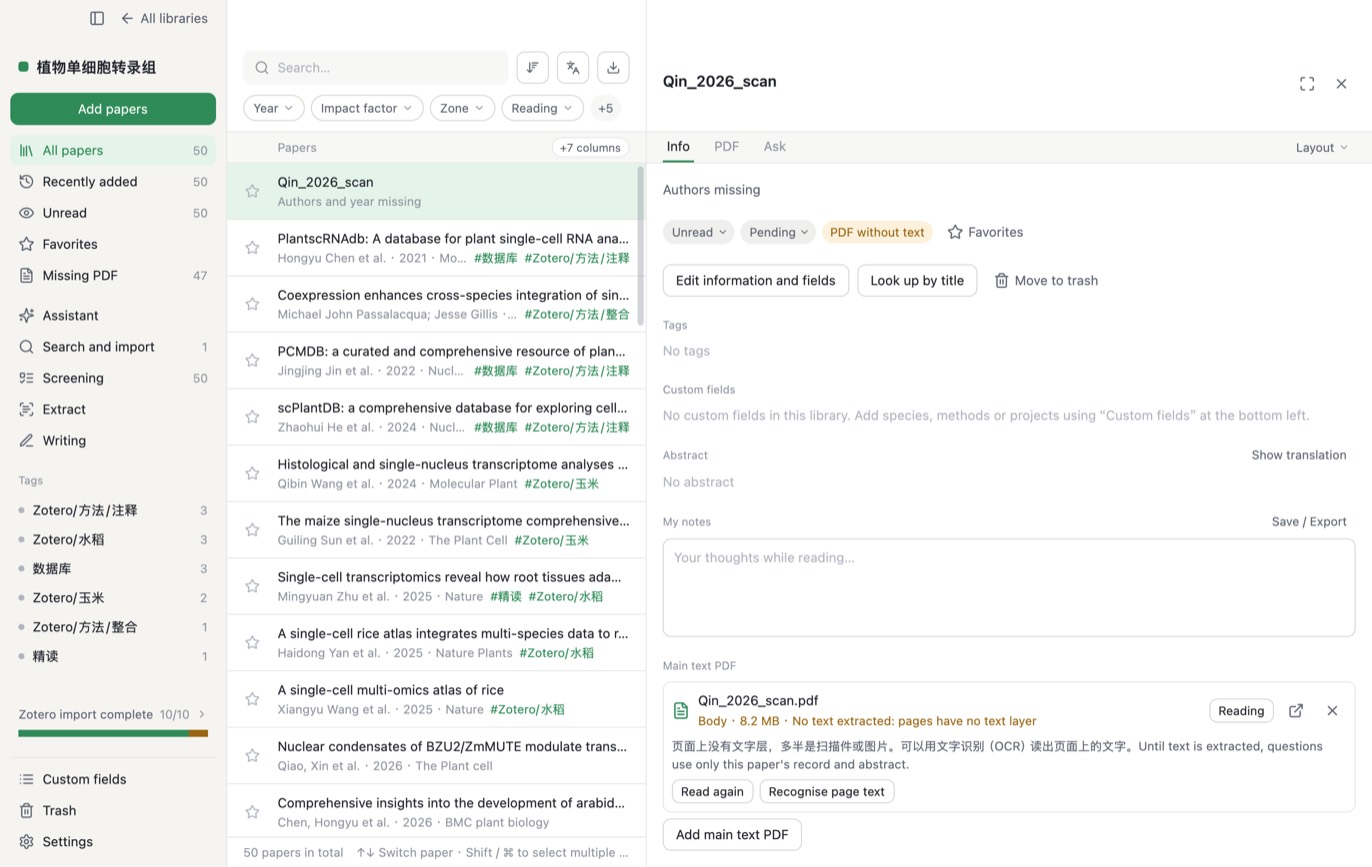
“Recognise page text” is text recognition (OCR): it reads the words off the pages. Which engine does it is chosen under Settings › Network › “Text recognition (OCR)”:
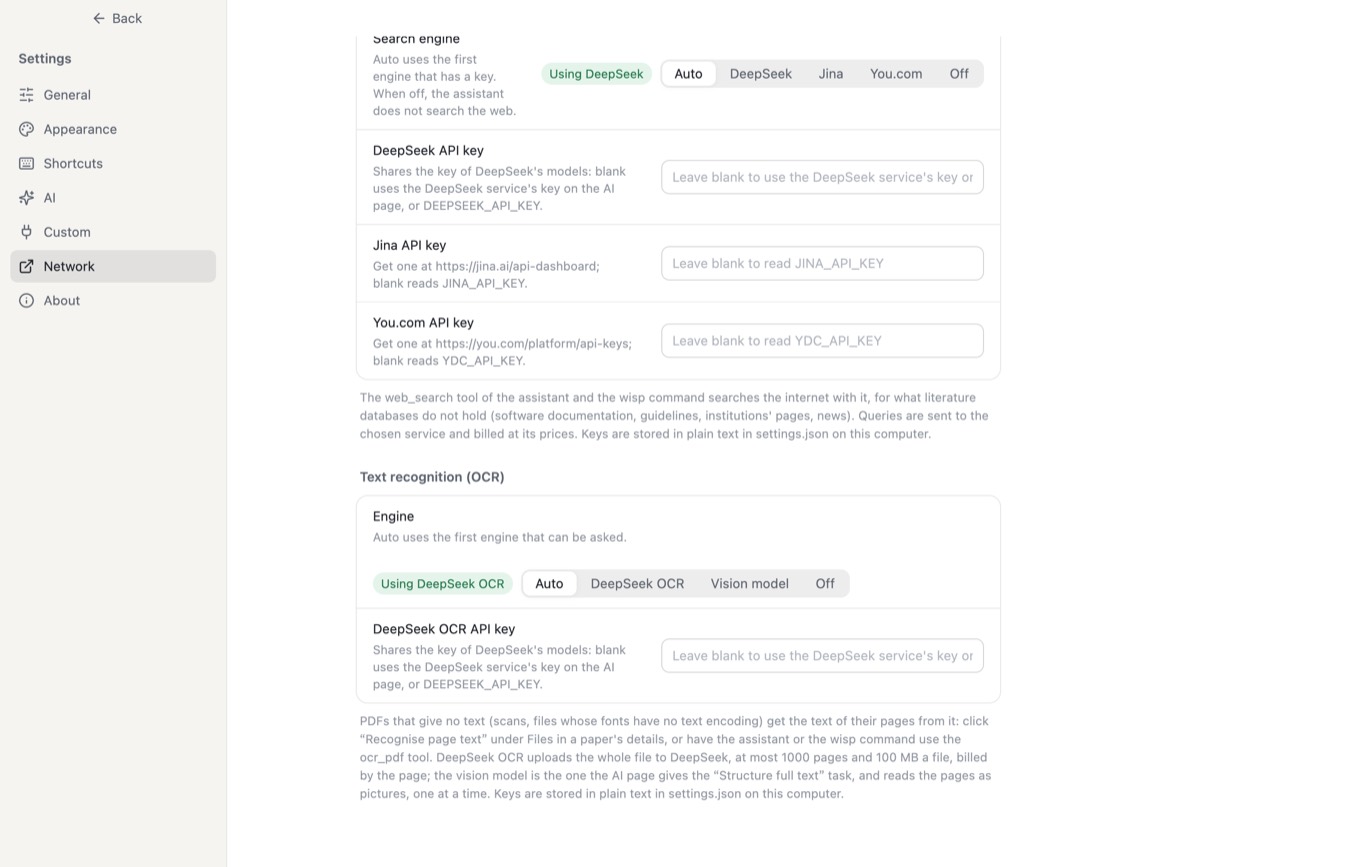
- DeepSeek OCR uploads the whole file to DeepSeek, at most 1000 pages and 100 MB a file, billed by the page. With the key left blank it uses the key of the DeepSeek service on the AI page, or
DEEPSEEK_API_KEY. - Vision model is the model the AI page gives the “Structure full text” task. It draws the pages as pictures and reads them one at a time.
This example has a DeepSeek key, so “Auto” says “Using DeepSeek OCR”. Back at the paper, click “Recognise page text”. The file's row shows a spinner and “Recognising page text…”, and about half a minute later the 35 pages were done:
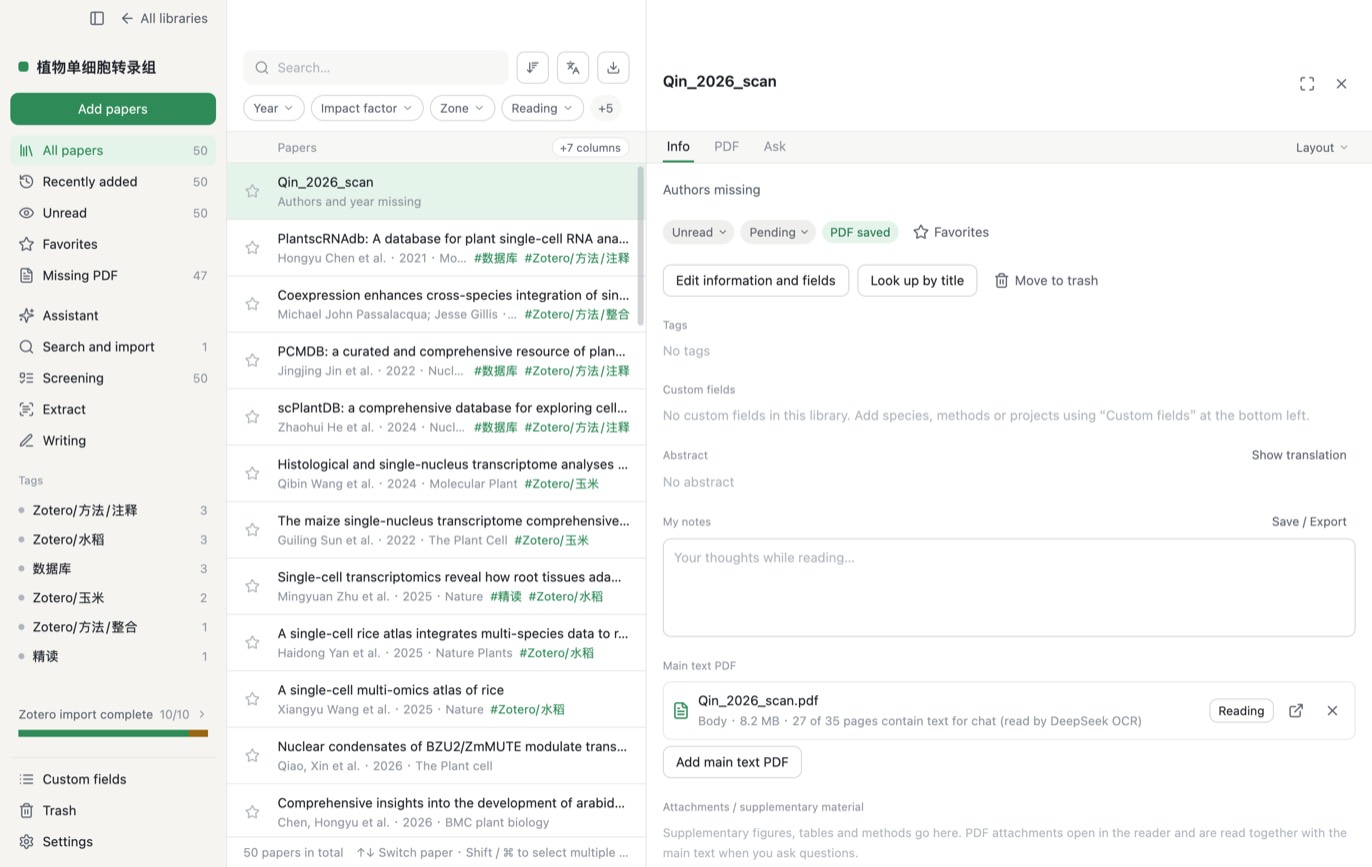
The recognised text is stored page by page, and from now on asking questions, searching the full text and writing can use it. This time DeepSeek OCR returned no text for 8 pages, the first page among them. In the run for the Chinese version of this page, on the same file, only one page came back empty, a page that is all table: the service does not answer the same way every time. The title is still the file name; now that the file has text, you can “Look up by title” as in step 5.
Recap
- From Zotero came the records of 6 papers with their tags, collections, notes and 4 PDFs. Zotero itself was not changed.
- A folder of 6 PDFs was imported and its subfolders became tags. 5 were added, one of them with no DOI detected, and the paper in the trash did not come back.
- The .bib brought in 5 papers and skipped 1 existing one. One paper each was added by DOI and by PMID.
- A record with only a title was completed by title into the published version in Nature Communications, not the preprint. Of 12 papers missing full text, 8 were found, and the reasons for the others are in the details.
- Ticking three collections moved 10 items from Zotero. The 90.9 MB Nature PDF that came with them was compressed to 12.6 MB, and the original is in
removed/. - DeepSeek OCR read the text of 27 of the 35 pages of a scan, which can now be used to ask questions.
- Apart from text recognition, no model was used anywhere. Next you can read one of these papers closely, or go back to start from a topic and fill out the library with a search.