
1Open the assistant on the home page
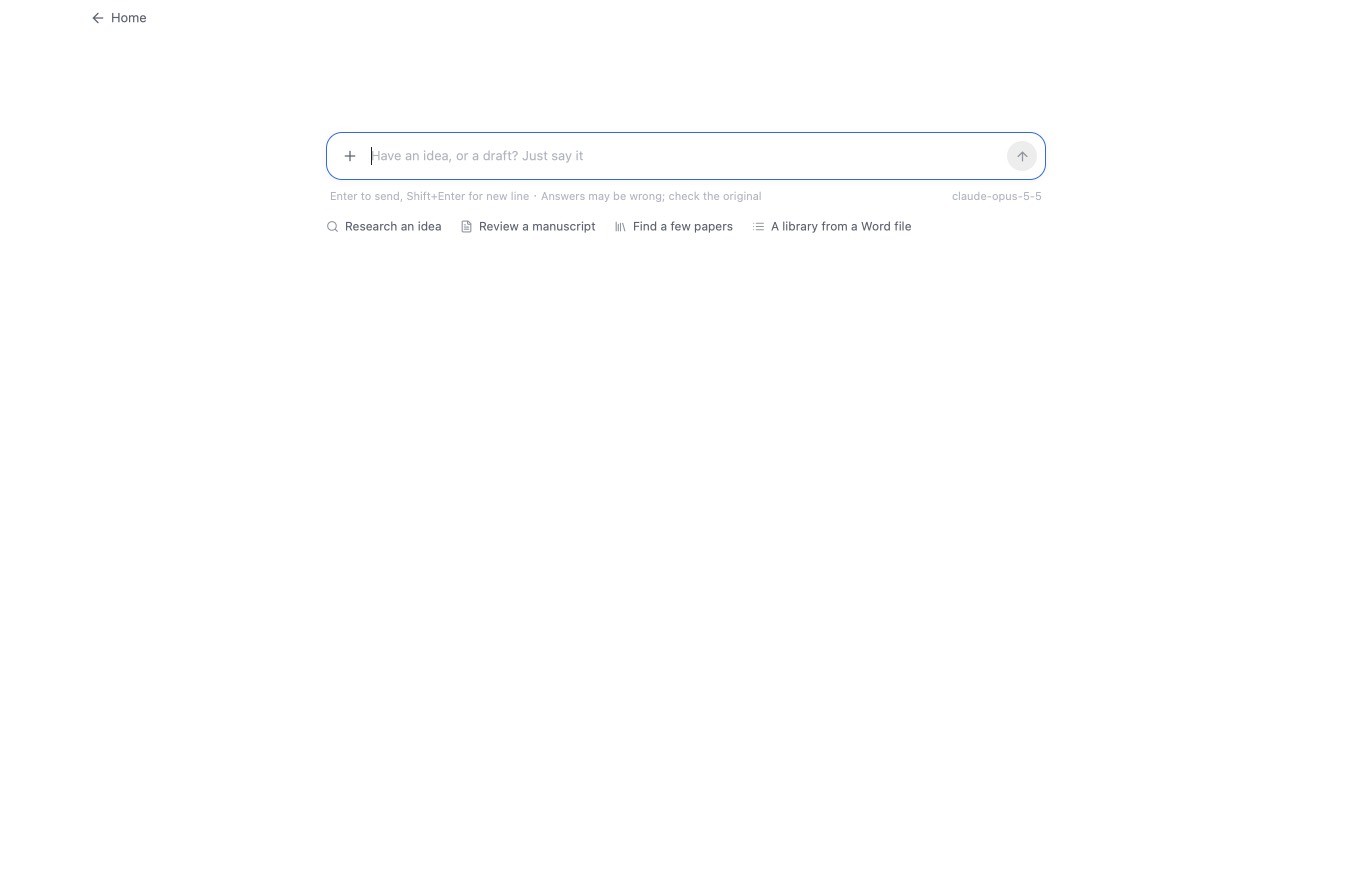
On launch you land on the home page, which lists your libraries. This example is a brand-new data folder with no library at all. The round blue button at the bottom right is the assistant. Click it to open the conversation page: an input box on top that says “Have an idea, or a draft? Just say it”, and four starters below: “Research an idea”, “Review a manuscript”, “Find a few papers” and “A library from a Word file”. Clicking one only puts an opening sentence into the box (reviewing a manuscript and making a library from Word first ask you to pick a file). It does not send anything by itself.
This page has no sidebar. “← Home” at the top left, or Esc, takes you back, and any text and files you have not sent are kept. Just opening this page and typing a few words leaves nothing on disk; the conversation is created only when you send the first question.
Write down what you want to research:
AskI want to look into this: plant single-nucleus sequencing (snRNA-seq) and protoplast single-cell sequencing, which tissues is each suited to? Which studies in the last five years compare the two directly? Find a few worth reading and take them in.
2Ask a research question
Press Enter to send. The conversation is named after the first question (“I want to look into thi…”), and under the title it says “No library yet: the assistant searches the literature databases when it needs papers”. The assistant knows there is not a single paper here, so it looks in PubMed, Europe PMC, Crossref and arXiv by itself. In this run it tried one narrow PubMed query, picked six of the papers it found and saved them as one query.
A trial search only looks at what can be found and takes nothing in. To really take papers in, the assistant stops and asks you:
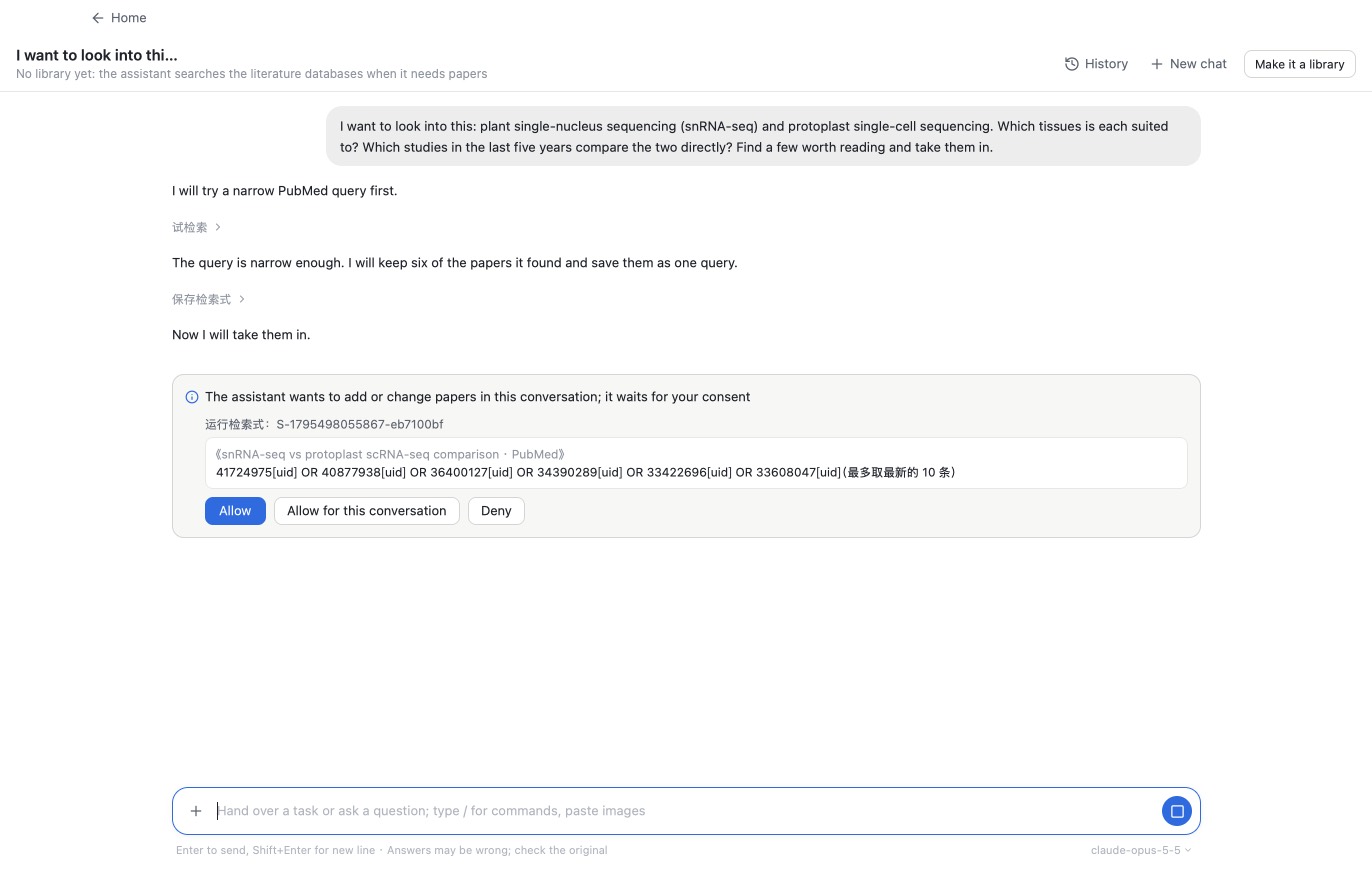
The card says which query will run in which database and how many results it retrieves at most. Look at it, then decide. “Allow” lets this one run only, “Allow for this conversation” stops asking from then on, and “Deny” takes nothing in. The gray lines above the card can be opened to see what each call did and what it found (in this version their labels, and the “at most the latest 10” note in the card, are still drawn in Chinese).
3After you agree, papers are kept in the conversation
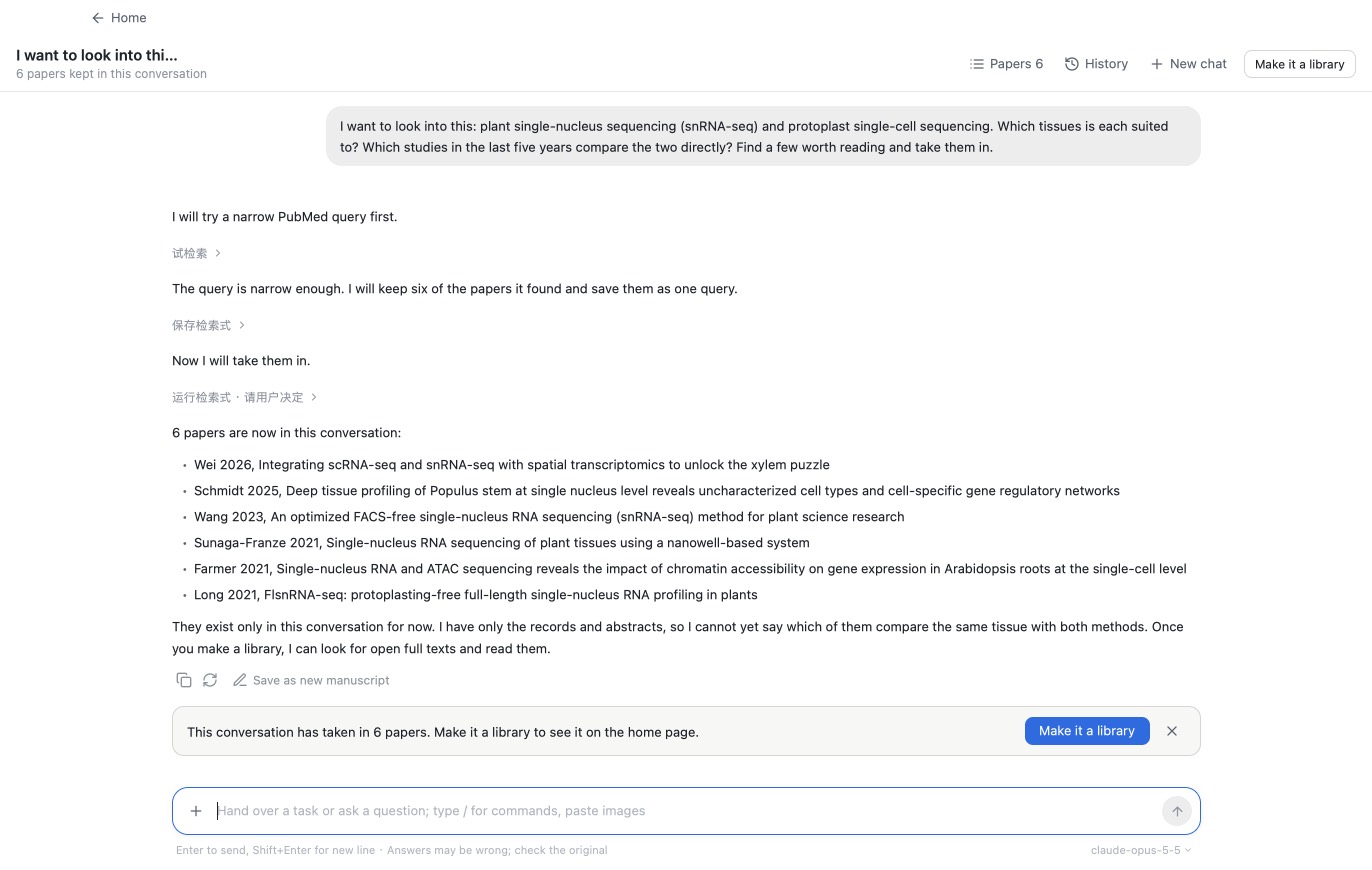
Click “Allow”. The line under the title becomes “6 papers kept in this conversation”, and a “Papers 6” appears above it, listing the papers this conversation has taken in. The assistant lists the 6 papers it took in and explains that for now they exist only in this conversation.
It did not rush to answer the first question, “which tissues is each suited to”. All it has is bibliographic records and abstracts. It said it could not yet tell which papers compared the same tissue with both methods, and that after you make a library it can look for open full texts and read them. That is exactly the next step that is yours to decide, so under the answer there is a card: “This conversation has taken in 6 papers. Make it a library to see it on the home page.”, with “Make it a library” and a close mark beside it.
4Make it a library
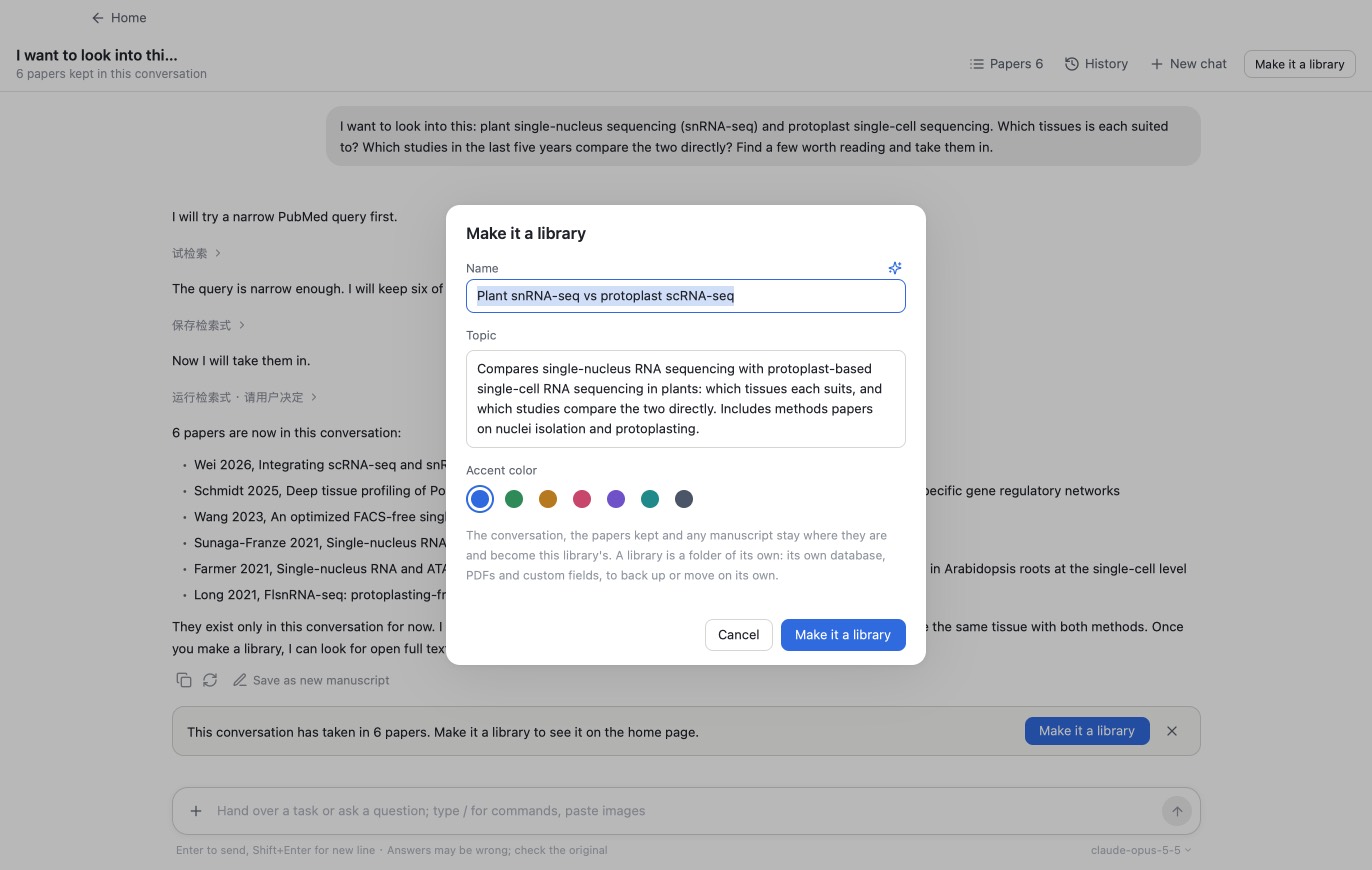
Click “Make it a library” (the one on the card and the one at the top right of the conversation are the same). The dialog is the same as the one for a new library: name, topic, accent color. The AI icon next to the name has the model draft a name and topic from this conversation. Here it drafted the name “Plant snRNA-seq vs protoplast scRNA-seq”, and a topic of two or three sentences saying what to include and what matters. Edit them if you are not satisfied.
Click “Make it a library”, and the window turns into this library on the spot. A sidebar appears on the left, with “All papers 6” and “Missing PDF 6”. “Search and import” shows 1: the query the assistant saved, which you can run again later or set to update regularly. The conversation you just had is under “Assistant”, and you can just keep asking. Back on the home page, this library is a card like any other.
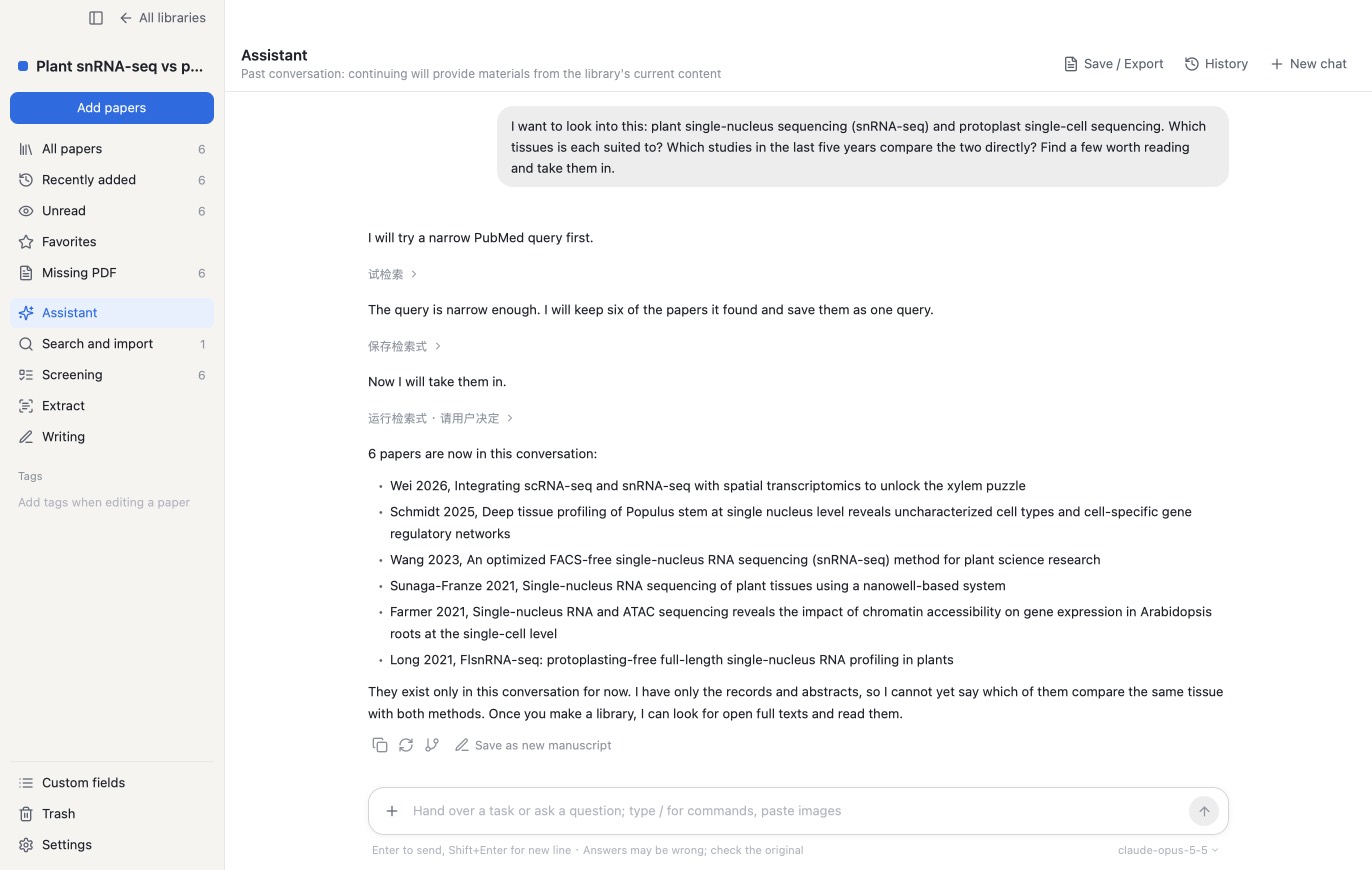
What you can do next is the same as in any other library: have the assistant “Find open full text” for these papers (for a paper without a PDF, the details have this button too), download the PDFs it can find, then go back to “Assistant” and keep asking the first question. Bulk search and screening are in Start from a topic.
5Make a library from a Word manuscript
Another way to start: the proposal already has an introduction, its reference list has eight entries, and they need to go into a library. Back at the assistant on the home page, click “A library from a Word file” and pick this proposal.docx. The file goes into the input box as a small tag, and the box is filled with one sentence, “Take every work in this Word file's reference list in, as a new library.” You can edit it or send it as it is. You can also drag a .docx onto the home page and then say yourself what to do; dragging several PDFs works the same way, and the files go into the input box. Dragging a single PDF is different: it goes straight into reading mode for that paper, see Just one PDF to read.
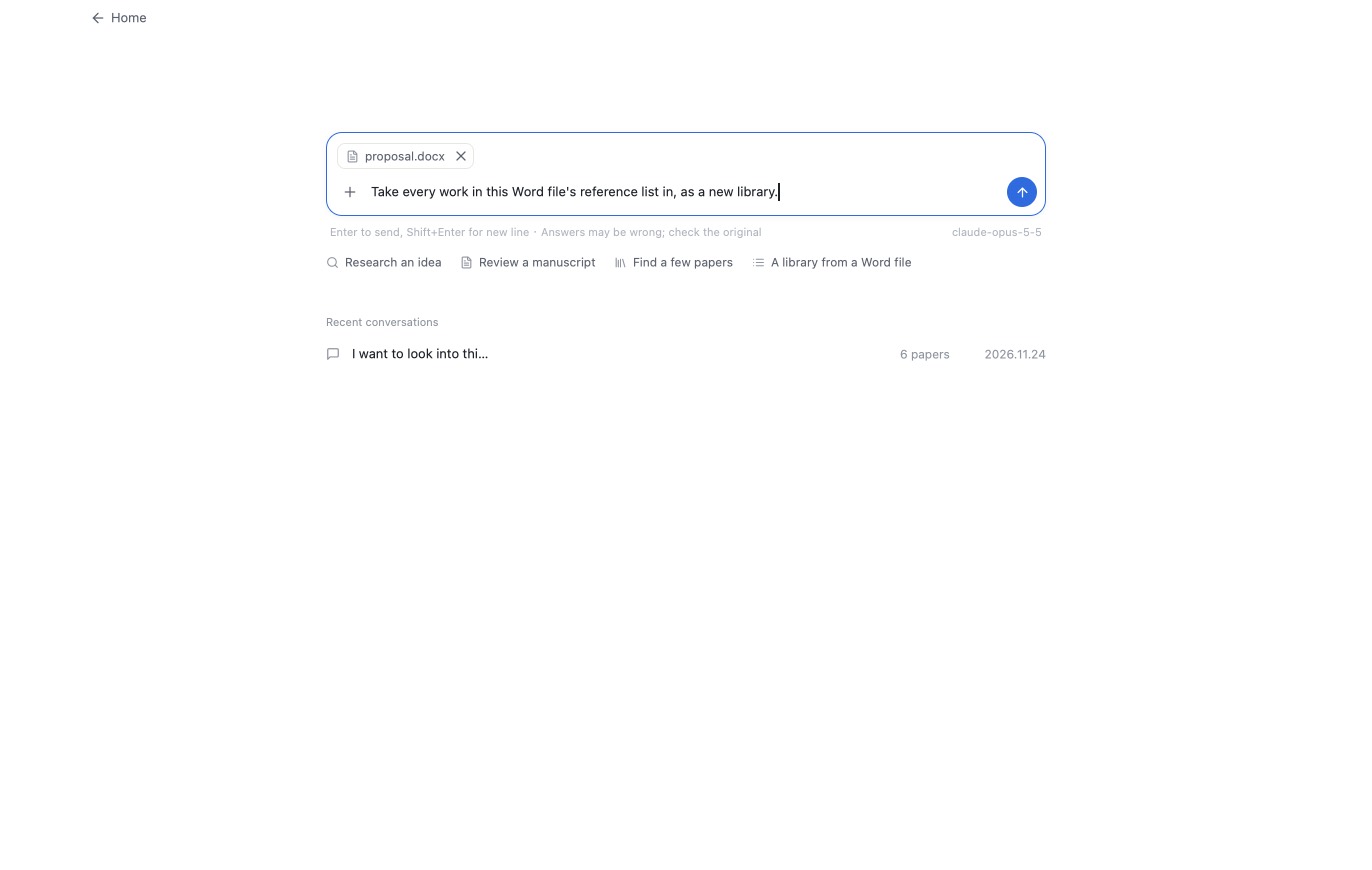
Once sent, the conversation is named “References of proposal”. The assistant reads every entry of the reference list and, with your consent, takes them in. When the file has Zotero or Mendeley citation fields, the paper information is taken directly from the fields. This proposal has a handwritten numbered list, so it reads the entries one by one after “References”. Entries with a DOI are checked against Crossref; entries without one are looked up in Crossref by their text, and a match is accepted only if the title and year both agree.
Four of the eight entries in this example ([3], [5], [6] and [8]) have no DOI in the original, and all were found. The answer says “All 8 papers of the reference list are now in this conversation. No entry was skipped, and none could not be recognized. The entries were read from the text, not from Zotero citation fields”, and suggests spot-checking that the titles match. An entry that cannot be read or matched is not filled in out of thin air; the assistant tells you about each one.
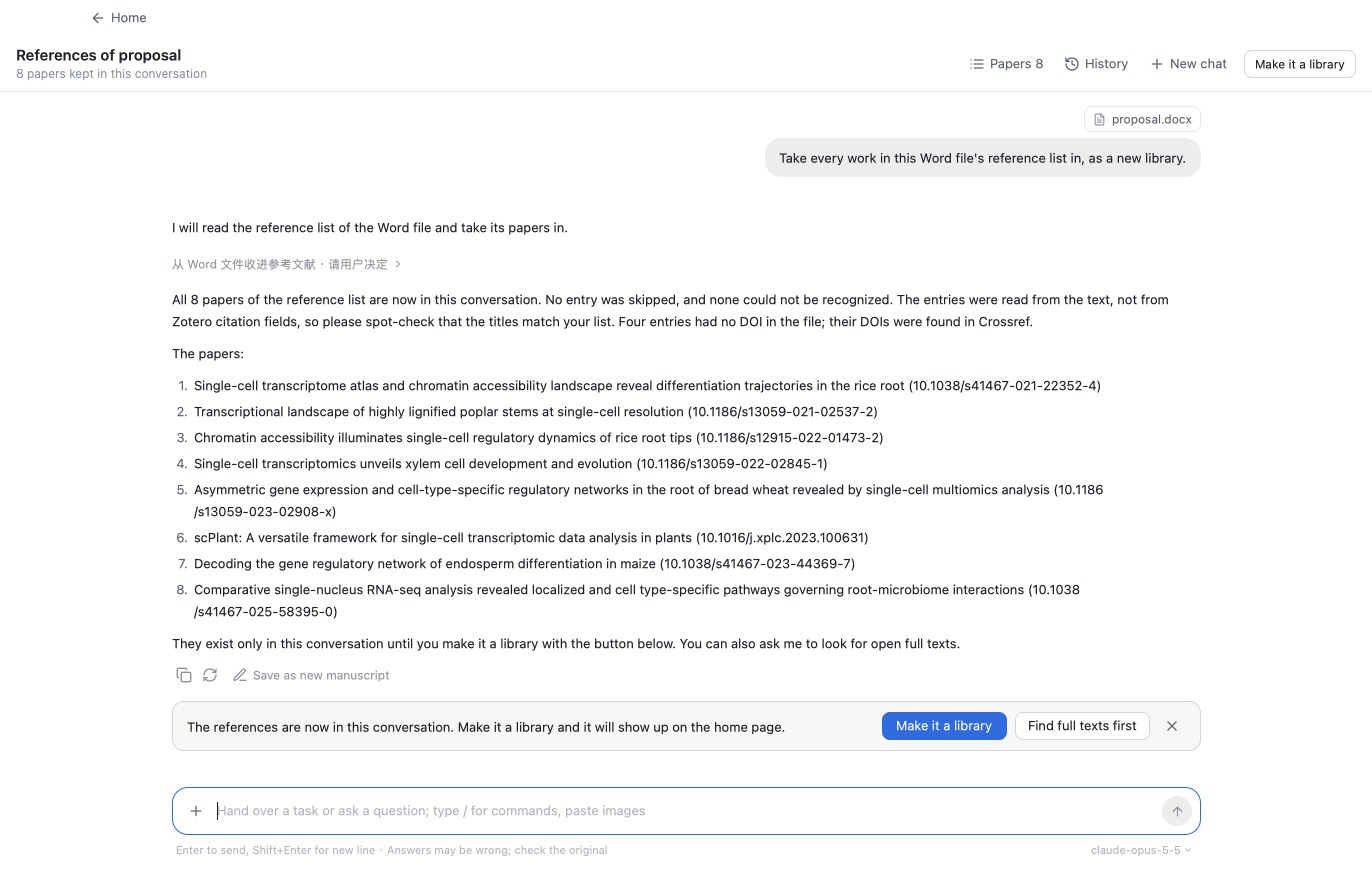
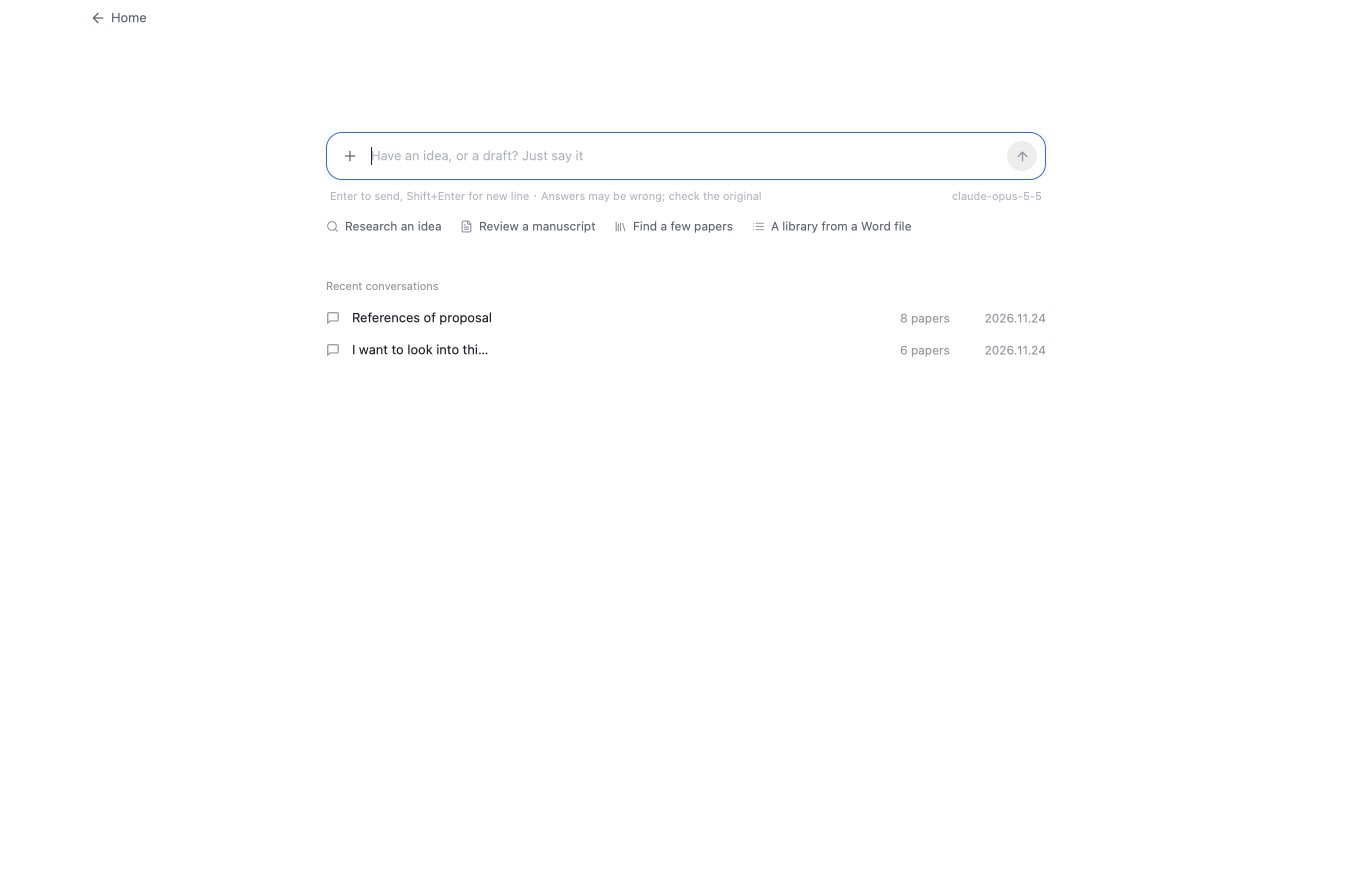
The Word file itself is not changed. Afterward, click “Make it a library” in the same way. Conversations you have not decided about can stay: “Recent conversations”, under the home assistant, lists them by time, saying how many papers were taken in and on what day. Click a row to keep talking; right-click to rename, make it a library or delete it. Deleting works like removing a library: the folder is only moved under removed in the data folder.
Recap
- The assistant at the bottom right of the home page is a conversation with no library yet: it is created only when you send the first question, and you can pick it up again at any time from “Recent conversations”.
- The assistant searches by itself. When it wants to take papers in, the card says which query will run in which database and waits for your permission.
- “A library from a Word file” reads every entry of the reference list, checks it against Crossref and fills in the DOI. It tells you about each entry it cannot read, and the Word file is not touched.
- “Make it a library” has the model draft a name and topic, and the conversation and the papers become a library on the spot.
- Next: if your papers are in Zotero or in a folder of PDFs, see Bring in the papers you already have.