
1Import the Word manuscript your co-author returned
The manuscript is root-snRNA-draft.docx: a title, two top-level headings, “Introduction” and “Methods”, three second-level headings under Methods, and one sample table. Your co-author left 5 comments in Word.
Open the library, go to “Writing”, click “Manuscript” at the bottom of the outline on the left, and choose “Import a Word / Markdown file…”. You can also drag the .docx into the window, or onto the paper list; after the import you land on the Writing page.
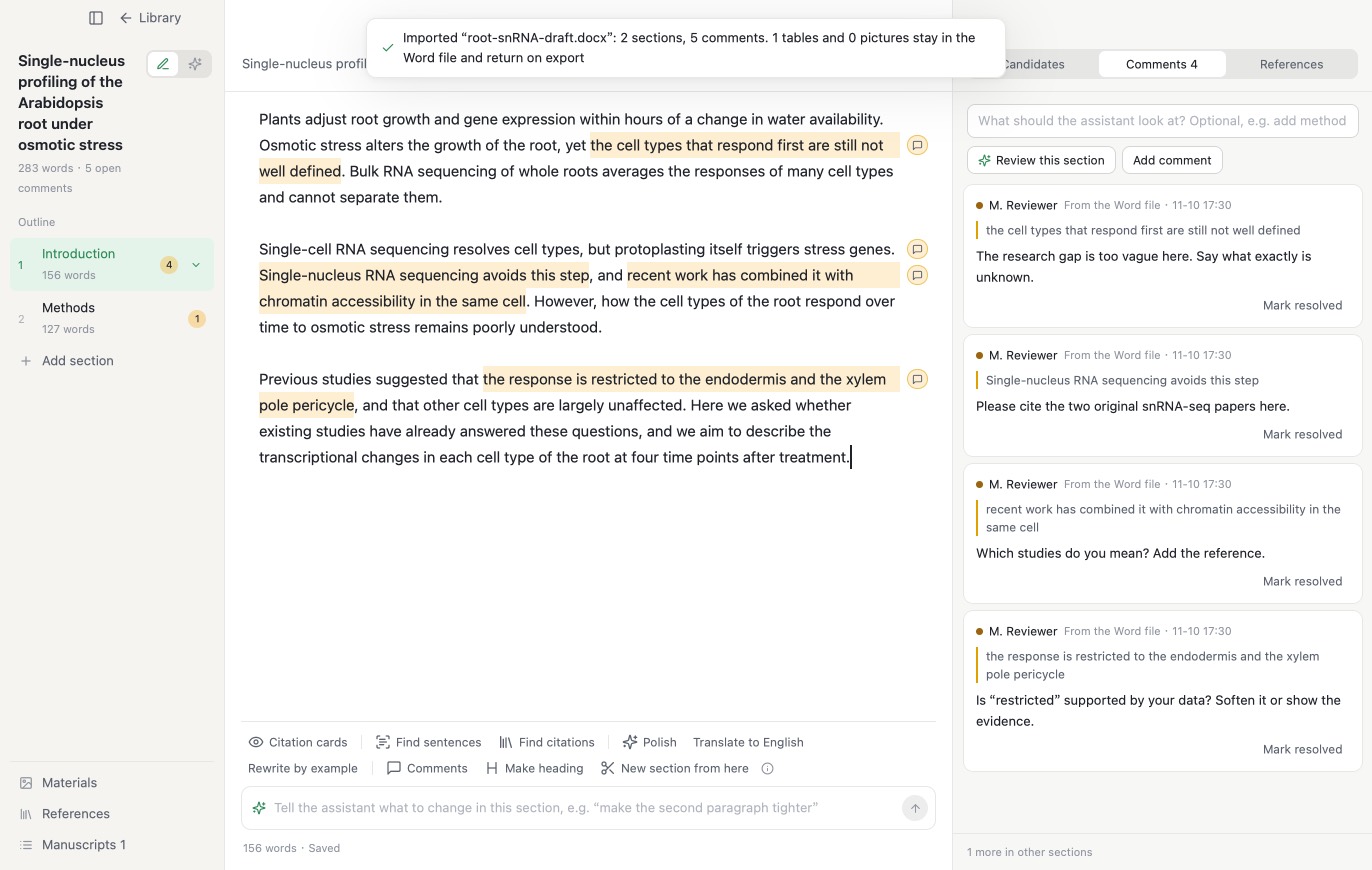
The notice this time reads:
NoticeImported “root-snRNA-draft.docx”: 2 sections, 5 comments. 1 tables and 0 pictures stay in the Word file and return on export
- Only the highest heading level starts a section. The three second-level headings stay in the body of “Methods”, one line each.
- Tables and pictures do not enter the text of the manuscript; the table caption line stays as an ordinary paragraph. On export the table returns to its place.
- Tracked changes in a Word file are read as if they were accepted, so their text becomes body text.
- Wisp Study keeps a copy of the Word file in
manuscripts/in the library folder and uses it as the base on export. Moving or deleting the original does not matter.
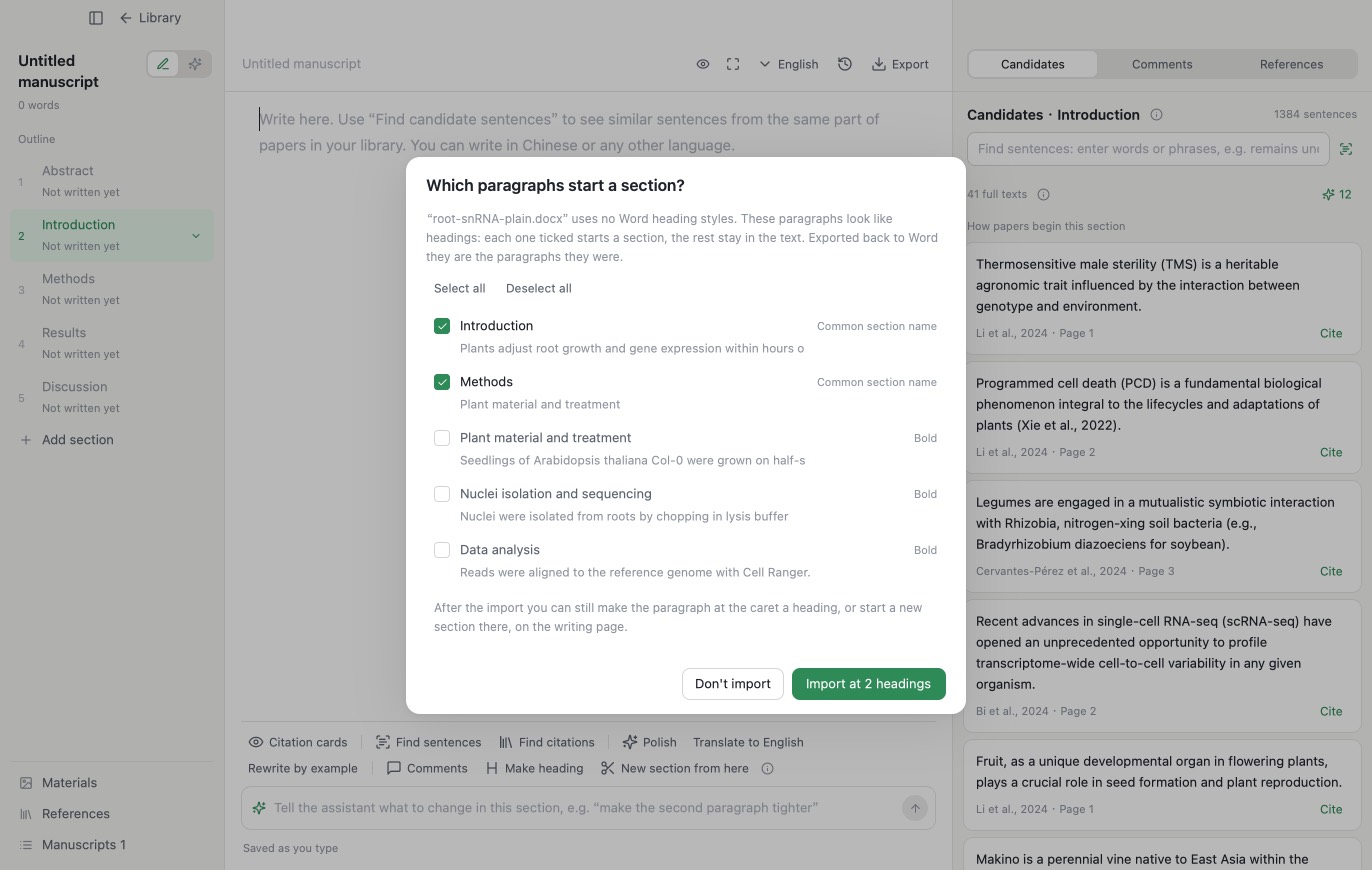
If the file does not use Word's heading styles (the headings are just bold paragraphs), the import first asks “Which paragraphs start a section?”. It lists the paragraphs that look like headings and says why: “Common section name”, “Bold”, and so on. Each ticked paragraph starts a section; the others stay in the body.
2Go through the co-author's comments
The “Comments” tab on the right lists this section's comments by position, each with the original text it refers to. Click the quote in a comment and the manuscript jumps to that text and selects it; click shaded text in the manuscript, or the small marker on the right, and the matching comment comes up.
In the Methods your co-author asks “Check this number against Table 1.” You compare it with the sample table: the four time points (11,874, 12,305, 12,418 and 11,715 nuclei) add up to exactly 48,312, so nothing needs changing, and you click “Mark resolved” on this comment. A comment that came from Word can only be marked resolved, not deleted; resolved ones are counted as “1 resolved” at the bottom of the list, and you can “Reopen” them.
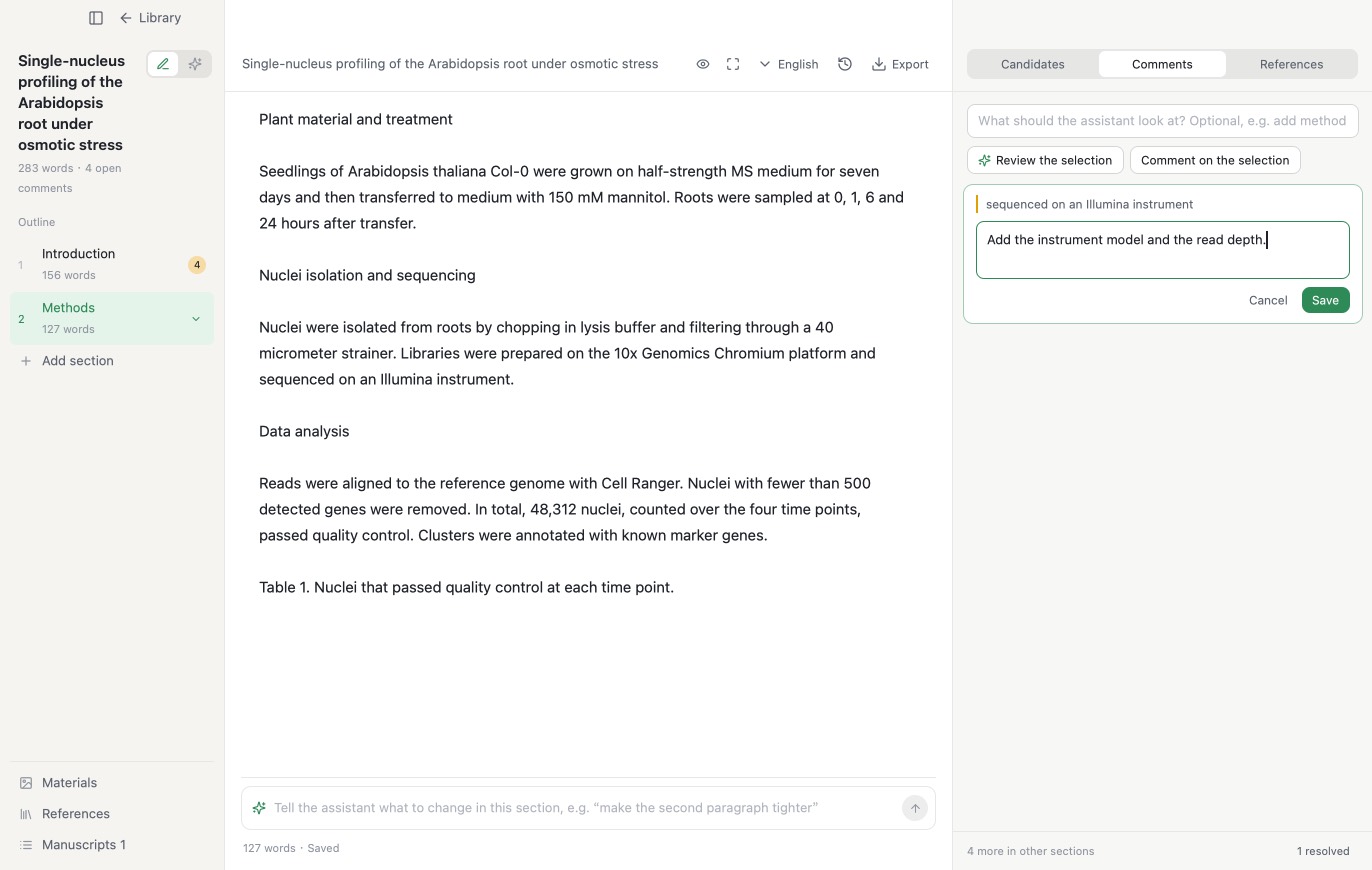
You can leave comments yourself too: in the Methods, select “sequenced on an Illumina instrument”, click “Comment on the selection”, write what needs adding (here “Add the instrument model and the read depth.”), and click “Save” (or press Enter).
3Let the assistant review this section
The result of “Review this section” is like a Word review: a list of comments, each pointing at a passage of the original, with “Suggested change” attached where the wording should change. The input box above lets you say what you want it to look at, or you can leave it empty. This time you wrote:
What should the assistant look at?Answer my co-author's comments first; then check whether the research gap is clearly stated
Click into the body first to make sure no text is selected, then click “Review this section”. With text selected the button becomes “Review the selection” and reviews only that passage. The notice says “The assistant left 5 comments.” Four of them answer comments by M. Reviewer, and the fifth is about the sentence that states the aim.
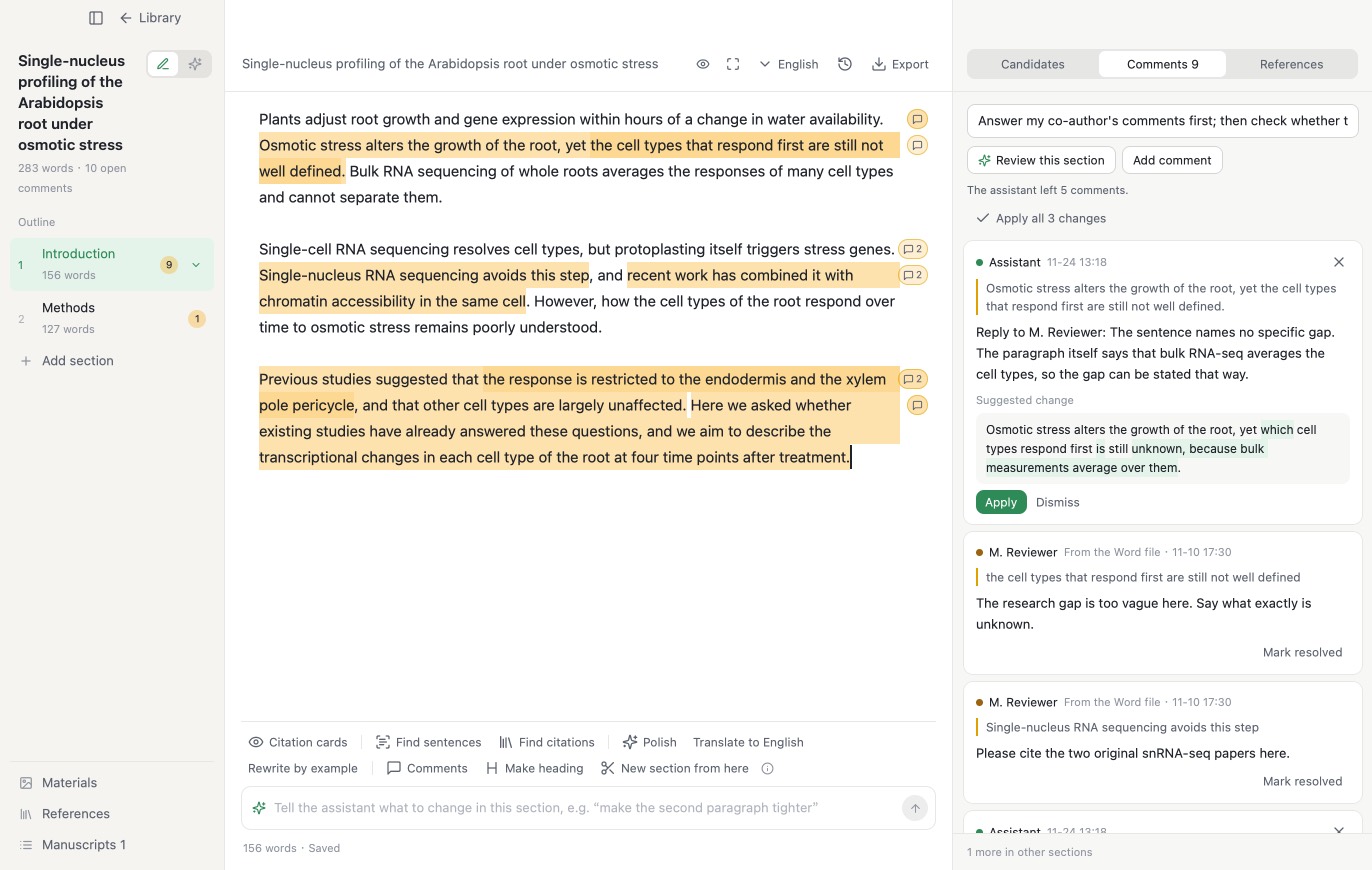
The reply to the comment that asks for the two original single-nucleus papers gives no fix:
AssistantReply to M. Reviewer: a citation is needed here. No bibliographic entry was given, so no citation marker is made up; add the paper in the manuscript's citation format.
It does not invent citations. Where something needs checking, it says so in the comment.
4Apply, undo or dismiss
The assistant's comments never change the manuscript on their own. Only when you click “Apply” is that passage in the manuscript replaced. The comment then moves to the new text and reads “Changed. The original was” followed by the old sentence, with an “Undo change” button beside it.
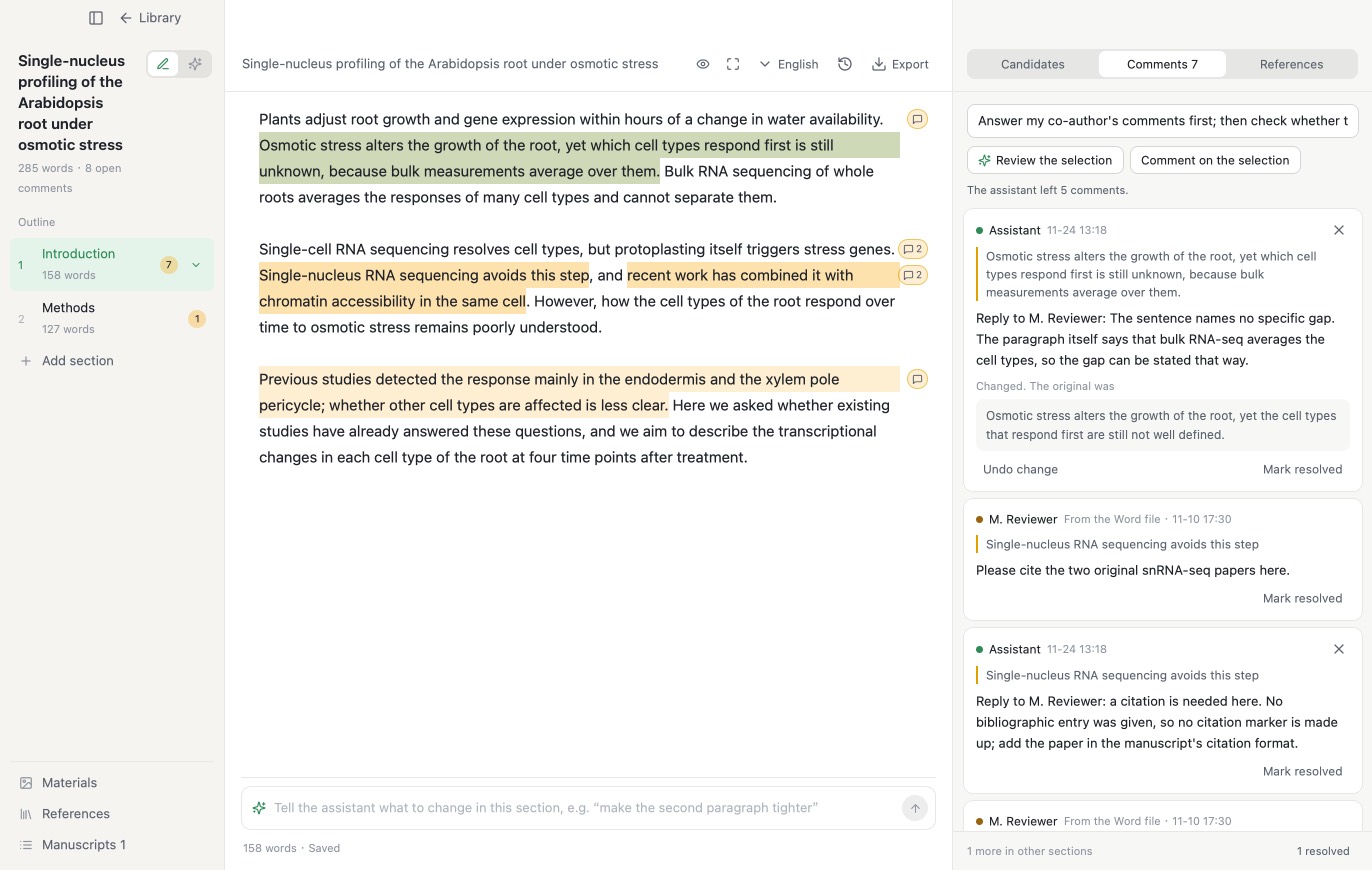
What you did this time:
- The research-gap sentence: applied. Your co-author's comment “The research gap is too vague here” was then marked resolved.
- The comment on “the response is restricted to the endodermis and the xylem pole pericycle”: applied. The sentence now reads “Previous studies detected the response mainly in the endodermis and the xylem pole pericycle; whether other cell types are affected is less clear.” The assistant's reason is that “restricted” claims that other cell types do not respond, which goes beyond what the sentence can support.
- The comment suggesting that the sentence stating the aim be rewritten as “Here we describe the transcriptional changes in each cell type of the root at four time points after treatment.”: “Dismiss”, which removes that comment.
- The comments that only remind you to add a citation and change no wording: left in place, to be marked resolved once you have added the papers.
If you review again, the assistant comments from the previous round that you have not dealt with are replaced by the new round; the ones you applied stay. The revised sentences were written by a model; whether the data and conclusions hold up is for you to check against the results.
5Revise one spot as you tell it
The methods give no reason for the four time points. Go to the “Methods” section and, in the input box under the manuscript (“Tell the assistant what to change in this section”), write:
Tell the assistant what to change in this sectionAfter the sentence about sampling times add one sentence explaining why these four time points were chosen; do not make up references or data
After you send it, the change lands directly in the manuscript: the new text is shaded and has a vertical bar on its left. Above the input box it lists how many places changed, and each can be undone with “Undo”, or you can choose “Undo all” or “Keep”. The assistant added one sentence after the sampling sentence:
AssistantThe 0 hour sample serves as the baseline, and the three later time points cover the early and the later phases of the response.
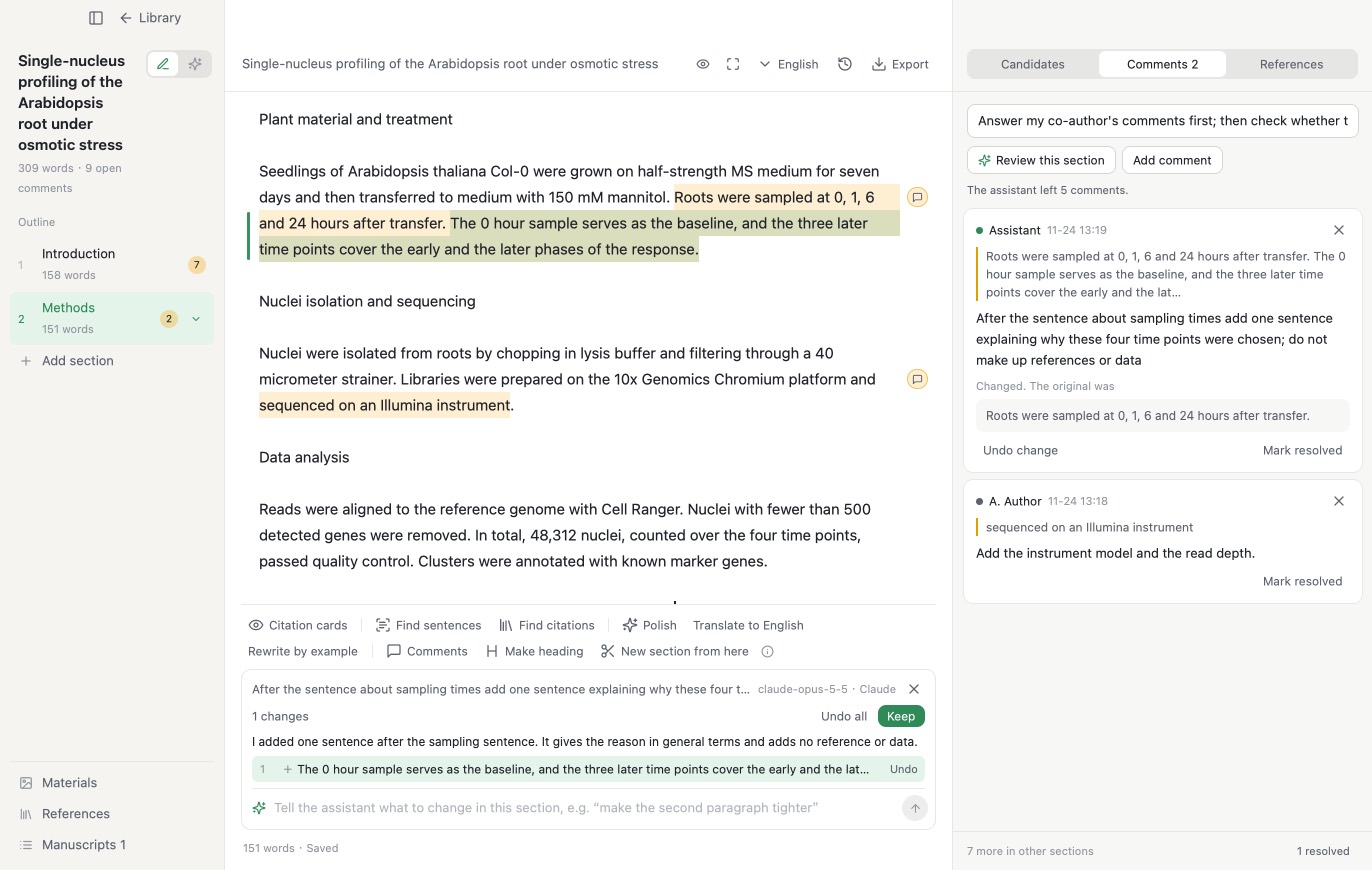
This comment is left automatically, so after the export your co-author can see what was changed here. Replacing a passage with “Polish” or “Rewrite by example” under the body leaves one as well.
6Export Word with tracked changes
Click “Export” above the manuscript. A manuscript that came from Word has two Word exports:
- “Word (.docx): original layout, with comments”: the changes are written straight into the body, with no tracked-change record.
- “Word (.docx): changes as tracked revisions, with comments”: each change is recorded as a Word tracked change, and your co-author can accept or reject them one by one in Word.
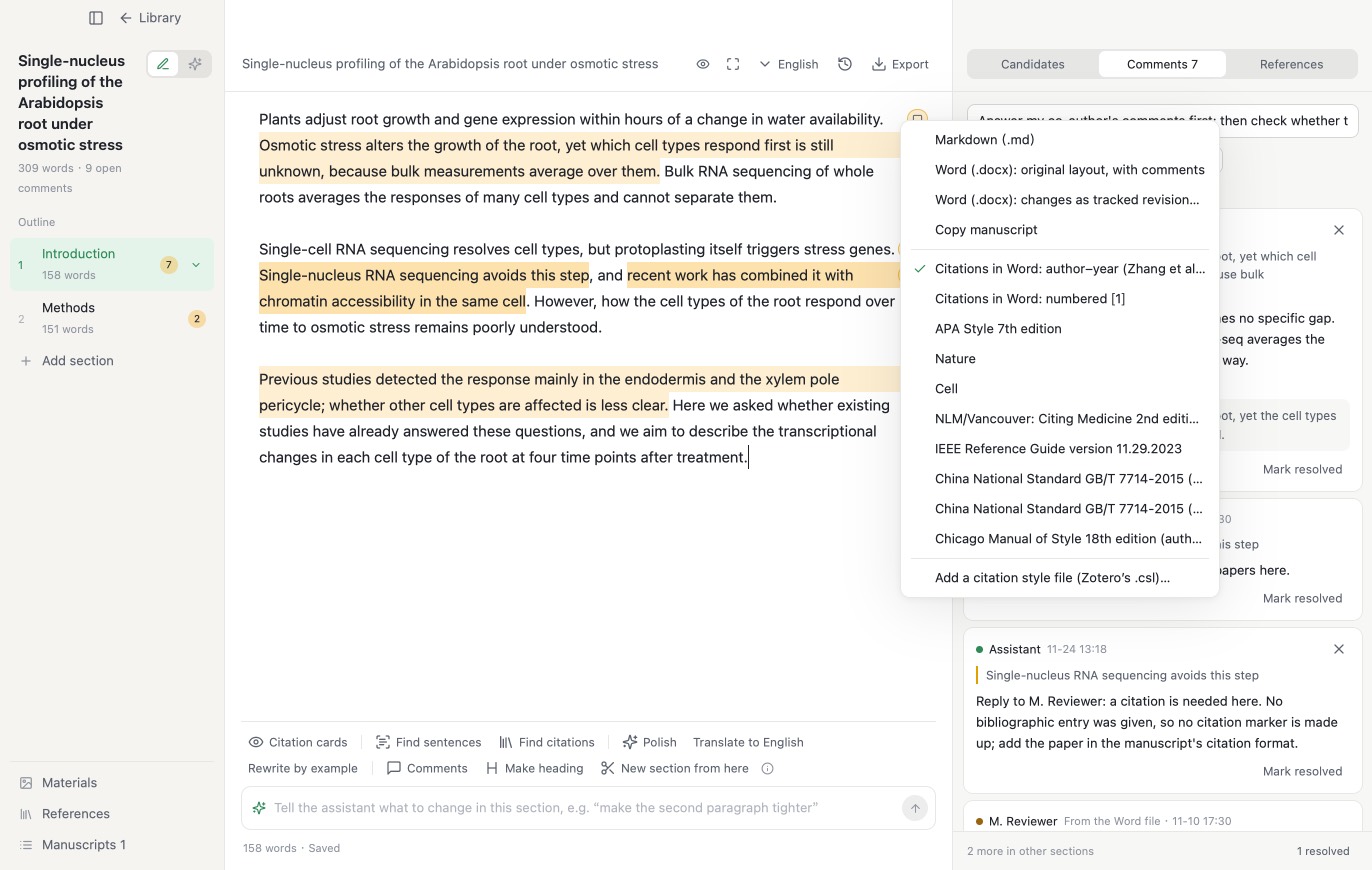
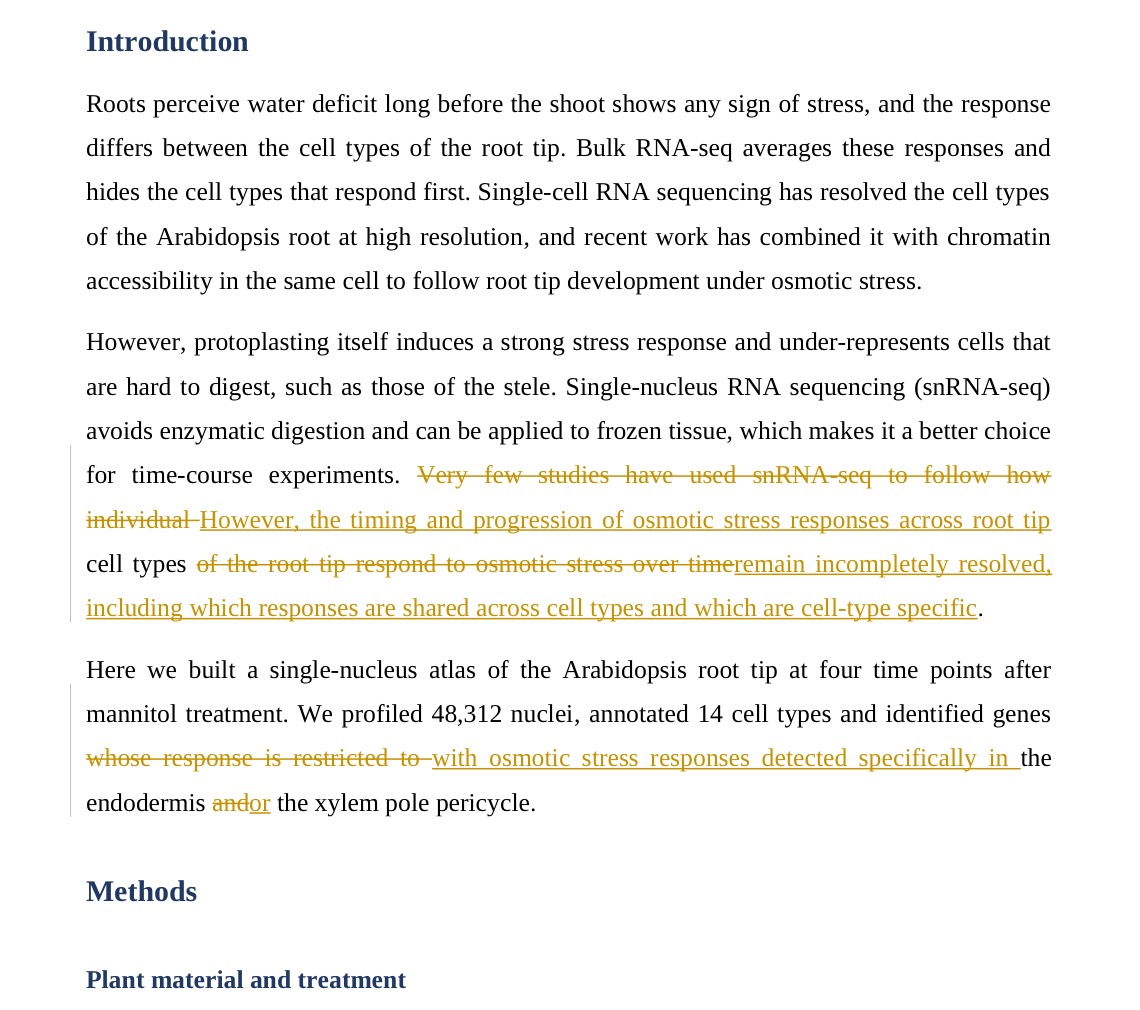
Choose the second one. After the export the notice reads “Exported to … (3 paragraphs changed, all as tracked changes, 6 comments)”. The 6 are the comments you and the assistant left; your co-author's 5 were already in the file. Unzip the exported file and compare it with the original:
- Paragraphs you did not change, headings, the sample table and the style sheet are byte for byte the same as in the original. A changed paragraph has only its text replaced; the formatting stays.
- The tracked changes are word by word: deleted words are struck through and added words are recorded separately. The author is the “Author name” you filled in under “Settings › General › Writing”. If it is empty, the user name of this computer is used.
- Your comments carry your name. The assistant's comments carry “Wisp Study 助手” (the Wisp Study assistant), and a suggestion you did not apply is written in the comment as “Suggested change: …”.
- A tracked change that was already in the file you imported stays a tracked change in the exported file.
Recap
- Import the Word manuscript: top-level headings start sections, your co-author's comments are read in together with the text they point to, and tables and pictures stay in the file.
- Check your co-author's comments one by one and mark them resolved; write your own reminders on selected text.
- In a review the assistant answers your co-author first and then gives a “Suggested change”; you decide whether to apply it, and an applied change can be undone.
- Spots revised as you tell it get a comment automatically; on export the changes are recorded as tracked changes, and paragraphs you did not change stay exactly as they were.
- If the manuscript is not written yet, see Write a paper: candidate sentences, citations and sources; once it is revised and you want to follow newly published papers, see Keep up with new papers, and hand the library to other tools.