
1Add a search query and preview it first
The library already has two search queries, one for PubMed and one for Europe PMC, both aimed at atlases, development and stress responses. Papers on methods, such as protoplast preparation and nuclei isolation, can fall outside both, so you add a third query for them.
Open “Search and import” on the left, click “New search”, fill in “Source”, “Query”, “Name” and “Retrieve” (how many of the newest papers to take, 50 by default, 2000 at most), and click “Save”. Saving does not run it. This example uses the command line, with the same effect (the command line is covered in section 4):
$ wisp save_search --source pubmed --name "Methods: protoplasts and nuclei" --max-results 50 \
    --query '(plant*[Title/Abstract] OR Arabidopsis[Title/Abstract]) AND (protoplast*[Title/Abstract] OR "nuclei isolation"[Title/Abstract] OR "cell type annotation"[Title/Abstract]) AND ("single-cell"[Title/Abstract] OR "single-nucleus"[Title/Abstract] OR snRNA-seq[Title/Abstract] OR scRNA-seq[Title/Abstract])'
{
  "id": "S-1795493864060-107fbcc2",
  "kind": "pubmed",
  "maxResults": 50,
  "enabled": true,
  "lastRun": null
  …
}
The new query appears at the bottom of the page, marked “Never run”. First click its “Preview search”: this step only asks the database for results and writes nothing to the library.
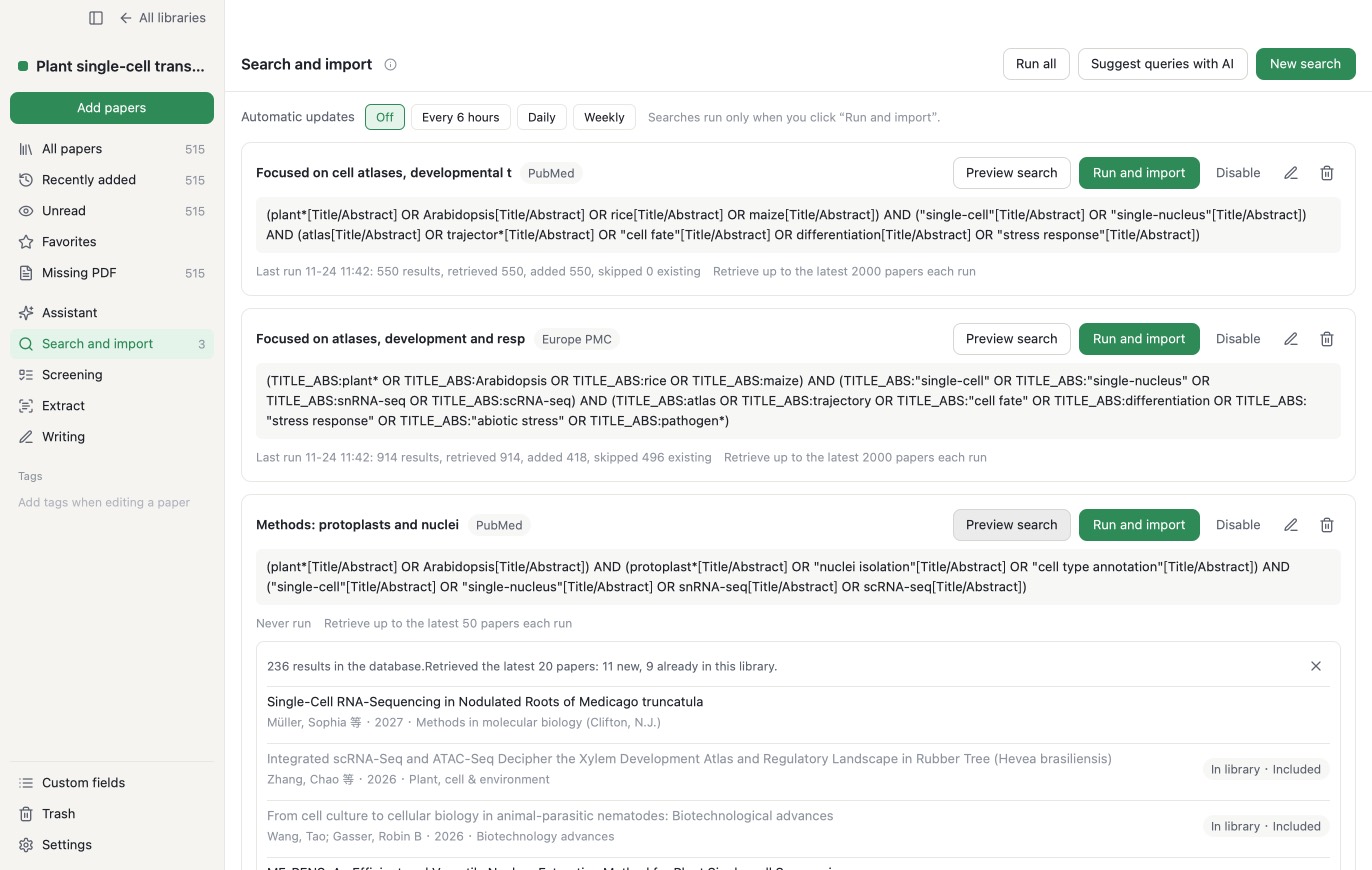
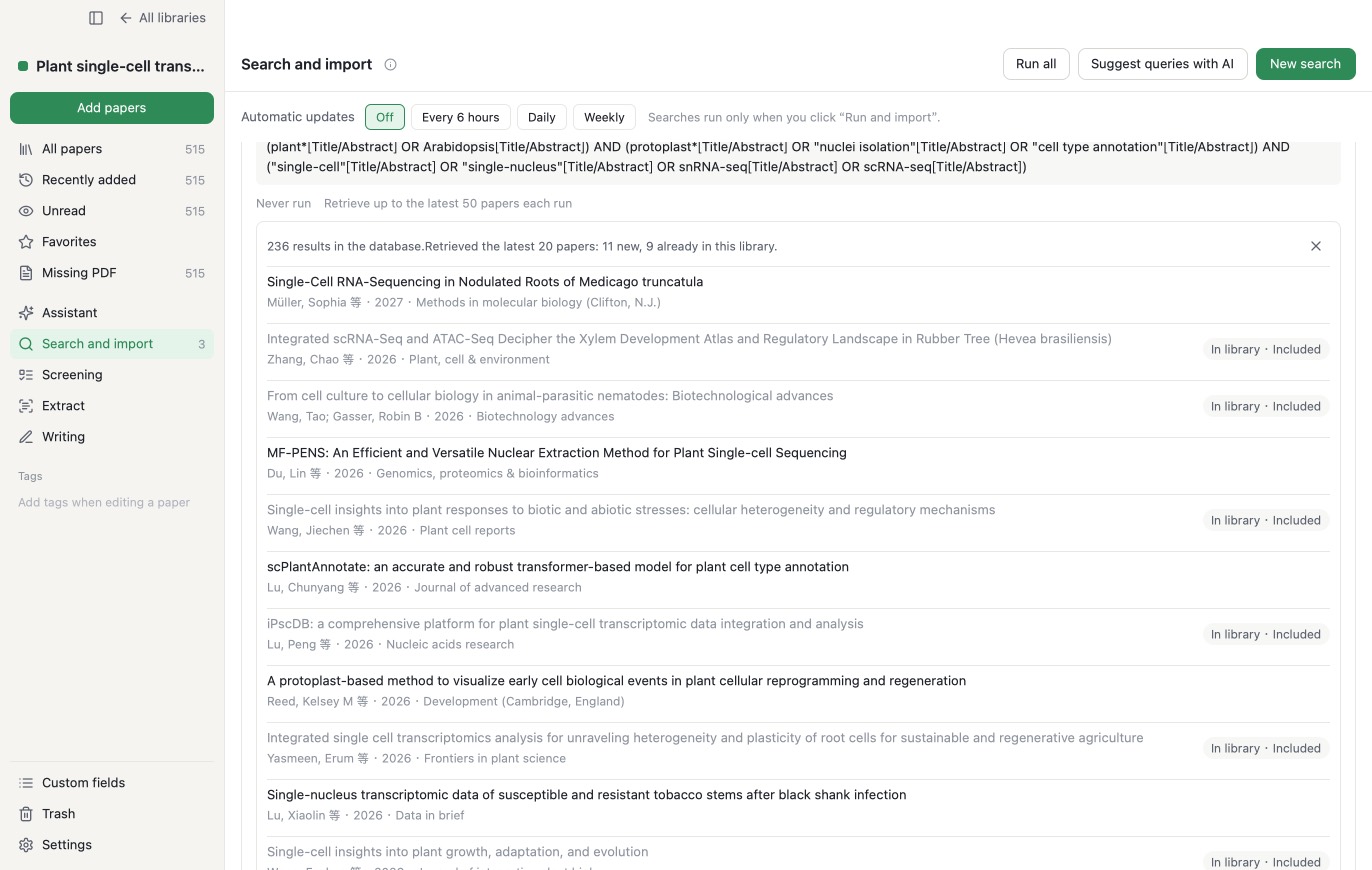
Look down the list. The papers already in the library are grayed out, with “In library · Included” on the right, which shows that this query overlaps with the direction of the library. Check that the new ones fit the topic before you run it.
2Run, import history and automatic updates
Click “Run and import”. This time it retrieves 50 papers, adds 33 and skips the 17 already there: Wisp Study recognizes papers already in the library by DOI, PMID and title, and those in the trash count too. Run it once more right away and the result is “retrieved 50, added 0, skipped 50 existing”. The first run fetches as many papers as “Retrieve” says; later runs go only for papers the library does not have yet, and usually end after one or two requests.
Every run leaves a row in “Import history” at the bottom of the page. A row that added papers has “Undo” on its right: it removes the papers that batch added and that nobody has handled yet; papers you have screened, read, starred, written notes on, or given tags or attachments are kept. You are asked once more before it is undone.
“Automatic updates” at the top of the page is “Off” by default, and then the database is contacted only when you click “Run and import”. This example chose “Weekly”, and the note beside it changed to say: enabled searches run at this interval while the app is open, and runs missed while it was closed are caught up the next time you open it. A query whose run fails is tried again after an hour at most. Click “Disable” on a card to keep that one out of automatic updates and “Run all”.
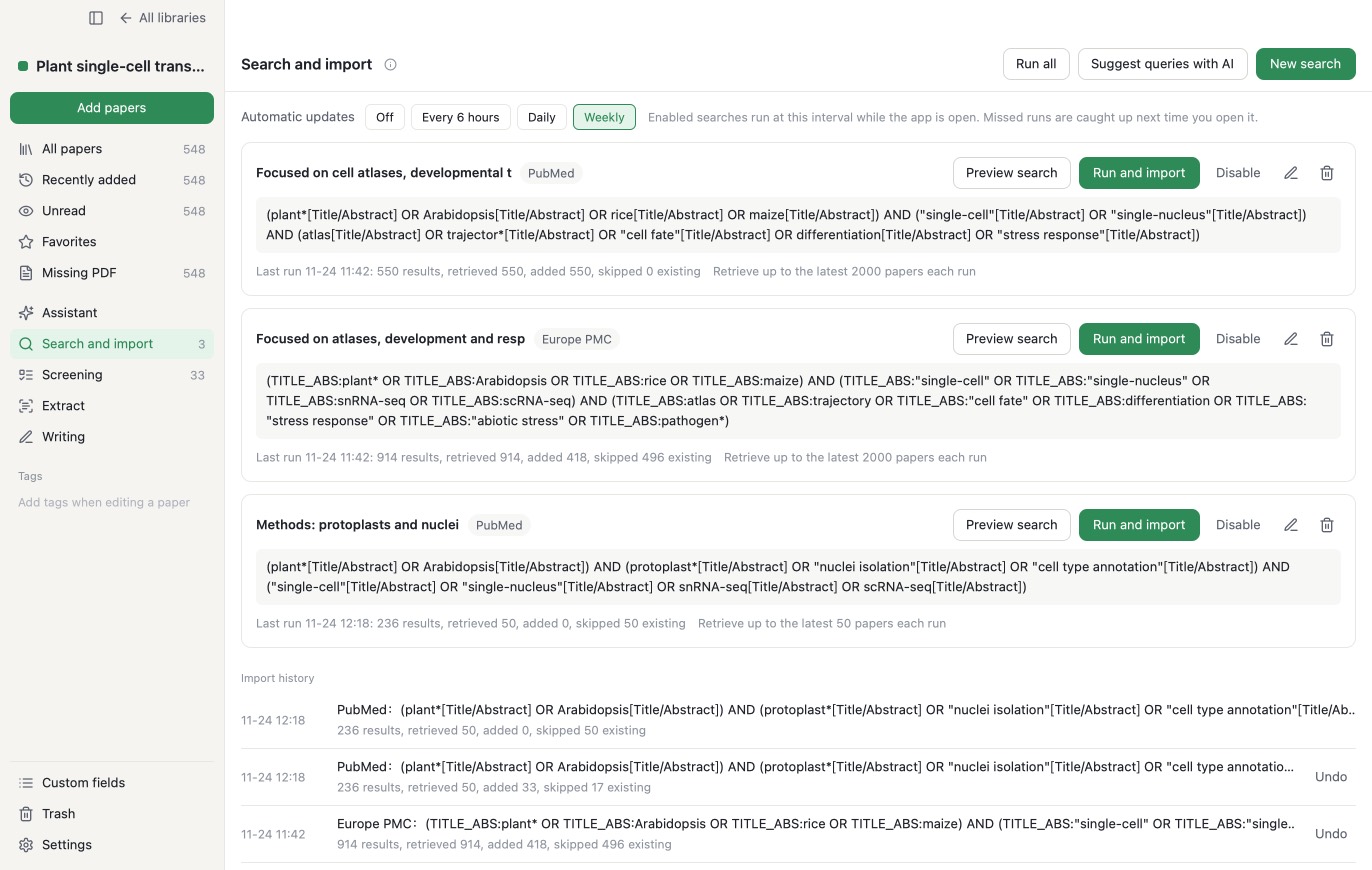
When an automatic update brings in new papers and that library is open, the window says “Automatic update: N new papers awaiting screening”. New papers are always “Pending”, and the number next to “Screening” on the left is how many are waiting for you.
3The weekly screening: only what is new
How to screen a few hundred papers the first time is in Tutorial 01. After that the weekly job is much smaller: open “Screening”, leave the “Screening criteria” above as they are, and click “Ask assistant to screen”. The assistant reads several papers at once (8 at a time here), the full text where there is one and the abstract where there is not. This round read all 33 papers, with the suggestions Included 19 and Related 14.
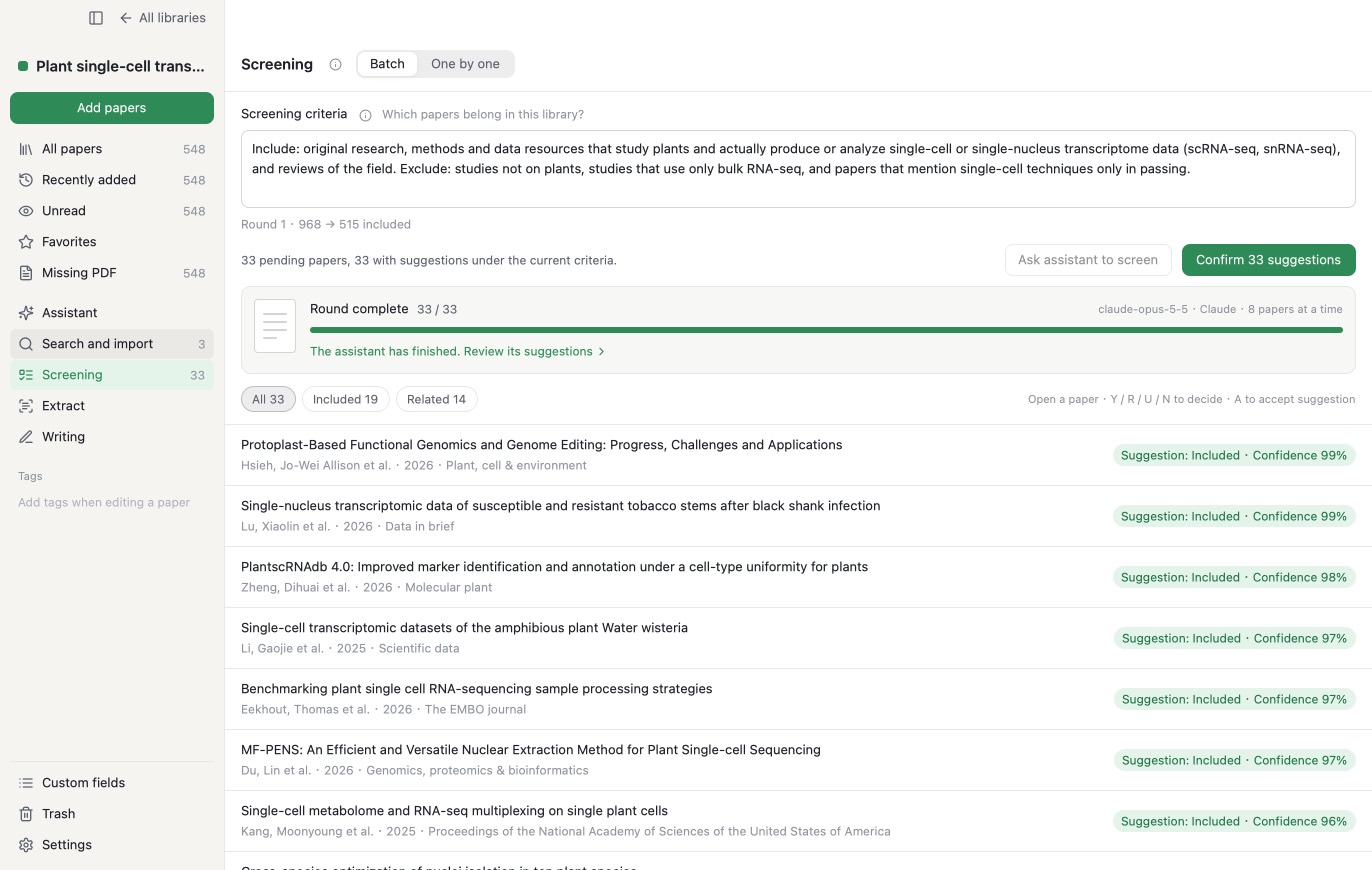
The Screening page now offers three ways to look. “Batch” is the queue in the figure above; “One by one” shows one paper at a time, with this round's papers on the left and, on the right, the assistant's suggestion, its reason, the sentence it quoted and the abstract, with four decision buttons below; you can also press Y / R / U / N, and A accepts the suggestion. The papers suggested as “Related” are worth a look one by one. Here is one of them:
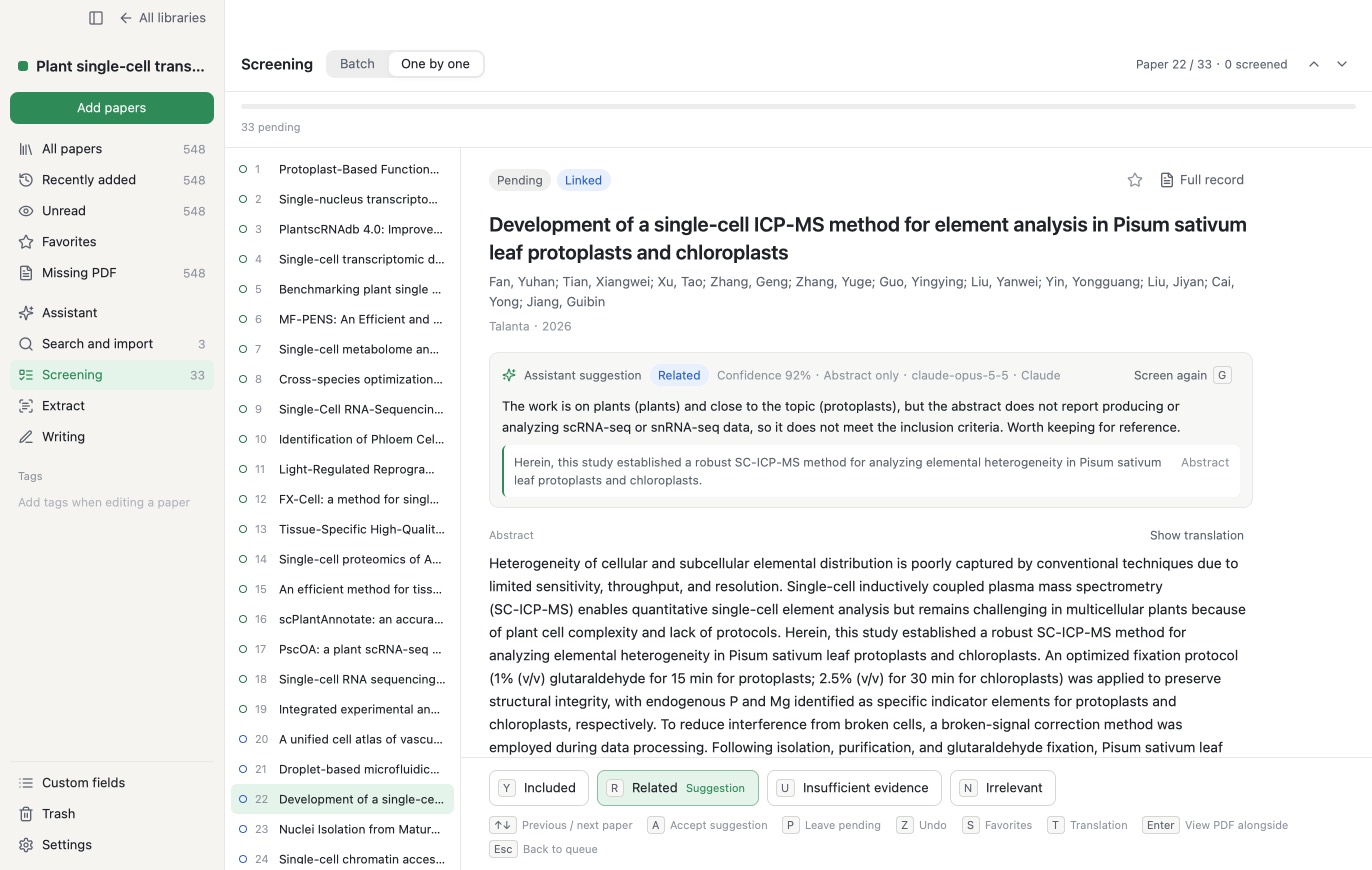
This paper analyzes elements in single cells of pea leaf protoplasts and chloroplasts, not transcripts. The assistant read only the abstract, and the sentence it quotes can be found there, so you can check the reason yourself. In this tutorial the assistant is a stand-in model that answers by fixed rules, so read its suggestions as an illustration of the screen, not as a judgment of quality.
The third way is the “Confirm suggestions” page: click “Confirm 33 suggestions” to enter it (the switch at the top of the page has only “Batch” and “One by one”). Each paper has a row saying the decision that will be written; change a row you disagree with, untick those you are unsure of, and click “Confirm 33 papers” to write them all at once. Nothing changes before you write, and after writing you can still “Undo”.
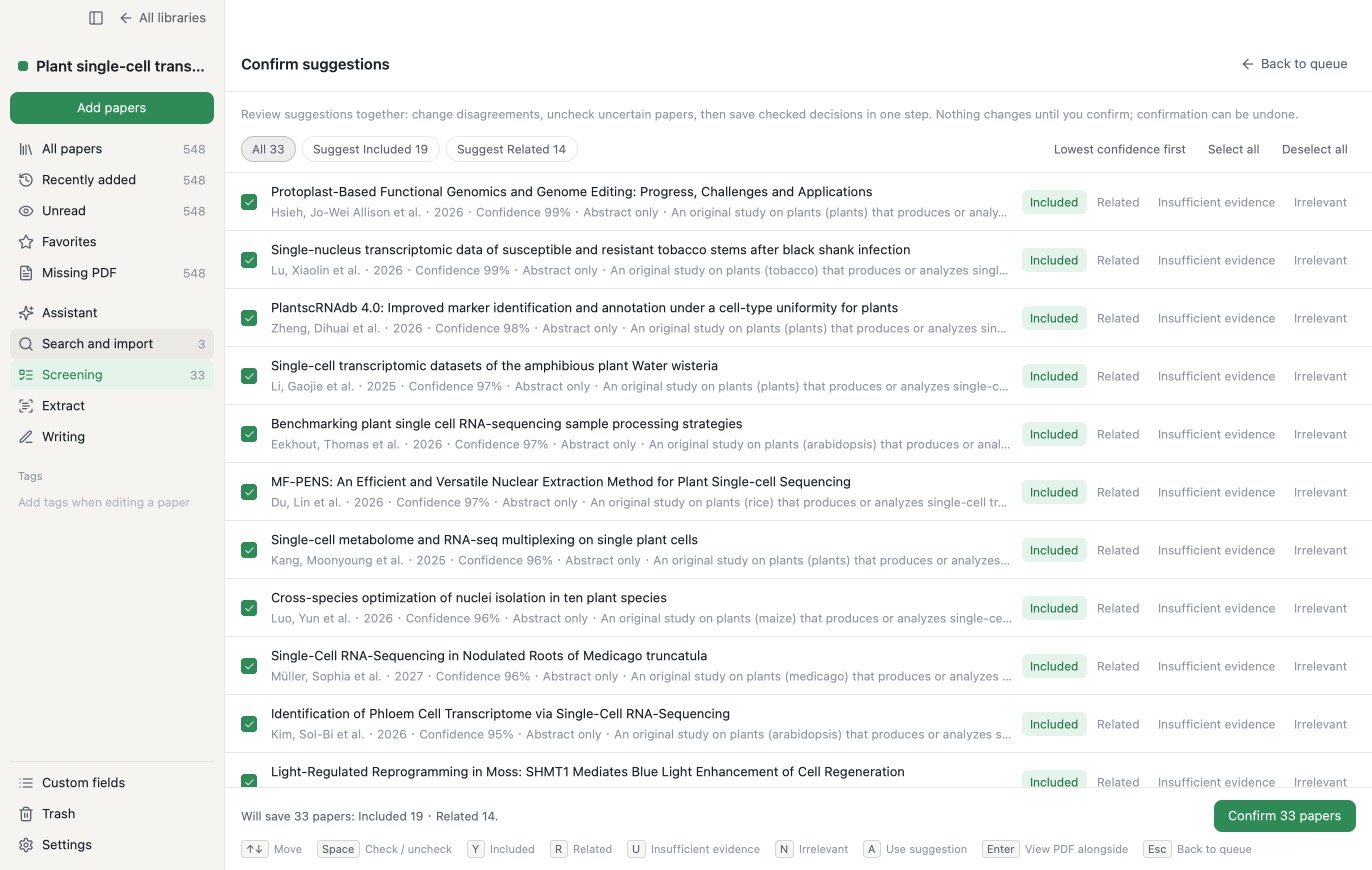
This example writes them as suggested. The screening decision is yours from start to finish; the assistant only suggests.
4Use wisp in a terminal
wisp is the entry point that opens no window, and it comes with the installer: on macOS it is at /Applications/Wisp Study.app/Contents/MacOS/wisp; on Windows it sits next to the main program WispStudy.exe, and for the installed version in %LOCALAPPDATA%\Programs\Wisp Study; on Linux it is also next to the main program. It reads and writes the same data folder as the app settings, and can be used while the app is open; --data-dir FOLDER names a different one. The output is always JSON; on an error the message goes to stderr and the exit code is 1. Below it is shortened to wisp; wisp help lists all commands and wisp COMMAND --help lists the parameters of one command. With only one library you can leave out -l.
$ wisp list_libraries
{ "libraries": [ { "id": "L-1795491524198-95012e55", "name": "Plant single-cell transcriptomics",
    "papers": 548, "autoSyncHours": 168, … } ] }

$ wisp library_status
{ "papers": 548,
  "screening": { "pending": 33, "included": 515, "excluded": 0, "uncertain": 0, "irrelevant": 0 },
  "fulltext": { "missing": 9, "linked": 539, "stored": 0, "textless": 0 },
  "labels": { "screening": { "excluded": "Related", … } }, … }
Note that the screening decision is stored under an English key: excluded is shown in the interface as “Related”, and the lookup table is in labels.
$ wisp list_papers --query protoplast --limit 3
{ "total": 69, "papers": [ { "id": "P-1795493911828-2ef5e212",
    "title": "Single-cell metabolome and RNA-seq multiplexing on single plant cells",
    "year": 2025, "screening": "pending", "fulltext": "linked", "suggested": "included" }, … ] }

$ wisp search_fulltext "protoplast isolation" --limit 3
{ "total": 80, "papersSearched": 22, "papersWithoutText": 19, "hits": [ {
    "paperId": "P-1794919877581-a6b186c3",
    "title": "Integrated experimental and computational workflows for single-cell transcriptomics in plants",
    "page": 11, "exact": true,
    "snippet": "… one was used immediately for protoplast isolation, another for fresh nucleus isola- tion …" }, … ] }

$ wisp read_fulltext P-1794919877581-a6b186c3 --page 11
{ "pageCount": 14, "pages": [ { "page": 11, "text": "Page 11 of 14\n\nWang et al. Plant Methods (2026) 22:12 …" } ] }
search_fulltext searches only papers whose full text is saved. This run saved no PDF, so the two outputs below are those of an earlier run, on a library where 22 papers had text and 19 did not. read_fulltext reads at most 8 pages at a time, to check the context.
$ wisp search_online pubmed '"single-nucleus"[Title] AND (plant[Title/Abstract] OR Arabidopsis[Title]) AND 2026[dp]' --limit 3
{ "source": "pubmed", "total": 20, "fetched": 3, "new": 1, "inLibrary": 2,
  "results": [ { "title": "A single-nucleus transcriptomic atlas reveals the endodermal gene regulatory network underlying Arabidopsis stem gravitropism",
                 "year": 2026, "pmid": "43020179", "inLibrary": { "id": "P-1795491752636-5a1b433a", "screening": "included", … } }, … ] }

$ wisp run_search S-1795493864060-107fbcc2
{ "batchId": "B-1795493911829-7e9dada9", "search": "Methods: protoplasts and nuclei",
  "total": 236, "fetched": 50, "added": 33, "skipped": 17,
  "addedPapers": [ { "title": "MF-PENS: An Efficient and Versatile Nuclear Extraction Method for Plant Single-cell Sequencing", "year": 2026 }, … ] }
search_online writes nothing, like “Preview search” in the window, and for a paper already in the library inLibrary gives its ID and screening decision. The batch ID that run_search returns can be given to undo_import to undo the whole batch, with the same rules as in the window.
5Scheduled updates while the window is closed
Automatic updates run only while the app is open. If you do not open the window often, have the system's scheduler run wisp sync_searches regularly: it runs only the search queries that are due, and it decides what is “due” by the same interval you chose in section 2, so a scheduler that runs more often does not search twice. On macOS and Linux add a line with crontab -e to look once an hour:
0 * * * * "/Applications/Wisp Study.app/Contents/MacOS/wisp" sync_searches >> "$HOME/wisp-sync.log" 2>&1launchd on macOS and Task Scheduler on Windows can do the same: run this command on a schedule.
6Hand it to an outside AI client: MCP
wisp mcp serves MCP on standard input and output. Claude Code, Claude Desktop or any other client that supports MCP starts it and can then use the same set of tools as the command line. Add this to the client's configuration:
{
  "mcpServers": {
    "wisp-study": {
      "command": "/Applications/Wisp Study.app/Contents/MacOS/wisp",
      "args": ["mcp", "--read-only"]
    }
  }
}
Claude Code can add it directly with a command:
$ claude mcp add wisp-study -- "/Applications/Wisp Study.app/Contents/MacOS/wisp" mcp --read-onlyFirst make sure the server answers: send it the two requests initialize and tools/list. In this example wisp mcp lists 58 tools and wisp mcp --read-only lists 29:
$ printf '%s\n' \
    '{"jsonrpc":"2.0","id":1,"method":"initialize","params":{"protocolVersion":"2025-06-18","capabilities":{},"clientInfo":{"name":"test","version":"0"}}}' \
    '{"jsonrpc":"2.0","method":"notifications/initialized"}' \
    '{"jsonrpc":"2.0","id":2,"method":"tools/list"}' | wisp mcp --read-only
{"jsonrpc":"2.0","id":1,"result":{"protocolVersion":"2025-06-18", … "serverInfo":{"name":"wisp-study","title":"Wisp Study","version":"0.17.0"}, …}}
{"jsonrpc":"2.0","id":2,"result":{"tools":[{"name":"list_note_sources", … }, …]}}
Once it is connected, you can ask in the client:
AskIn the Wisp Study library “Plant single-cell transcriptomics”, find the papers whose full text mentions protoplast isolation, read the relevant pages, compare the protoplast route with the nuclei isolation route, and give the paper ID, page number and original sentence for each conclusion.
Check the client's answer yourself: take the paper ID and page number it gives, open the PDF in the window and look at the original sentence.
Where writing stops
Without --read-only there are 18 more tools, and all of them change data: creating a library; importing PDFs, BibTeX and Zotero; saving, running, syncing and deleting search queries; undoing an import; finding and downloading PDFs; organizing tags and reading status; writing a section and the outline of a manuscript; exporting and saving notes; and also suggest_screening and suggest_field.
- For the screening decision and custom fields, an outside client can at most make suggestions (these two tools are offered only without
--read-only):suggest_screeningproposes a screening suggestion andsuggest_fieldproposes a field value, both with a verbatim quotation. They show up on the “Screening” and “Extract” pages waiting for you to confirm, and no tool can set a screening decision or a field directly. - The assistant in the window asks you first before it imports, runs or deletes search queries, undoes an import, finds PDFs, organizes papers or revises a manuscript; an outside client calling
wisp mcphas no such step, and once it calls, the thing is done.
Recap
- You added a search query for methods papers, previewed it and ran it, which added 33 papers; running it again added 0, and the import history can undo a whole batch.
- Automatic updates are set to weekly; while the window is closed, cron runs
wisp sync_searches, which runs only the queries that are due. - The assistant read the 33 new papers; after you looked at one of the “Related” ones in the one-by-one view, you wrote everything at once on the “Confirm suggestions” page.
- The same library is queried with
wispin a terminal and read withwisp mcp --read-onlyin an outside client; the screening decision is always yours, made in the window. - Once new papers are in, go back to Ask the whole library, and check the answers or Read a batch of papers into one table.