Wisp Study keeps your papers and PDFs on your computer. Import in bulk from a search query, let the assistant read every paper and give suggestions backed by quotes from the text, and confirm each one yourself. Then ask the library questions: a source in an answer opens the very page it came from.
macOS, Windows, Linux · MIT license · No account needed
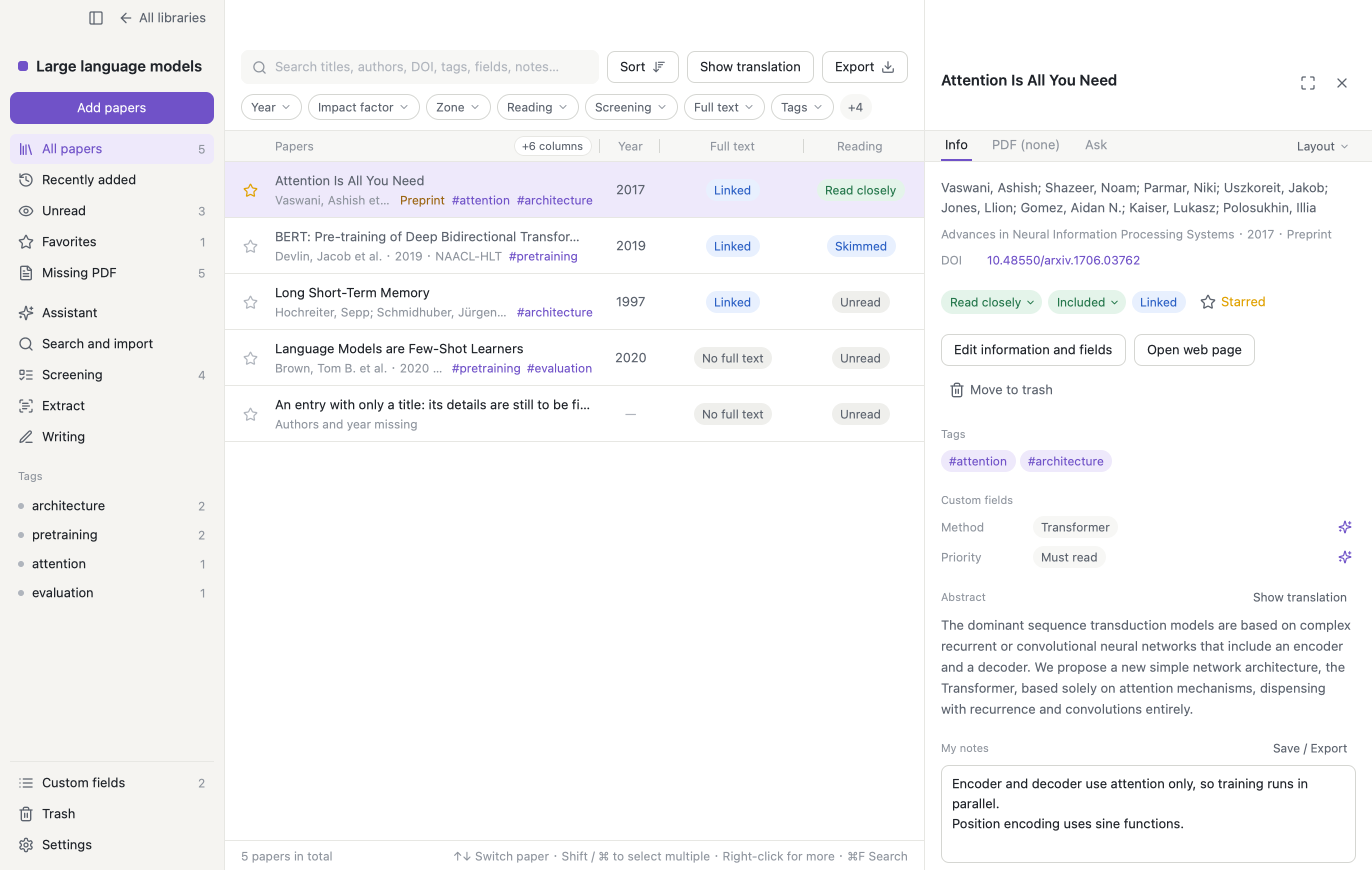
Figure 1. The Library page. Views and tags are on the left, the paper list is in the middle, and the selected paper's details and notes are on the right.
§1Case
A real run:fifteen minutes,from empty to 313 papers
The numbers and screenshots below come from a run on macOS on November 10, 2026. The topic was single-cell and single-nucleus transcriptome sequencing in plants. The databases change every day and the model answers differently each time, so your numbers will differ when you follow along. The steps are the same. The screenshots of Figure 3 were taken later, on November 24, 2026, with the English interface and a stand-in model that answers by fixed rules, so the counts in them are those of that later run.
6search queriesdrafted by the assistant, each tried out
2queries usedone each for PubMed and Europe PMC
400papers fetchedthe latest 200 per query
45duplicatesskipped by DOI, PMID and title
355papers to judgefor the assistant to read first
257Included52Related42Irrelevant
Included 257Meets the screening goal
Related 52On topic, but does not meet the inclusion criteria; kept for reference
Insufficient evidence 4Cannot be told from the abstract; 2 of them have no abstract to read
Irrelevant 42Not about this topic
At confirmation, the 257 Included and the 42 Irrelevant were accepted as groups, as suggested. The remaining 56 were left to read by hand: those are the ones worth a look. Irrelevant papers are no longer listed, so the list holds 313 papers.
Figure 2. Where the 355 papers went. The colored bar is what the assistant suggested over 4 minutes 40 seconds. These are suggestions only; a person confirmed the inclusion decisions afterwards.
aSet up a model
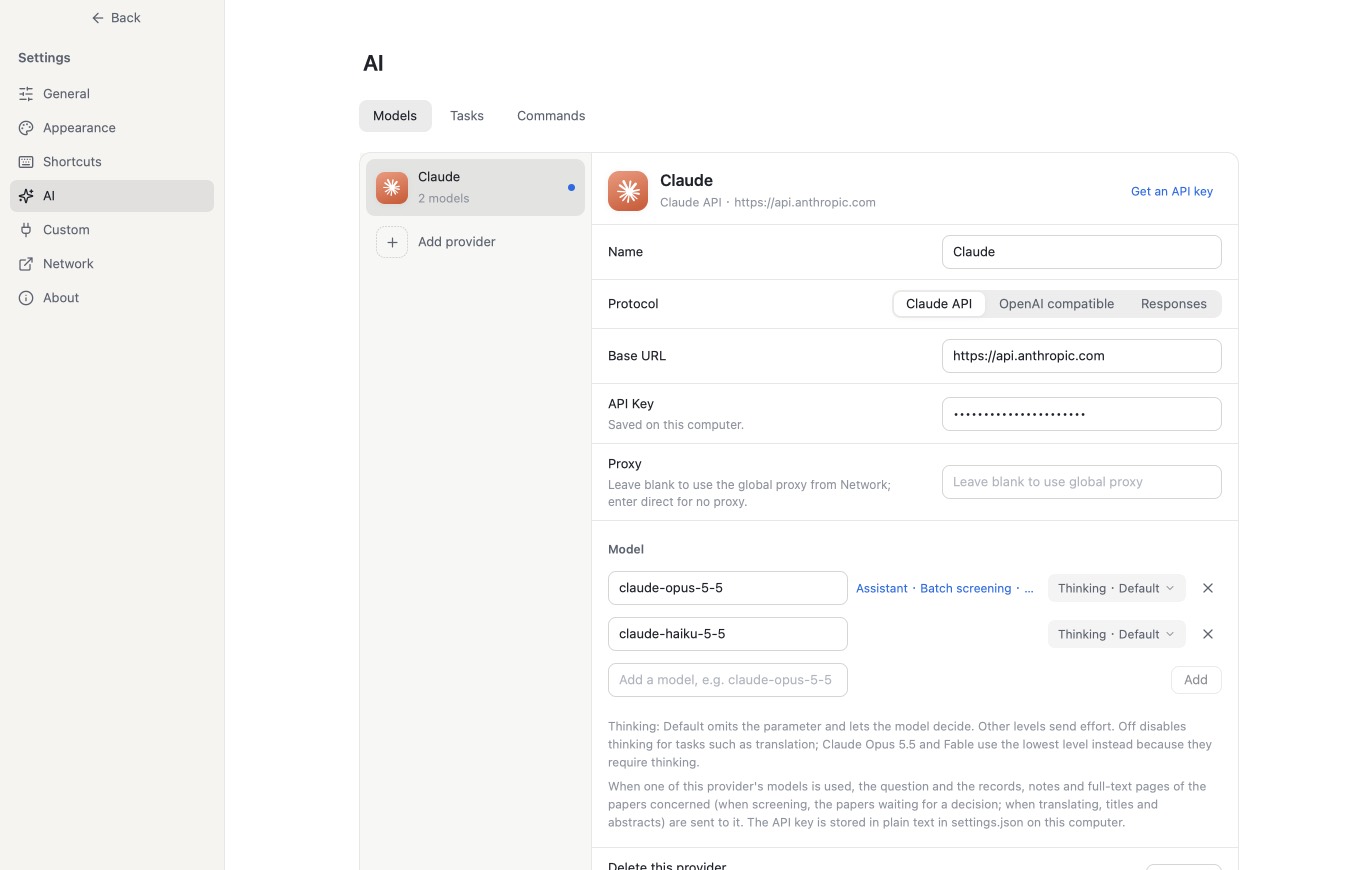
Wisp Study does not come with a model. In “Settings › AI”, enter a model provider of your own: the Claude API, an OpenAI-compatible chat/completions endpoint, or OpenAI's Responses. There is no save button; changes are kept as you make them. The assistant, bulk screening and translation can each use a different model. This time translation went to a small model that does not think much.
Figure 3a. A provider entry: its protocol, base URL and API key, and the models it offers. With a key entered, the models are ready to use.
bCreate a library
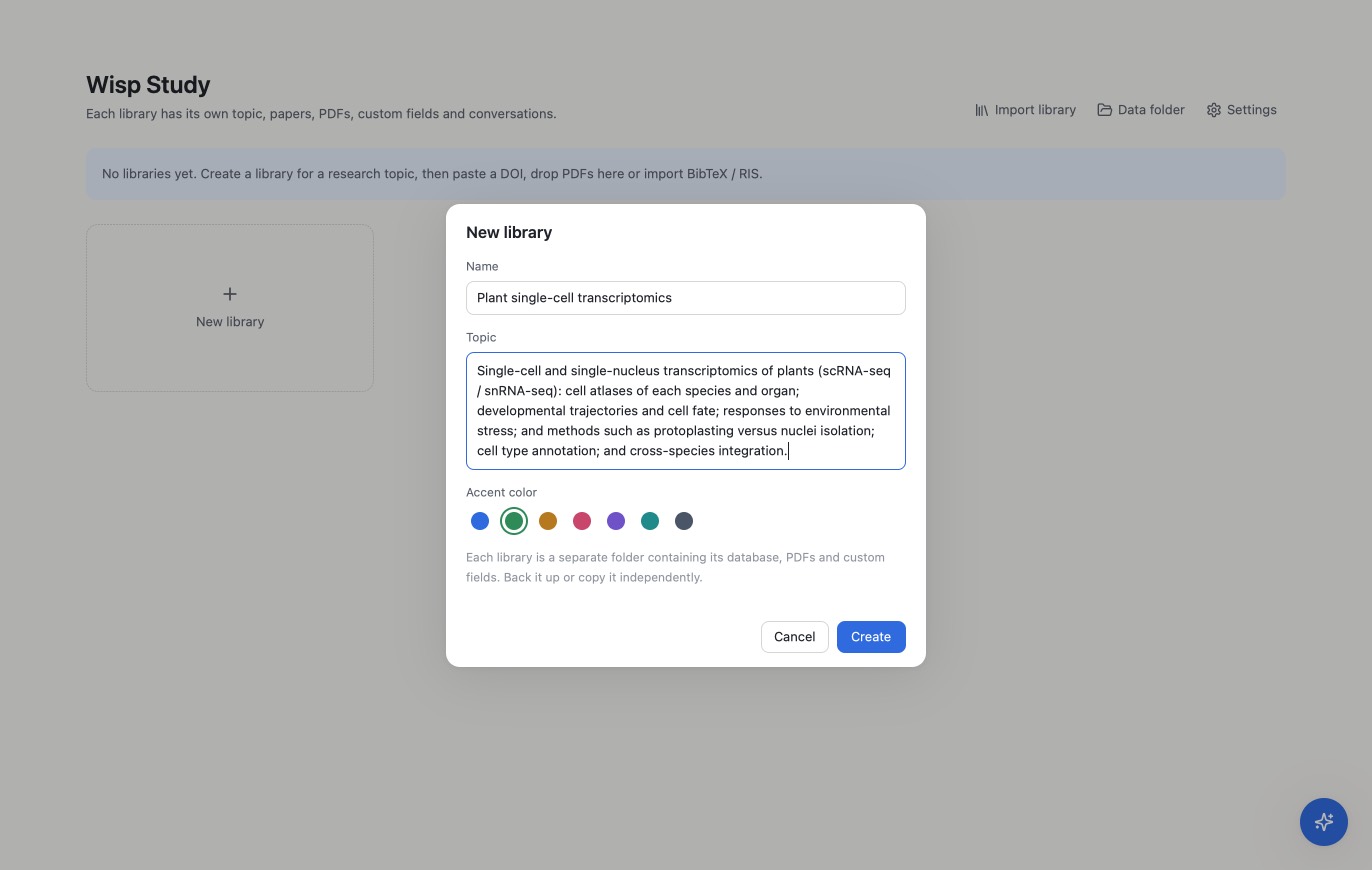
Besides a name, write down the topic: what the library collects and which questions it cares about. It is more than a note. The assistant reads it when it drafts queries, judges inclusion and answers questions, so it is worth being specific. Pick an accent color; from then on it is the library's highlight color.
Figure 3b. The name is “Plant single-cell transcriptomics”. The topic lists species, organs, developmental trajectories, stress responses and methodological questions.
cHave the assistant draft queries
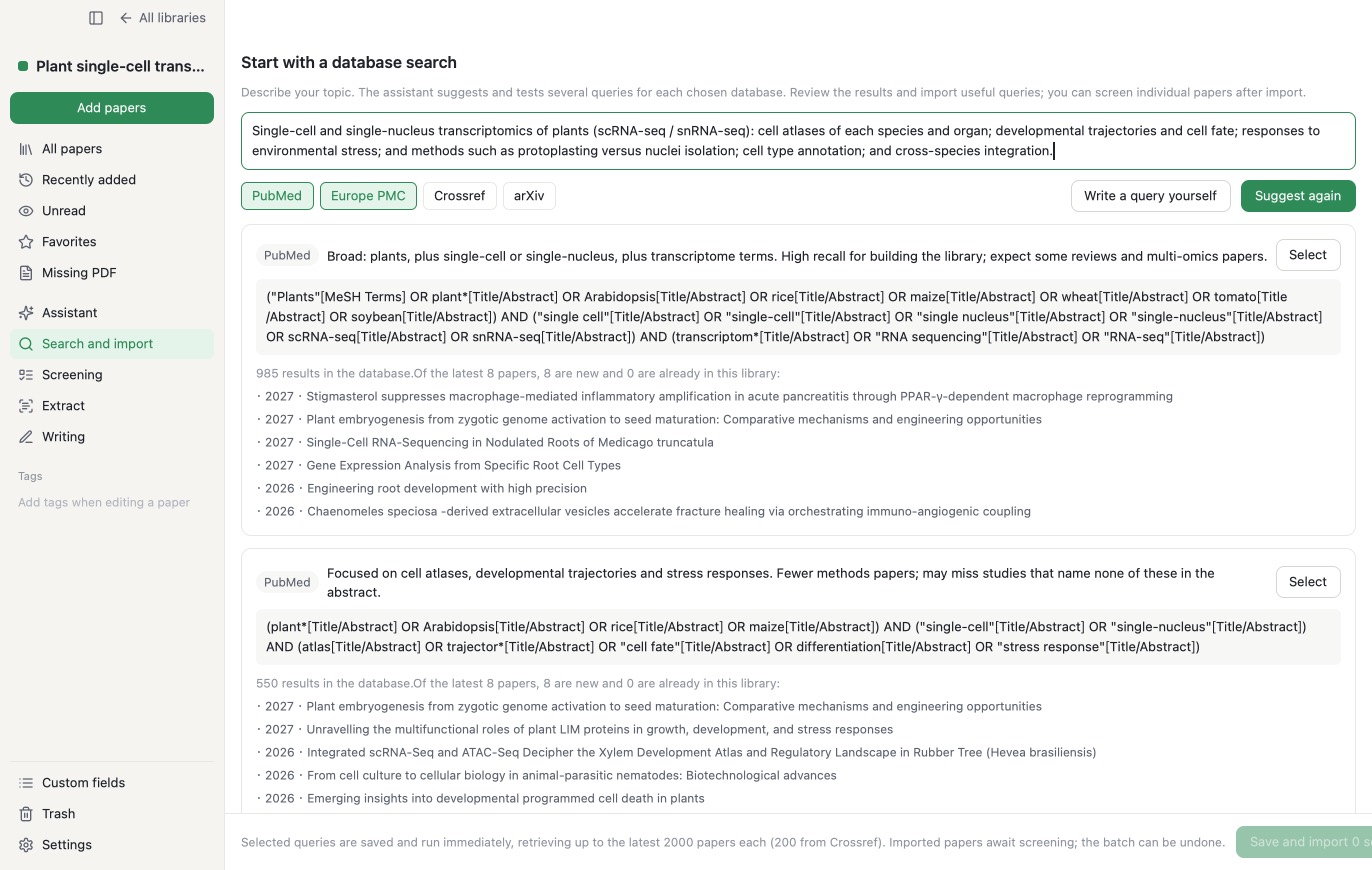
The assistant drafted three differently aimed queries each for PubMed and Europe PMC, and tried each one out at once: how many papers the database returns, and what the newest few are. The broad query returned over a thousand papers, and its newest results were mixed with fracture healing. The methods query returned almost nothing but plant single-cell studies. Judge by the titles, not by how elegant the query looks.
Figure 3c. The first two of six queries, with 985 and 550 results in their trial searches. A trial search writes nothing to the library.
dSave and import
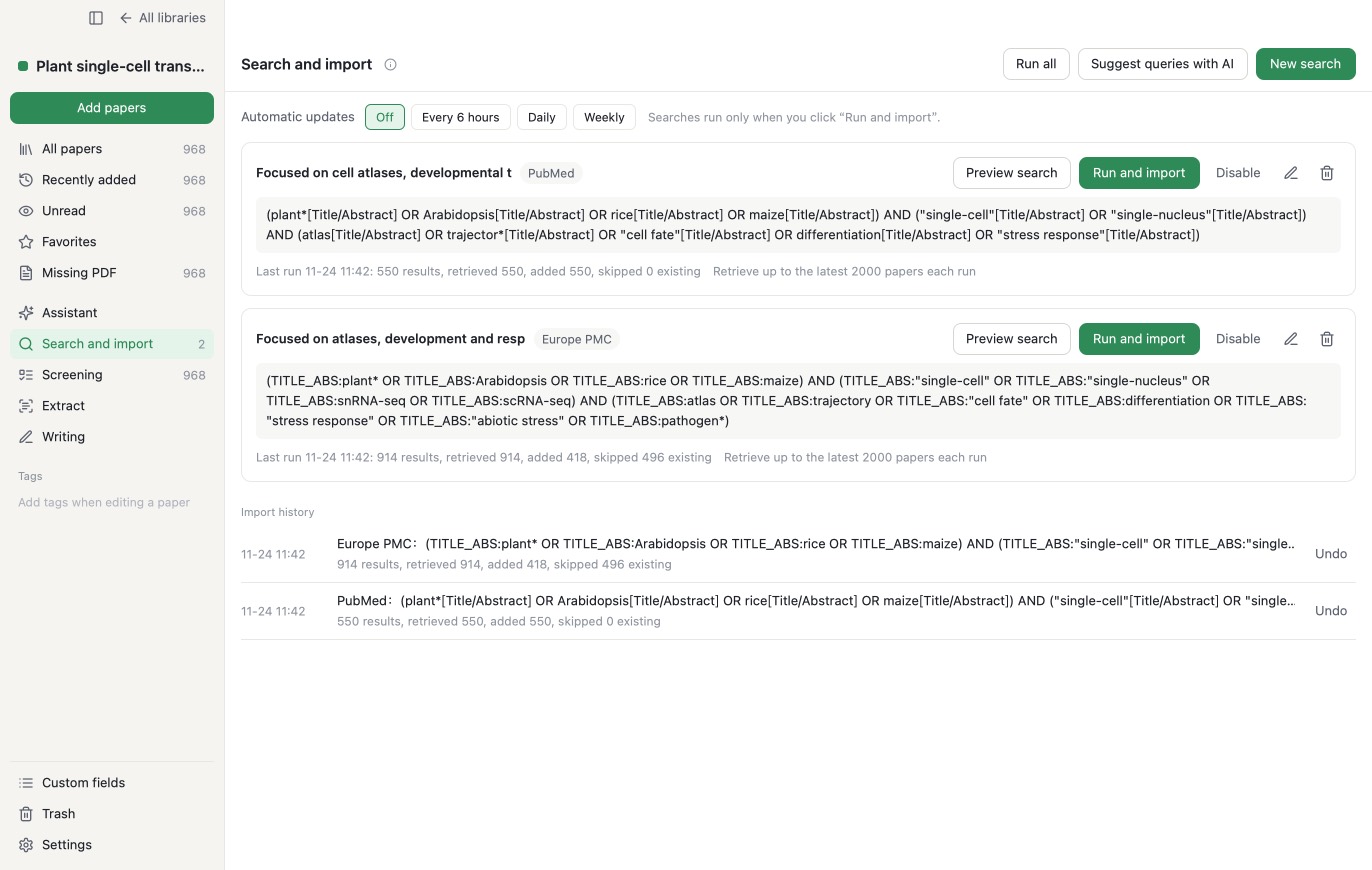
Two queries were used, each fetching the latest 200 papers. The two databases overlapped by 45 papers; after deduplicating by DOI, PMID and title, 355 papers remained, all “Pending”. This is deliberate: import broadly first, then judge paper by paper. If an import was a mistake, every batch can be undone as a whole.
Figure 3d. In this later run PubMed added 550 papers. Europe PMC added 418 and skipped the 496 already there.
eHave the assistant screen
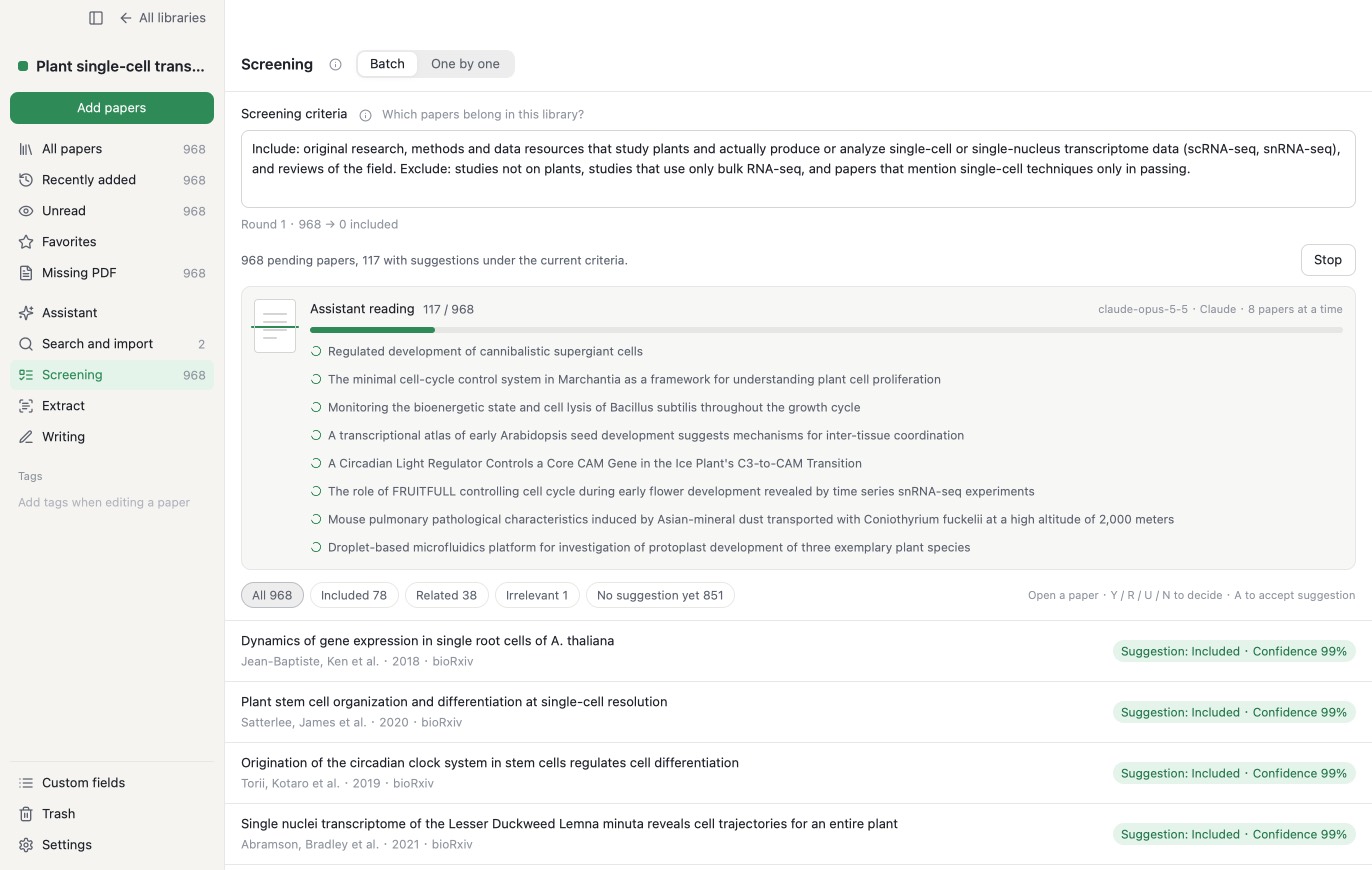
Write the screening goal: what kind of papers belong in this library and what kind do not. The assistant reads 8 papers at a time. It reads the full text when there is a PDF; here there were only abstracts. Each paper gets a suggestion, a reason, and one sentence quoted word for word from the text as evidence. You can stop partway, and the papers not yet read wait for the next round.
Figure 3e. At 117 / 968. Below the progress bar are the 8 papers being read; those that are done join the queue with their suggestions.
fConfirm the inclusion decisions
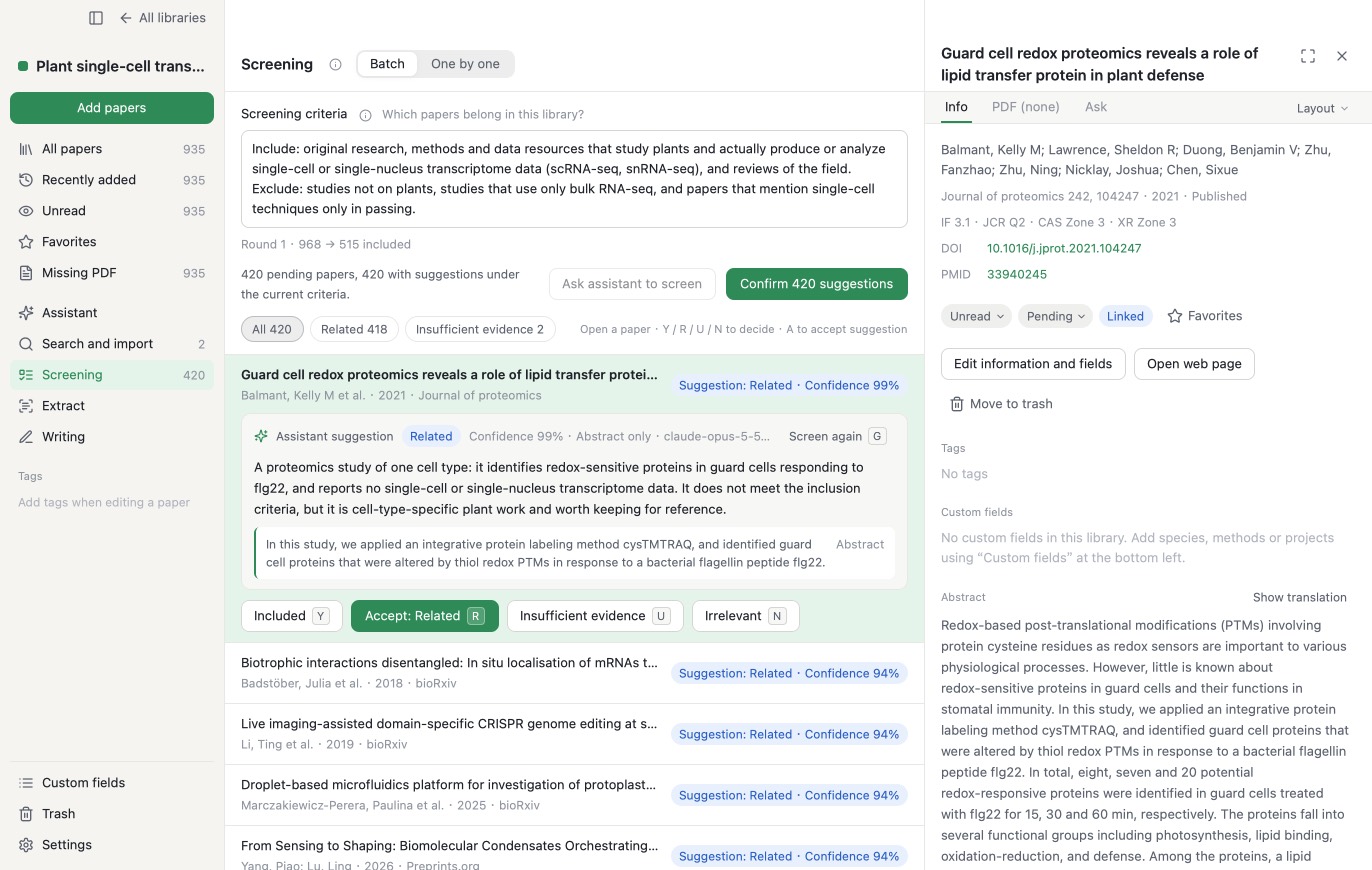
The assistant never changes a paper's inclusion decision. Only you do. Open a paper, look at its reason and evidence, then accept the suggestion or choose another. Once you have looked at a few papers in a group and trust it, you can accept the whole group; it asks first.
Figure 3f. A proteomics study of one cell type. It has no transcriptome data, so the assistant suggests “Related” rather than “Included”.
gRead translated abstracts
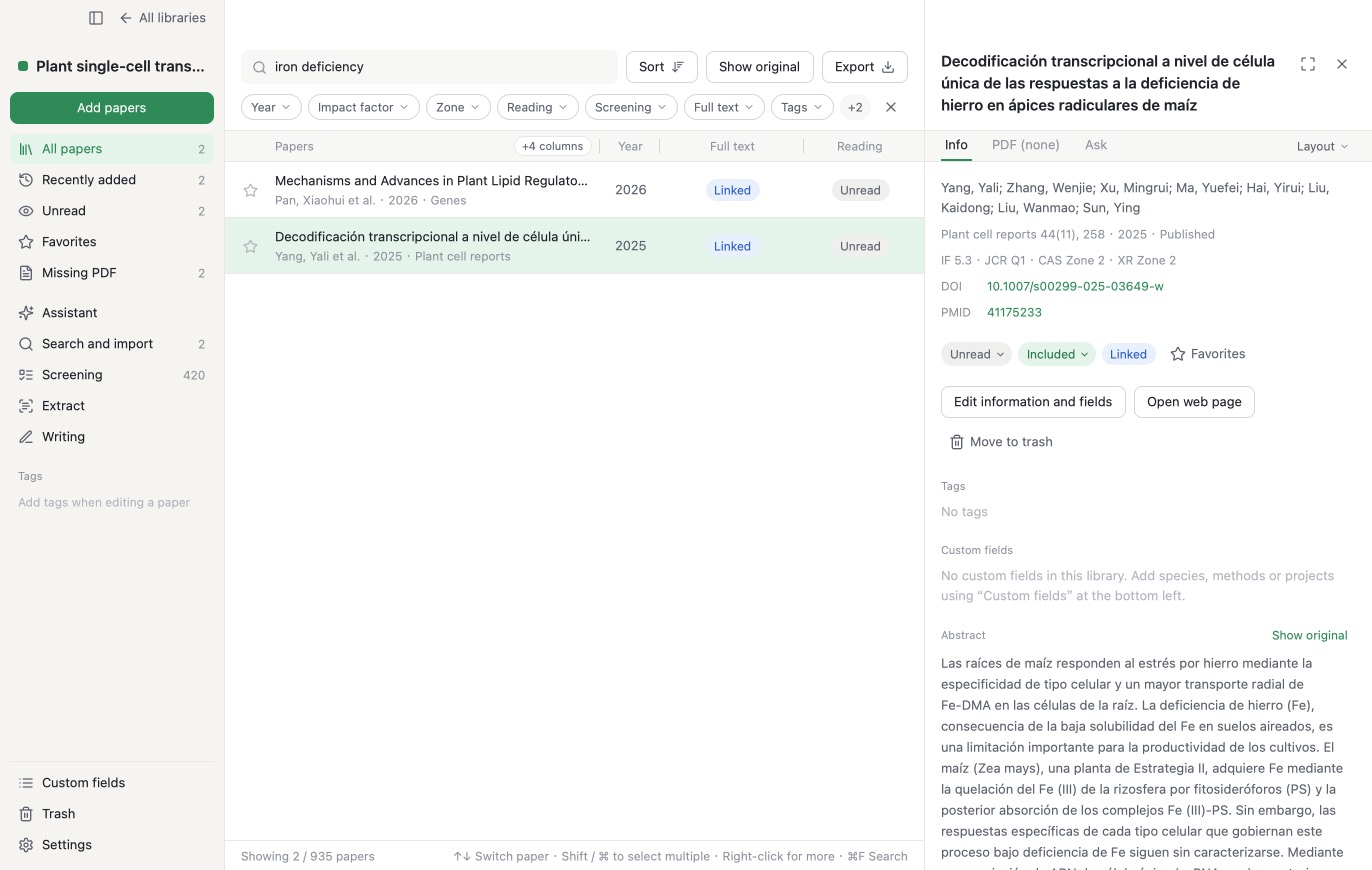
“Show translation” next to the abstract swaps the title and abstract for the translation in place, and “Show original” switches back. Once it is on, other papers you switch to are translated automatically. Translations are saved in the library, so the same text is requested only once.
Figure 3g. The translation appears where the abstract is. The target language and the preferred translations of terms can be set in Settings; here it was set to Spanish.
hAsk the library
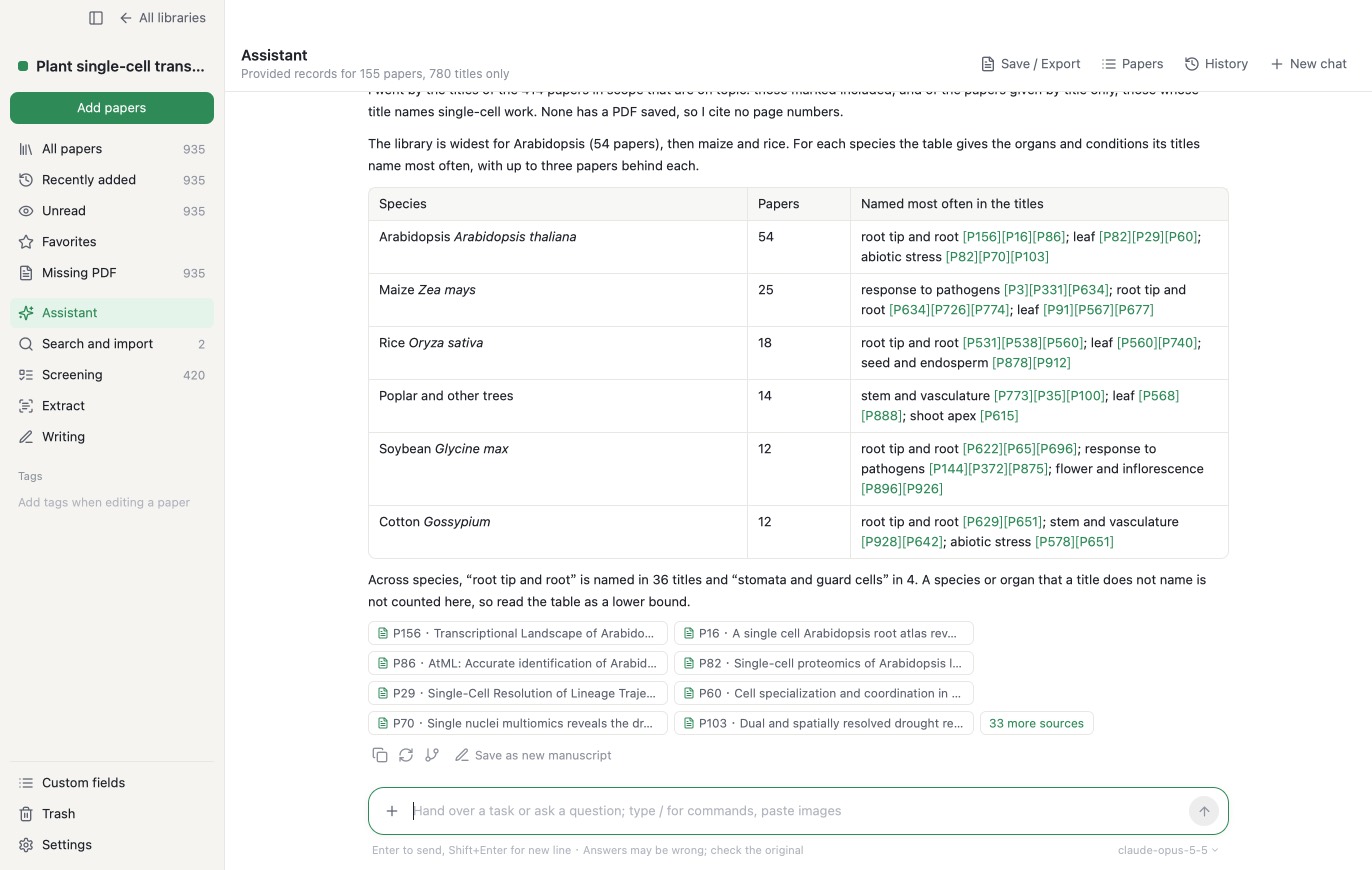
Ask in “Assistant” on the left. The scope is the 313 papers in the current list: 181 were given as full records, and the 132 that did not fit were given as titles only. The assistant first used its tools to read 5 papers that compare the two technical routes directly, then answered. It also wrote that these papers have no PDF saved, so this time it cites no page numbers: it read only the abstracts.
Figure 3h. The answer is laid out in Markdown, with a source after each conclusion. The first 8 sources are listed below it and the rest are folded.
How would you judge this one?
On the right is a real suggestion from that run. The screening goal was: include plant studies that actually produced or analyzed single-cell or single-nucleus transcriptome data. This paper does single-cell proteomics.
The button the assistant suggests is filled in. Click it to accept; or choose another.
Single-cell proteomics of Arabidopsis leaf mesophyll reveals dynamic protein responses to water-deficit stressFulcher, James M et al. · 2026 · Genome biology
Suggestion: Related · confidence 99%
The study takes Arabidopsis leaf mesophyll cells as its subject, builds a single-cell proteomics workflow, and analyzes changes in protein abundance in 117 protoplasts under water-deficit stress. The abstract does not report producing or analyzing scRNA-seq or snRNA-seq data, so it does not meet the inclusion criteria, but its protoplast preparation is a useful reference for plant single-cell stress-response studies.
“Here, we present a single-cell proteomics workflow for plant cells …”Abstract
Abstract only
No judgment yet. Until you click, this paper stays “Pending”.
Figure 4. One suggestion and four buttons. The sentence after the reason is quoted word for word; a reason with no quotable sentence is not treated as evidence.
Go on: sixteen tutorials
The above is a summary of one run. The screenshots and the exact inputs for each step are in the first tutorial. The other fifteen each cover one task in research, mostly using the same library.
Seven rules we follow ourselves. After each one we say where it lands in the product, so you can check.
01
The papers are yours
No account, no cloud. Each library is a folder under “Documents/WispStudy”, holding the database, the PDFs and the custom fields. You can back it up on its own, or copy the whole folder elsewhere and keep using it.
In the productAttachments are recorded as paths relative to the library folder. What leaves your machine, and who it goes to, is listed item by item in Data and privacy (in Chinese).
02
The assistant proposes, a person decides
The assistant reads fast, but whether a paper is included is your judgment. It gives a suggestion, a reason and a confidence, and never changes any paper's inclusion status. It also asks first before a whole group is accepted.
In the productAn external agent connected through the command line or MCP can only make suggestions (suggest_screening). No tool can overwrite an inclusion decision.
03
Say it with a source, and let the source be opened
A screening reason must carry one sentence quoted word for word from the abstract or full text; what cannot be quoted does not count as evidence. A [P3 p.5] in an answer opens that paper's PDF at that page, with the quoted sentence highlighted on the page. When it cannot be found, it says so.
In the productWithout a PDF the assistant can read only the abstract. It says it read only the abstract, and does not make up page numbers.
Where does a removed library go? Can I keep using it on another computer?
It is not deleted. Removing a library or an attachment only moves it to removed/ in the same directory . Another computer works too: attachments are recorded as relative paths, so you can copy the whole folder over and keep using it .
P1 · Data and privacy
Data and privacy
Libraries live under “Documents/WispStudy”, one folder per library, containing library.json, wisp-paper.sqlite and papers/.
Removed libraries and attachments go to removed/ in the same directory (Moved only, never deleted).
Attachments are recorded in the database as paths relative to the library folder, so the whole folder can be copied elsewhere and used as is.
The API key is saved in plain text in settings.json. When it is empty, the environment variable is read.
1
Figure 5. Click a source in the answer. Here the right side is this project's Data and privacy document; in the app it is your own PDF.
04
Take in broadly first, read closely after
Rather than write a very narrow query at the start and worry about missing something, import broadly in bulk, deduplicate, and let the assistant go through the papers one by one, leaving you the few dozen worth reading yourself. We call this broad intake.
In the productEach import is a batch and can be undone as a whole; papers you have already handled are kept. A saved query can run by itself every 6 hours, daily or weekly.
05
Nothing is really lost
Removing a library or an attachment only moves it to removed/. Deleted papers go to the Trash and can be restored.
In the productPapers in the Trash stay in the library and keep blocking the same paper from being imported again: what you judged unwanted does not come back with the next sync.
06
Native, not a web page
The whole interface is drawn on the GPU by Rust and GPUI, with no WebView and no Electron. PDFs are rendered by the pure-Rust hayro, with no dependence on a system PDF library.
In the productLight and dark interfaces, an accent color per library, and every shortcut can be changed.
07
One table of tools, three ways in
The assistant in the window, the command line and MCP use the same table of tools. A rule is written in one place, so whichever way you come in, what can and cannot be done is the same.
In the productSee the next section.
Limits for now
It is early, and it changes fast.
The assistant features need a model provider of your own; the API key is saved in plain text in settings.json on your machine.
Each run of a query fetches at most the latest 2000 papers; this run was made on a version where the limit was still 200.
The Linux version does not update itself; it only tells you a new version exists.
The Linux version is not signed and has not been tested on a real machine.
§3Tools
Beyond the window:wisp and MCP
wisp is the way in without a window, and it ships with the installer. It reads and writes the same data folder as the app, and works while the app is open. Each tool is both a subcommand and an MCP tool, and the output is JSON.
Command line
$ wisp list_libraries
$ wisp list_papers -l 植物单细胞转录组 --query protoplast --limit 10
$ wisp search_fulltext "10x Genomics Chromium"
$ wisp read_fulltext <paper ID> --page 3
$ wisp sync_searches # hand this to cron, launchd or Task Scheduler$ wisp help # list of commands
Signed with a Developer ID and notarized by Apple. After opening it, drag Wisp Study into “Applications” and run it. If you are not sure which one you have: in the Apple menu › About This Mac, a chip named Apple M… is Apple silicon, and one named Intel is Intel.
The installer installs for the current user, needs no administrator rights, and adds an entry to the Start menu. The portable version runs WispStudy.exe after unzipping and does not write to the registry. Both are Authenticode-signed and both update themselves.
After unpacking, run wisp-study. It is not signed and has not been tested on a real machine.
After installing
The command-line tool wisp ships in the package: on Windows and Linux it sits next to the main program (for the installer, in %LOCALAPPDATA%\Programs\Wisp Study), and on macOS it is at Wisp Study.app/Contents/MacOS/wisp.
Collecting, organizing, PDFs and export need no model. Asking questions, the library wizard, screening and translation need a model provider of your own, set up in “Settings › AI”.
SHA256SUMS on the release page holds the checksum of each file.
Build from source (needs Rust; on Windows also the MSVC build tools)
$ git clone https://github.com/xuzhougeng/WispStudy
$ cd WispStudy
$ cargo run --release